

Edit your email with Jounce AI
Short answer
Select Jounce AI on the left edge of the editor, type what you want changed, and press Enter. Jounce reads the email, makes the change, and says what it did, and one Undo puts it all back.
When you’re done, Jounce has made the change you asked for, and one Undo puts it back.
-
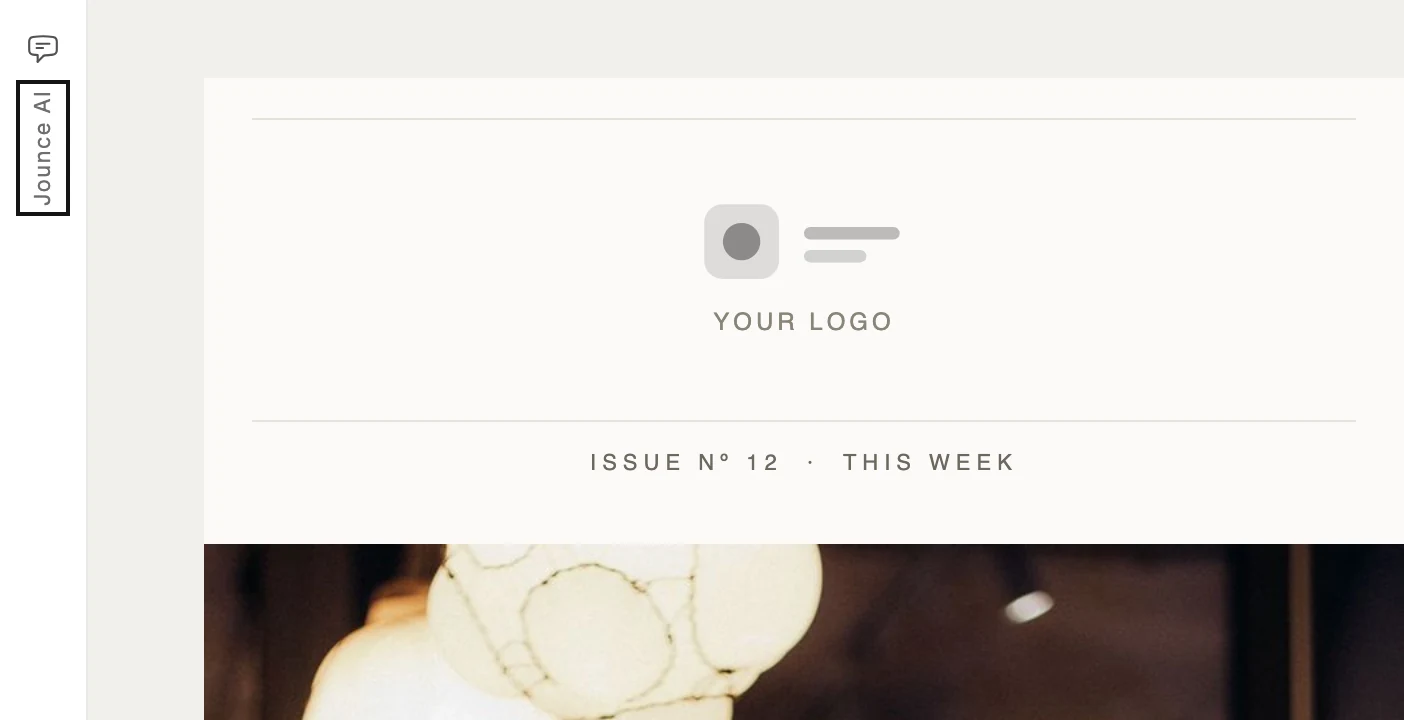
Open an email in the editor. The chat rests folded on the left edge, reading Jounce AI. Select it to open the chat.
-
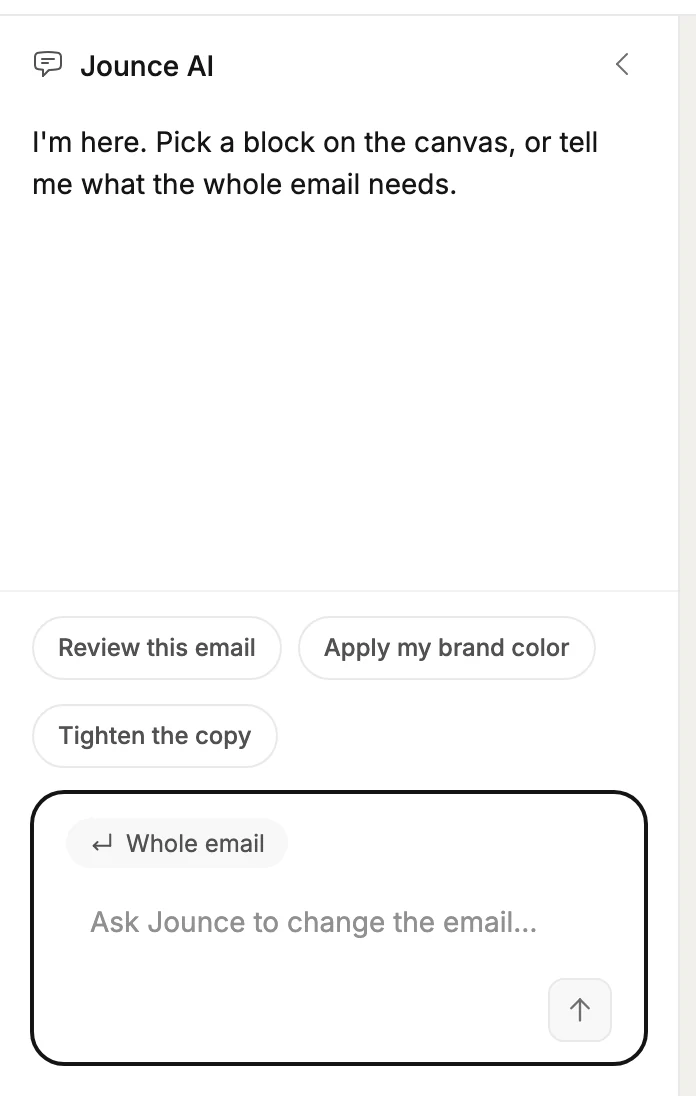
To talk about one block, select it in the email first. The label at the top of the message box changes from Whole email to Block, and the chat stays open. Select one part of the block, like its title, and the label names that part.
-
Type what you want in the box and press Enter, or select the arrow. Or pick a suggestion under the conversation, such as Review this email. An email with no blocks yet shows no suggestions.
-
A line under your message says what Jounce is doing. While it works, the arrow becomes a Stop button, which stops Jounce where it is.
-
Jounce says what changed, Done — take a look, and the email shows it.
Note If you signed up with an email and a password, the chat works once your email is verified. Until then, sending a message opens a window titled Verify your email to use AI, and what you typed stays in the box. Open the link in your email, select Verify email if asked, then I’ve verified, and send again.
What it can do
Jounce reads the whole email or the block you selected, recommends changes, and makes them. The words and the links are always on the table. The suggestions under the conversation show what else it offers for what you selected. Ask for a review, and it answers with numbered recommendations. Ask for a change, and it makes it.
In every email you create, Jounce can also add items to a list. Ask for a fifth benefit or one more product, and it adds the item and writes its words.
If the item has a photo spot, Jounce picks a photo from the free photo library. A price or other number stays a dash unless your message gives it.
A photo Jounce picks is a stock photo. When it stands in for something of yours, such as your product or your team, Jounce says it’s a placeholder. Replace it with your own in the settings panel.
Select a photo, and the suggestions include Find a photo. Jounce searches the free photo library for one that fits your email and puts it in. On the photo in an offer poster, Remove the background sits beside it.
In those emails Jounce can add a whole section too. Ask for a countdown, a list of steps or a note about parking. Jounce reads the email first, puts the section where it belongs, and says where that is. To choose the place yourself, name it: right after the menu, or at the very top.
A countdown ends on a day you give. Name it in your message, such as this Sunday or October 19, and Jounce sets the end. If you don’t, Jounce uses a date your email already states, or asks you which day and time.
When Jounce sets the end, Before you send shows the date and time it picked until you set your own.
Jounce writes the section’s words from your message and from the email. A part it has no words for is hidden or left out. If a line still shows sample text, Jounce says which one, so you can send it the words or type them in.
Jounce has no section that is a map, a poll, a progress bar or a chart. Ask for one, and Jounce says so and offers the nearest thing it can make: your address written out, a button to a link you give it, or your numbers as tiles.
What stays yours
The subject line and the preview text are set in the send steps, not in the chat. Jounce AI doesn’t change the mailing address or the unsubscribe line at the bottom of every email. To put your own words around the link, see Add your own words around the unsubscribe link.
In every email you create, a customer quote is someone else’s words, so Jounce won’t write one. Replace the sample text yourself. To add a testimonial, select its block, use + in the settings panel, then type your customer’s words.
Undo
Everything Jounce changes in one reply is one step. Press ⌘Z on a Mac or Ctrl+Z on Windows once you click the email, and it’s all back. In the message box, those keys undo your typing instead.
Undo also sits in the top bar, left of Preview. In an email that opens in the earlier editor, it’s at the bottom right. See How the editor saves your work.
If Jounce AI fails
Jounce says what happened, and what you typed goes back in the box. That run failed. Your email is as you left it — try again. means nothing changed. If the line says What changed so far stands, Jounce stopped after changing part of your email. What changed stays, and one Undo puts it back.
If your message was already sent, the reply reads Verify your email address first — Jounce sent you a link. Nothing was changed. The Verify your email to use AI window opens too.
Jounce paused AI features for everyone for now means Jounce has paused its AI for every workspace, not only yours. You can keep editing your email by hand. Try the chat again later; it’s back within a day.
You’ve reached your AI limit for now means you’ve used all the AI you can for now. You can keep editing your email by hand, and the line names when the chat opens again.
The chat and the settings panel
The settings panel on the right works as it always has, with one addition. The chevron at its top folds it to a thin edge, and selecting the edge brings it back.
On a narrow window the chat and the panel take turns. Opening one folds the other, and selecting a block never switches them. Each is one click away on its edge.
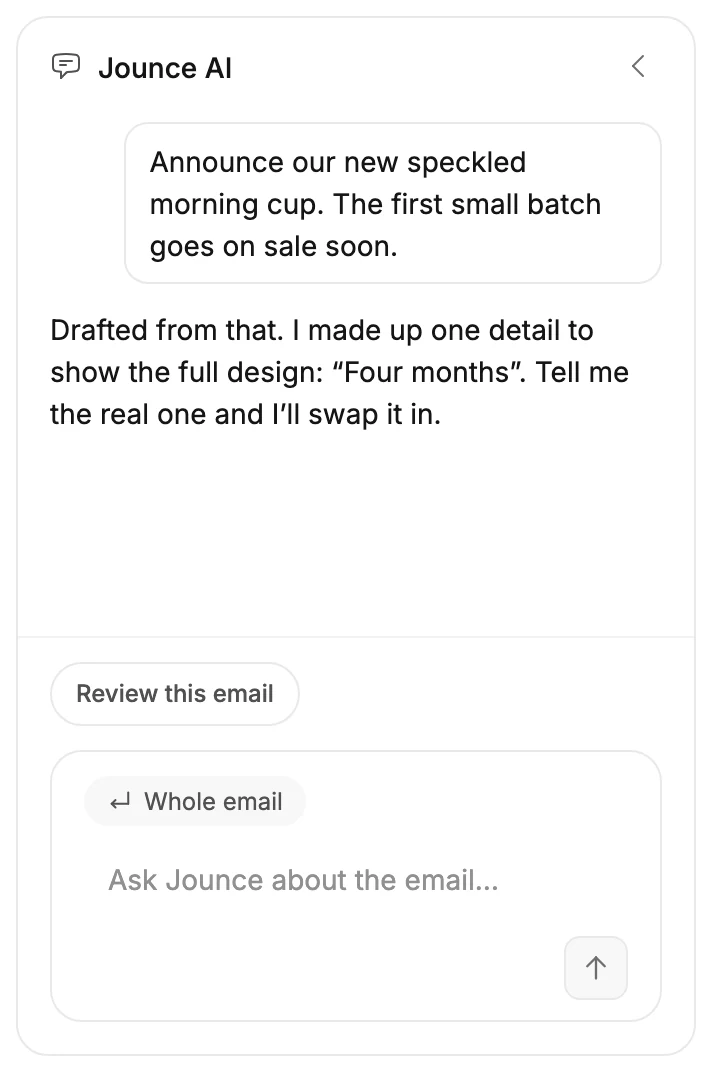
When Jounce drafts an email you started with AI, the chat opens right away. Your description is its first message. See Start an email with AI.
Note The confirmation email for double opt-in has no editor: Jounce writes it for you. See The confirmation email.
Next step
When it reads right, see Preview your email, then Send or schedule your email.
More in this topic
Updated