

The color picker
Short answer
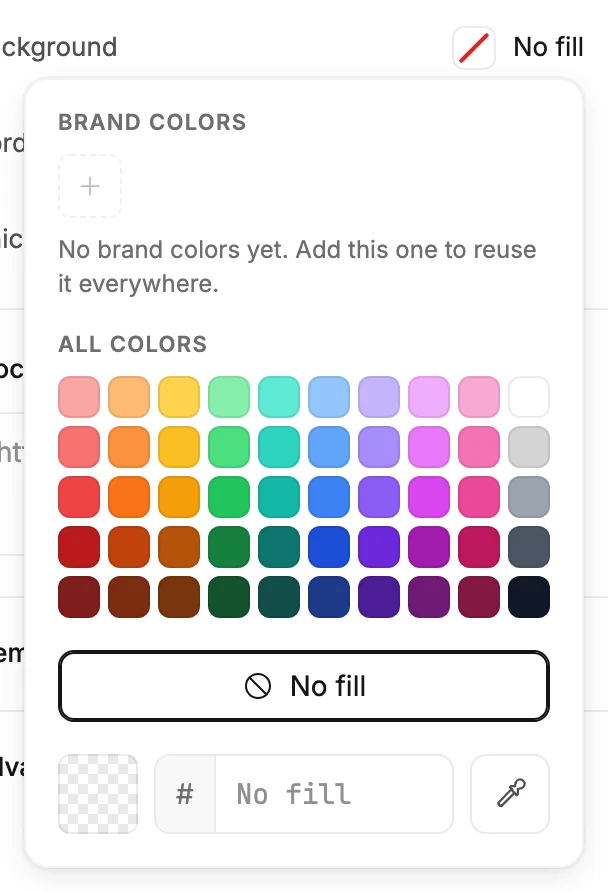
Every color swatch in the panel opens the same picker. Your brand colors come first, then a grid of all colors, No fill, and a box for a hex code.
Select any color swatch in the panel. The swatch shows the current color’s code, or No fill. The picker opens beside it. Press Esc, or select anywhere outside it, to close it.
Brand colors
The colors from your Brand page come first. Select one to use it. The + tile adds the current color to your brand kit, so it’s one click away in every email from then on. With none saved yet, the picker says No brand colors yet. Add this one to reuse it everywhere.
Point at a brand color and select its × to take it out of the kit. Emails already using that color keep it.
All colors
A grid of ready colors, one column per hue, light at the top and dark at the bottom. Select one to use it.
No fill
Removes the color. A background with no fill is see-through, so whatever sits behind it shows.
An exact color
Type the six-character code in the box after #, then press Enter. If your browser offers it, the eyedropper beside the box picks a color from anywhere on your screen.
More in this topic
Updated