

The Video block
Short answer
A video goes out as its picture with a play button, and a tap opens the video. Pick the Videos tile for a video on its own, or a video layout under Intros for one with a headline and a button.
An email can’t play a video, so a video goes out as its picture with a play button, and a tap opens it. In every email you create, there’s no Video block: a video is a layout. For an email that opens in the earlier editor, see the last section.
A video on its own
Pick the tray’s Videos tile. Its one card is a video on its own. Paste your video’s address under Link, and a YouTube or Vimeo link brings the video’s picture. See Add a video on its own.
A video with a headline and a button
The Intros tile holds three video layouts, under the heading Episodes and videos. Each shows a picture and a drawn play button, with a button under it. Select the picture, and Link takes a YouTube link, a Vimeo link, or any web address. See Link a video layout to your video.
A tap on the picture opens its own link, or the button’s link when it has none, unless the block has a block link.
What the email carries
Jounce sends the picture and its play button as one image. With no link on the picture, what shows depends on the button.
If the button is off or has no words, Before you send lists One play button has no link under Worth a look. The Review step says so too. The email can still go. See What Jounce checks before it sends.
If the button has words but no link, Before you send lists the button. The email can’t go until it has one.
In an email that opens in the earlier editor
There, a Video block is a link to a video on YouTube or Vimeo. The Video tile in the block tray adds one. Point at it and a small label reads Edit video. Empty, it reads Your video goes here. Select it and the panel reads Block › Video.
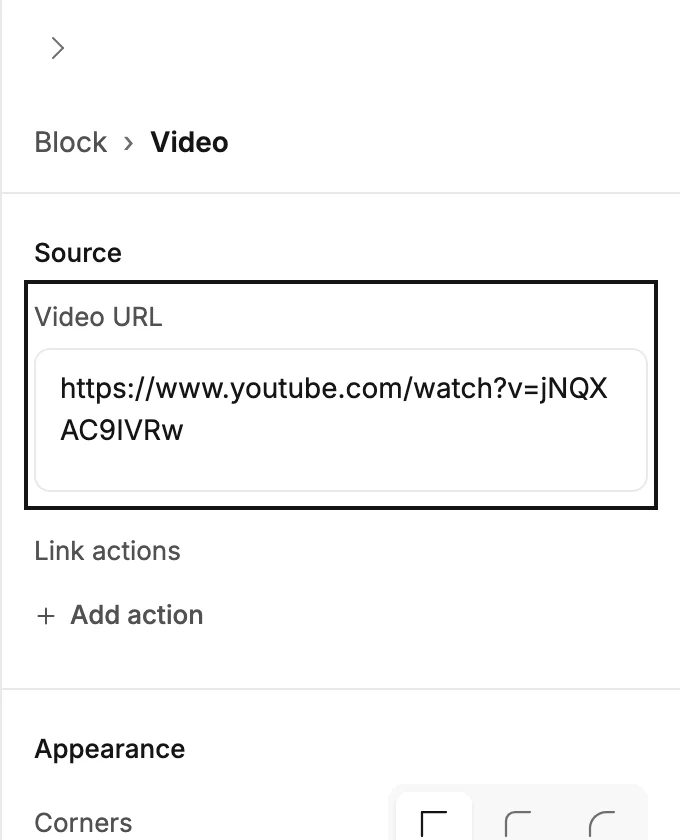
Source
- Video URL is the box for the video’s link. Its hint reads YouTube or Vimeo link. Any other link shows Paste a YouTube or Vimeo link under the box. The email won’t send until it’s fixed. See Add a video.
- Link actions appears once a link is in. A tap on the video can add the reader to a segment, take them out of one, or set a field. See Link actions.
Appearance
Corners rounds the picture’s corners: None, Soft, or Round.
Accessibility
Alt text describes the video’s picture for readers who don’t see it. The hint reads Describe the video. See Describe an image for readers who can’t see it.
A Video block also carries Background and Padding, like any block. See The Block panel.
What it sends
The video’s own picture, full width, with a white play button on it. A tap opens the video on YouTube or Vimeo.
In the editor a YouTube video shows its picture at once. A Vimeo video keeps the placeholder there. Jounce fetches the video’s picture when you send. If Vimeo can’t supply the picture at that moment, the block goes out as a plain Watch on Vimeo link. The email still sends, and the link still works.
More in this topic
Updated