

Save a block to favorites
Short answer
Select the star on a block to save it, then add it to another email from the Favorites tile in the tray. Favorites saved in the earlier editor are kept apart, and show only in emails that open there.
When you’re done, your workspace keeps a copy of the block, ready to drop into another email.
These steps are for every email you create. For an email that opens in the earlier editor, see the last section.
-
Select the whole block. A column of tools stands beside it. With a part of the block selected, press Esc, or select Block at the top of the settings panel.
-
Select the star. Point at it and it reads Favorite. Jounce says Saved to favorites, and the star now reads Favorited.
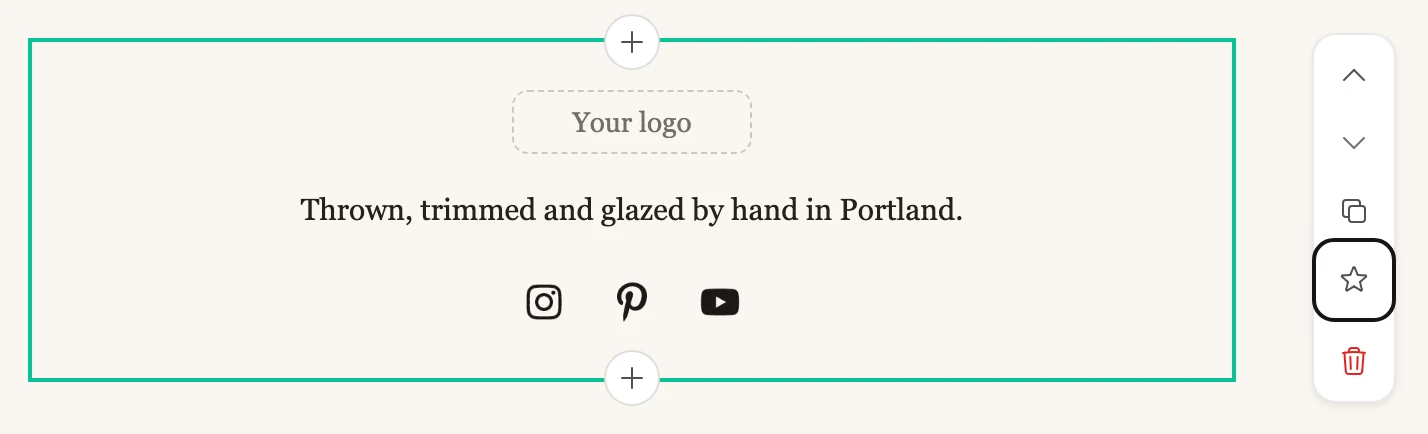
There’s nothing to name. Jounce names the favorite after the layout it came from. Changing the block later doesn’t change the saved copy.
Use a favorite
- Select a + in the email and pick the Favorites tile in the tray. The panel shows your saved blocks.
- Select one. It’s added where the tray opened, with the words, photos and settings you saved.
If you changed your brand kit since, the favorite arrives in the new colors and fonts. A color you set by hand stays. Until you save a block, that view reads Save a block, reuse it anywhere.
Remove a favorite
Select the star again on the block you saved it from. Or open Favorites, point at a favorite, and select the trash at its top-right corner, Remove from favorites. Jounce says Removed from favorites and offers Undo. The trash works even when the block you saved it from is gone. Emails that already use the block don’t change.
A saved block whose design Jounce no longer offers leaves the list.
Note A countdown timer has no star. Its deadline would be stale by the time you used it again, so add a fresh one instead.
Two sets of favorites
The earlier editor keeps its own set. A block you save in an email that opens there shows only in emails that open there. A block you save in any other email shows only in the others.
In an email that opens in the earlier editor
- Select the block. If the panel reads Block › Text or similar, select Block so the whole block is selected.
- Select the star in the block’s toolbar, Save to favorites. Jounce says Saved to favorites.
Jounce names the favorite after the layout it came from, or after its first words.
To use one, select Favorites in the block tray. Your most recent favorite is added at that spot. To choose among all of them, add a Layout block. Then pick Favorites from the Show menu at the top of the panel. Every saved block is there, and a click places it. Undo brings the last design back.
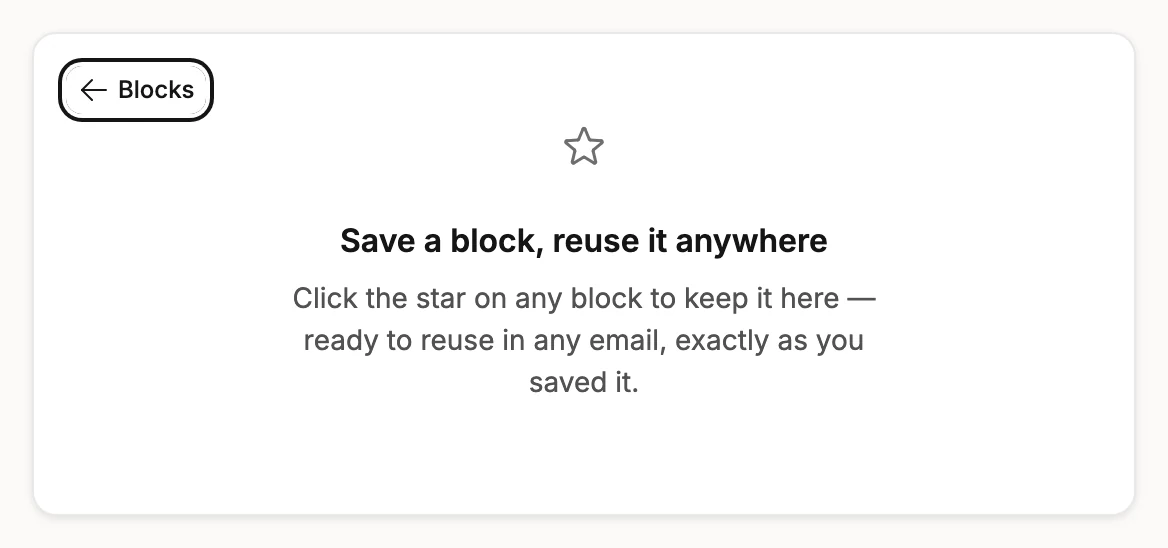
Until you save a block, the Favorites tile says Save a block, reuse it anywhere.
To remove one, select the star again on a saved block, Remove from favorites. Or point at the favorite in the layout library and select Remove from favorites. Jounce says Removed from favorites and offers Undo.
Next step
Drop it into another email from the tray: Add a block.
More in this topic
Updated