

Personalize with a subscriber’s name
Short answer
Select the word the name replaces, choose Personalize on the toolbar, and pick First name. Choose a word to show when a subscriber has no first name; the default is "there".
When you’re done, each subscriber reads their own name where you put the tag, and anyone without one reads the word you chose instead.
- Click into the paragraph, then select the word the name will replace. Type a stand-in word first if there isn’t one: Dear friend, works.
- Choose Personalize, the @ button on the toolbar. A menu lists First name, Last name, and Email address.
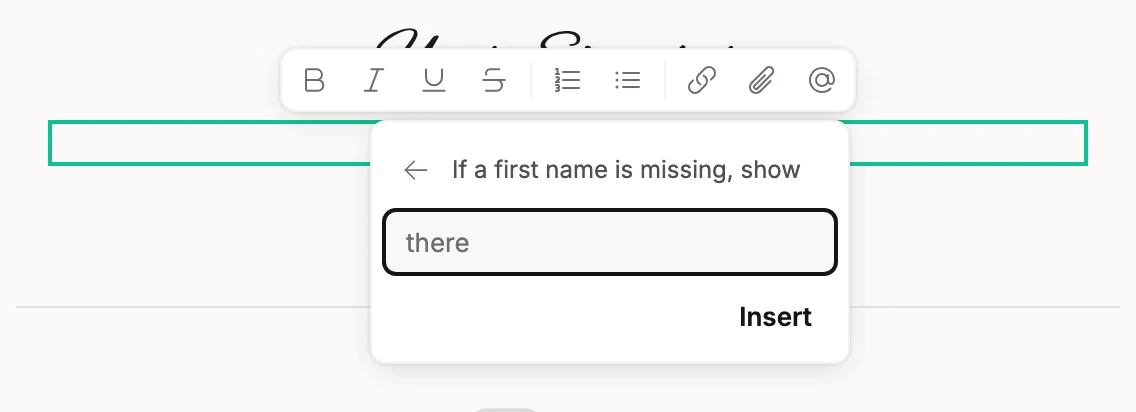
- Pick First name. The box asks If a first name is missing, show.
- Leave it as there, or type your own word, such as friend.
- Choose Insert. A tag reading First name replaces the selected word.
The tag is how the editor shows the fill-in. Hover it and it says what a reader sees: Each subscriber sees their own — Alex, for example. If it’s missing, “there” shows instead. Delete it like any word.

Last name asks the same question, with nothing as the default: a subscriber without one reads nothing there. Email address inserts straight away, since every subscriber has one.
Where it works
In every email you create, Personalize shows for body text: a paragraph, an intro, a letter, or body text in a list. A heading, a label, and a button don’t offer it.
Nor do words that sit on a picture, because those are sent as one image for everyone. Every reader would see the tag’s own text instead of a name.
Put a tag in words on a picture and the review step flags it. The send button stays off until you move the tag. See What Jounce checks before it sends.
Not in the confirmation email for double opt-in, either. Jounce writes it for you, and people get it before they confirm, so it never shows a name. See The confirmation email.
Not on a form. A visitor could be anyone, so Jounce has no name to fill in, and a form’s toolbar has no Personalize. See Edit the words, images, and buttons.
In an email that opens in the earlier editor, it works in a Text, Signature, or Footer block, and in a Title.
Note In an email that opens in the earlier editor, a heading with a tag in it can’t use an exact-look font. Those are sent as an image, and an image can’t change per reader. The Font list greys them out and says why. See Email-safe and exact-look fonts.
Next step
When the email reads right, see Send or schedule your email.
More in this topic
Updated