

Exclude people or segments
Short answer
On the Recipients step, select Exclude people or segments. Anyone you add to the Won’t receive box is left out, even if a segment above includes them.
When you’re done, the count at the top of the step drops by the people you left out, and the send skips them.
-
On the Recipients step, pick who gets the email first.
-
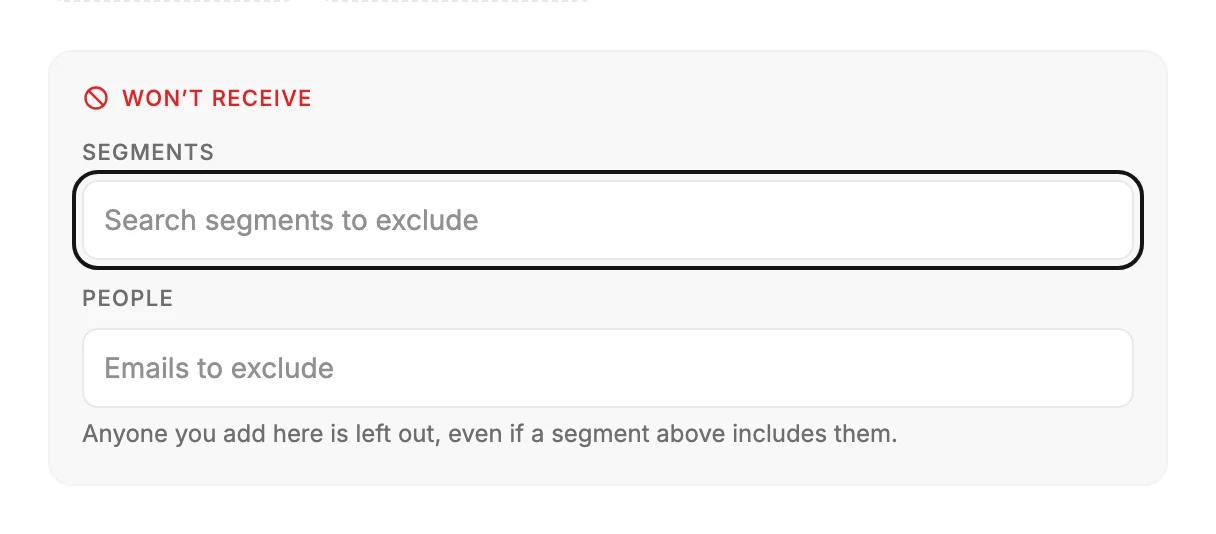
Select Exclude people or segments, under the fields. A box headed Won’t receive opens.
-
Under its Segments, pick the segments to leave out. Under its People, type or paste addresses to leave out.
-
Read the count at the top. It updates to the people who remain.
The box’s own line says the rule: Anyone you add here is left out, even if a segment above includes them. An address someone on your list used to have still leaves that person out. Excluding is for this send only. It changes nothing on your Audience page, and it doesn’t unsubscribe anyone.
If an address in the box turns red
You can’t exclude a typo or a test address either. The box says so: isn’t a real address, so it can’t be excluded. Fix it or remove it to continue. Correct the typo or remove the address. Until you do, Continue stays off, because the person you meant to protect would still be in the send.
If a segment you left out is deleted
Once a segment is deleted, Jounce can’t tell who was in it. So Jounce doesn’t send an email that leaves a deleted segment out, since it could reach the people you meant to skip.
No one is emailed, and your email is saved. It shows Failed, with the reason This email didn’t go out because it leaves out “Lapsed buyers”, a segment that was deleted. To send it:
- Under the reason, select Edit audience. The send steps open at Recipients.
- In the Won’t receive box, the deleted segment’s label is red. It keeps its name, or reads Deleted segment when there’s none to show. The box says “Lapsed buyers” was deleted, so Jounce can’t tell who was in it. Remove it, then choose who to leave out instead. The count reads Jounce can’t count your recipients while this email leaves out a deleted segment, and Continue stays off.
- Select the × on that label. The count comes back, and the box says Now choose who to leave out instead of “Lapsed buyers”.
- Pick who to leave out instead, under the box’s Segments or People. That note clears once you add one.
- Select Continue and send the email again.
An A/B test whose test group already has the email ends there instead. Only the test group gets it, and the campaign can’t be sent again. See Why did my send fail?
The steps mark a deleted segment this way before a send, too. If you had moved on to Subject or Review, they take you back to Recipients.
A deleted segment the email goes to turns red under Segments at the top, with was deleted. Remove it to continue. It reaches no one, so the count leaves it out. Continue stays off until you remove it.
Next step
Continue leads to the subject line: Write the subject line and preview text.
More in this topic
Updated