

Change an icon in a block
Short answer
In every email you create, select an icon and pick another in the settings panel; All icons opens the whole set. An icon has no color setting: Jounce draws it dark on a light background and light on a dark one.
When you’re done, the row shows the icon you picked.
Designs such as Info row, Member perks, and Date and place pair each line with an icon. Social icons work differently. See Edit your social links from an email.
-
Select an icon in the email. The settings panel’s heading reads Block › Icon. Under it is a grid of icons for that kind of row. The one in use has an outline.
-
Select another icon in the grid. The email changes at once.
-
For more to choose from, select All icons under the grid.
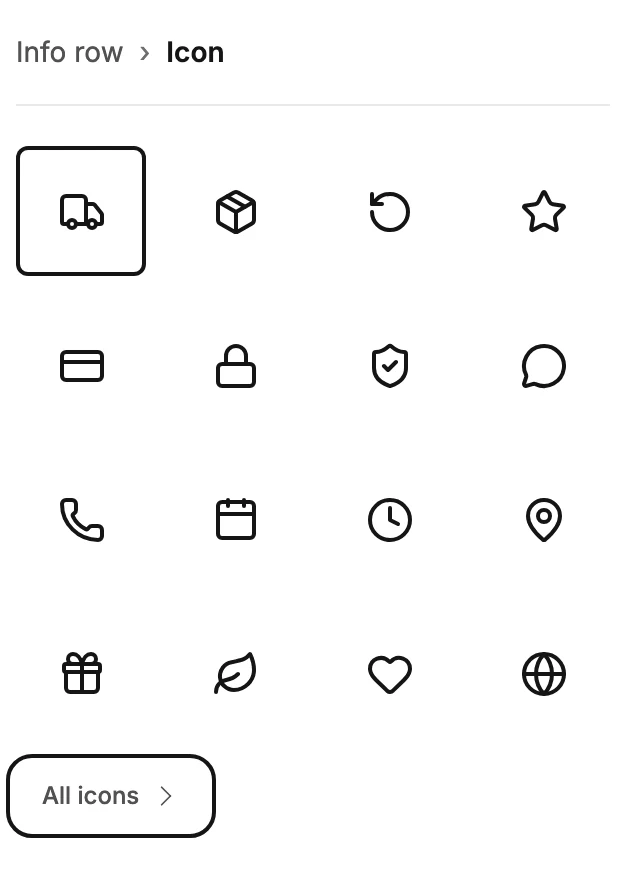
The heading changes to Icon › All icons, and the panel lists every icon in groups.
-
Scroll the groups, or type a word in Search icons at the top. A word for what the icon means works too:
shippingfinds the truck.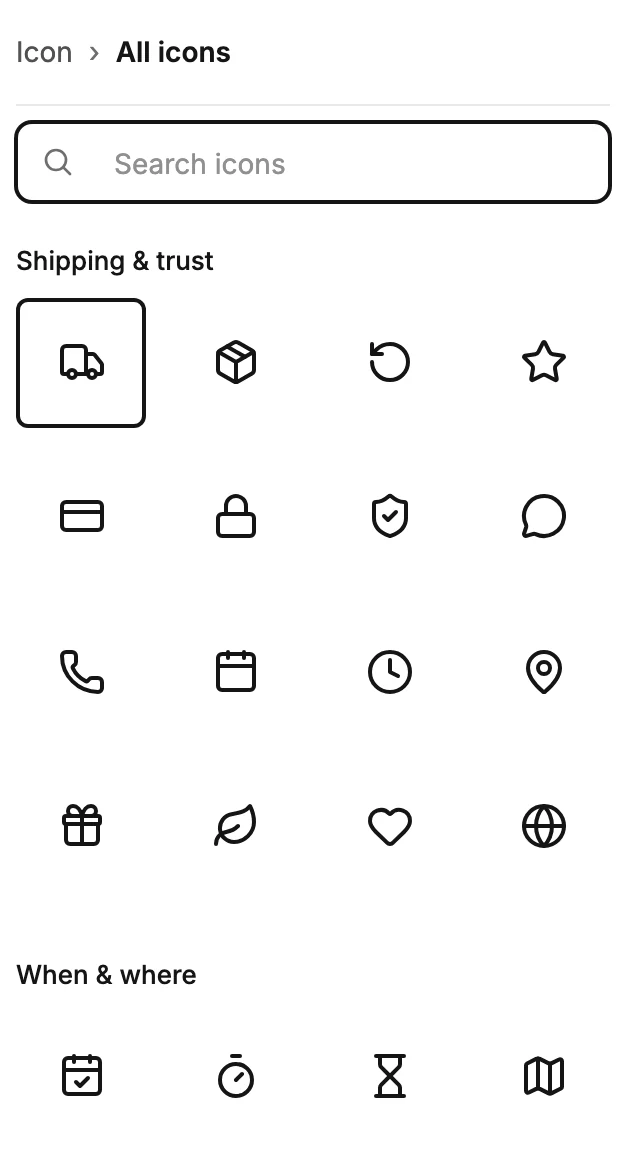
-
Select an icon. The email changes, and the list stays open so you can try another.
-
Select Icon at the top of the panel, or press Esc, to go back to the grid. Esc clears a search first.
Each row keeps its own icon, so the other rows stay as they are. Undo in the top bar puts the last icon back. Select anything else in the email and the list closes.
The groups
The headings are Shipping & trust, When & where, What you get, Tech & tools, People & learning, and Food & drink. After those come Wellness, Home & pets, Sales, Creative work, and Travel & outdoors.
The heading for your kind of row moves to the top: What you get for Member perks, When & where for Date and place. An icon you pick from another group joins the front of that row’s grid.
What stays fixed
An icon has no color or background setting. Jounce draws it dark on a light background and light on a dark one.
A checklist’s check marks and a quote’s stars belong to their designs, so no grid shows for them. You can hide a quote’s stars with the Stars switch under Elements.
An icon can’t be deleted by itself. Press Delete with one selected, and Jounce says why. Nothing changes.
To take the icon out, remove its whole row, which Jounce calls an item. To select the whole item, point at an empty part of it, beside the icon or past the end of its words. A thin outline wraps it. Click, and the panel’s heading ends in Items. Then press Delete.
Each of these designs has a smallest number of items. At that number, Jounce says so and the item stays.
Note Esc from an icon selects the whole block, not the item. Press Delete then, and the whole block goes. Undo brings it back.
Next step
To add a row or change how many there are, see The email editor screen.
More in this topic
Updated