

The earlier email editor
Short answer
This is the earlier editor: it opens for an email made in it, and every email you create opens in the other one. It shows the email’s name in its top bar, with Undo and Redo at the bottom right.
This is the earlier editor. It opens only for an email that was made in it, and a copy of one.
Every email you create opens in the other editor, whether you start from a template, with AI, or from scratch. See The email editor screen.
To tell the two apart, look for the email’s name. The earlier editor shows it in the top bar, and its Undo and Redo sit at the bottom right.
When it opens, the editor fills the screen. Your email is the thing in the middle. Everything else is there to help you change it.
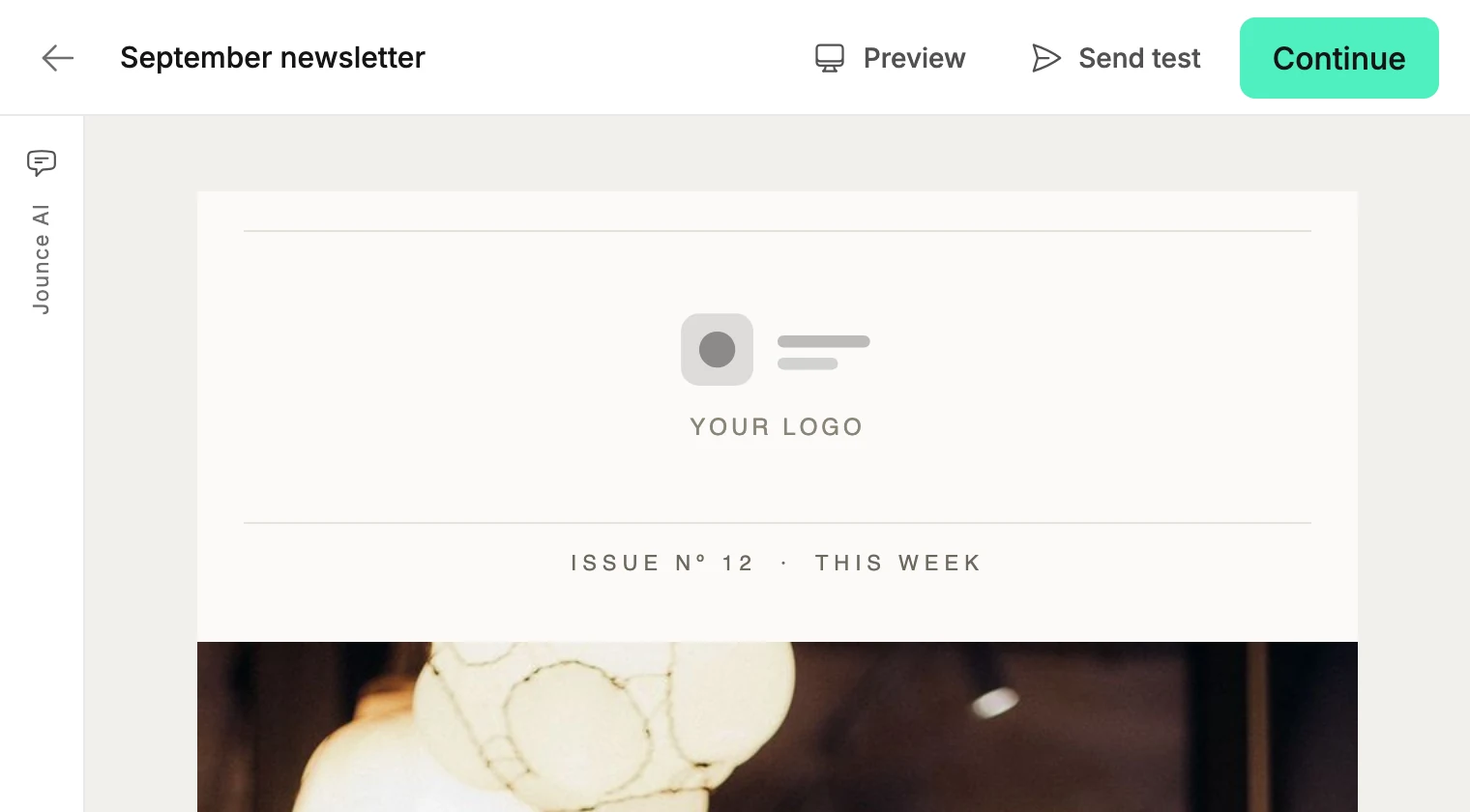
The top bar
- The arrow at the far left, Back to emails, returns you to your Emails page. Your work is already saved, unless the label at the bottom right reads Couldn’t save.
- The email’s name sits beside it. Select the name to type a new one. It saves as you type. See Rename an email.
- Preview shows the email the way it arrives, on a phone or a desktop. See Preview your email.
- Send test sends the email to your own inbox first. See Send a test email.
- Continue starts the send steps: who gets it, the subject line, and when it goes.
In an automation, an email shows Done in place of Continue. Its arrow reads Back to automation. Both take you back to the automation’s steps.
The email
The email is built from blocks stacked top to bottom: a title, a paragraph, a photo, a button. Point at any block and a small label says what a click edits, like Edit heading. Point at the top or bottom edge of a block and a + appears for adding a block there.
The mailing address and the unsubscribe line sit at the bottom of every email. They stay there. See Why can’t I delete this block?.
The panel
Select anything in the email and its settings open in a panel on the right. They cover fonts, colors, links and spacing. The panel’s title tells you what you’re editing. When it reads Block › Title, select Block to step up to the whole block’s settings.
Select the gray background outside the email to open the email’s own settings, titled Email. They cover the page and card colors, the text color, and the card’s border and corners.
The panel closes when you select something else. It also closes when you press Esc until nothing is selected. The chevron at its top folds it to a thin edge on the right. Select the edge to bring it back. See Select what you want to edit.
The chat
On the left edge, folded, sits Jounce AI. Select it and a chat opens beside the email. Ask for a review or a change, and Jounce reads the email and does it. See Edit your email with Jounce AI.
The bottom right corner
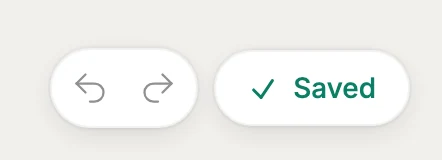
Two arrows undo and redo your last changes. Beside them, a label reads Saving… while Jounce writes your change, then Saved. See How the editor saves your work.
When an email grows heavy, a second label appears here with its size and a note about Gmail’s limit. See Why does the editor say Gmail will clip this?.
More in this topic
Updated