

Edit your form with Jounce AI
Short answer
Select Jounce AI on the left edge of the form editor, type what you want changed, and press Enter. Jounce reads the form, makes the change, and says what it did, and one Undo puts it all back.
When you’re done, Jounce has made the change you asked for, and one Undo puts it back.
-
Open a form in the editor. The chat rests folded on the left edge, reading Jounce AI. Select it to open the chat.
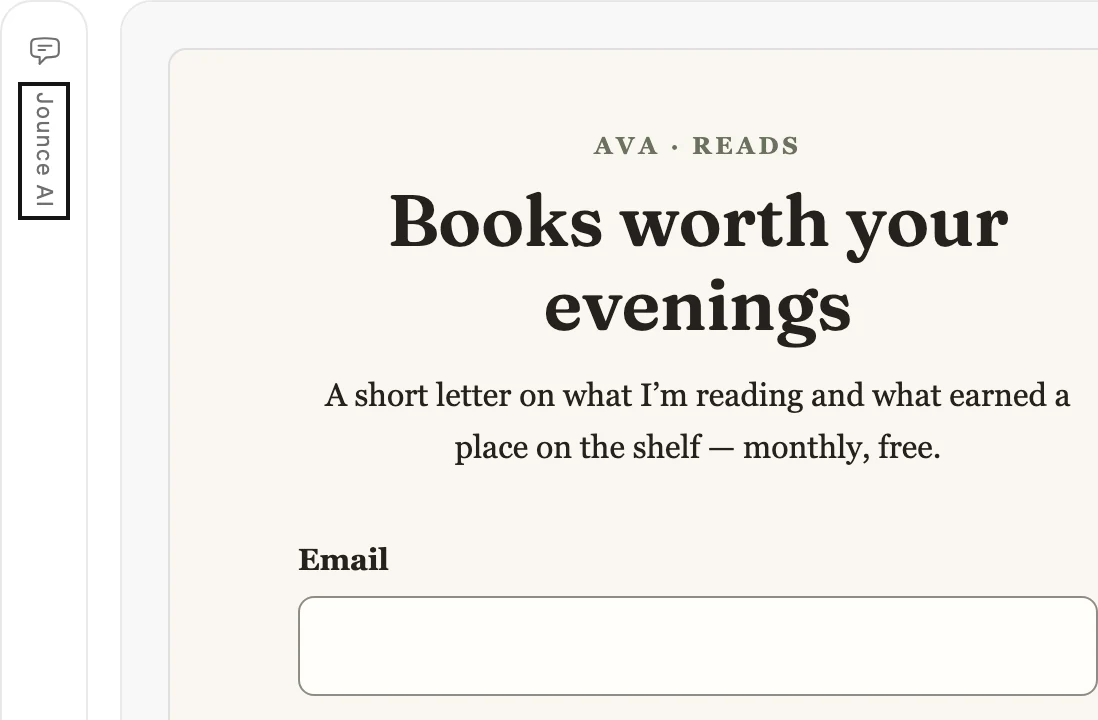
-
To talk about one part, select it on the form first, such as the heading, a field or the button. The label above the message box changes from Whole form to that part’s name, and the chat stays open.
-
Type what you want in the box and press Enter, or select the arrow. Or pick a suggestion under the conversation, such as Review this form.
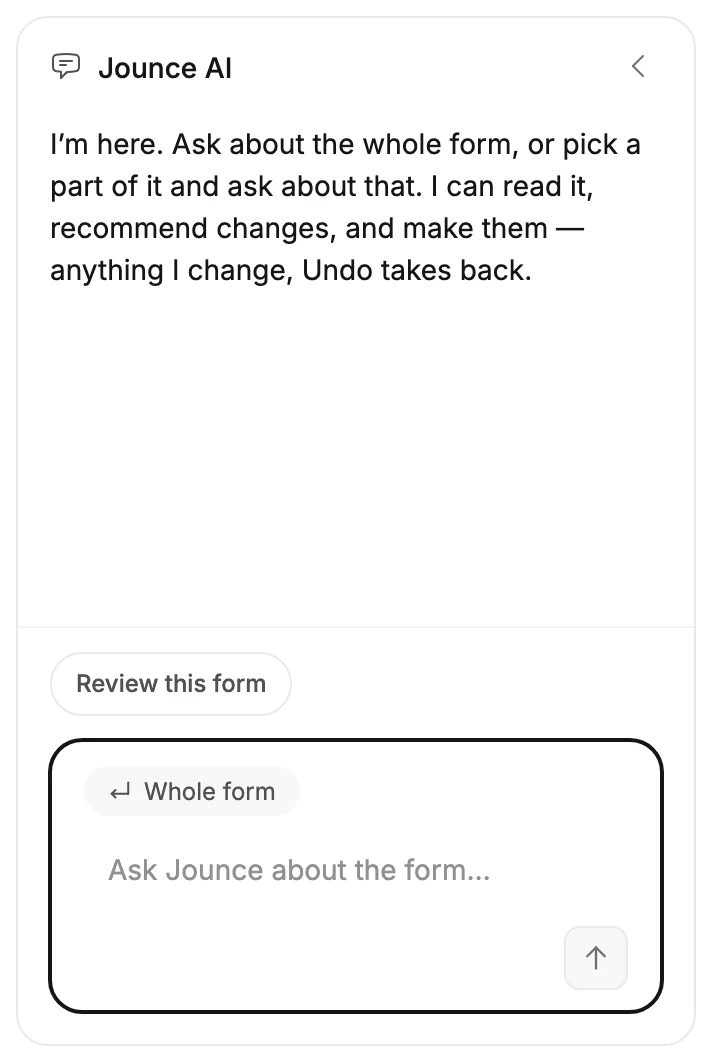
-
A line under your message says what Jounce is doing, such as Reading the form. While it works, the arrow becomes a Stop button, which stops Jounce where it is.
-
Jounce says what changed, and the form shows it.
Note If you signed up with an email and a password, the chat works once your email is verified. Until then, sending a message opens a window titled Verify your email to use AI, and what you typed stays in the box. Open the link in your email, select Verify email if asked, then I’ve verified, and send again.
What it can do
Jounce reads the whole form or the part you selected, recommends changes, and makes them. Ask for a review, and it answers with numbered recommendations and changes nothing. Ask for a change, and it makes it.
- It rewrites the words: the heading, the text, a field’s label and the button’s words.
- It shows or hides a sign-up field: first name, last name, company, job title, industry, street address or phone.
- It makes a field that shows required, or optional again.
- It adds or removes an item in a list, such as a benefit or a link.
- It picks a photo from the free photo library.
- It points a link at your site, your social links, a page you published, or an address you type in your message.
- It changes a part’s settings, and the form’s own: its Alignment, or an inline form’s Background.
- It rewrites the thank-you screen a visitor sees after they sign up, and shows or hides a part of it. That screen keeps the blocks it came with.
The suggestions follow what you select. Select the button, and they read Make it shorter and Say it another way. Select a photo, and Find a photo appears.
A photo Jounce picks is a stock photo. When it stands in for something of yours, such as your product or your team, Jounce says it’s a placeholder.
The email field always shows, and a visitor must always fill it in. The consent checkbox changes only when your message names it, such as the consent checkbox. Ticking it stays the visitor’s choice, so Jounce never makes it required.
A visitor isn’t a subscriber yet, so a form can’t greet them by name. Jounce writes its words without a first name.
On each kind of form
- On a full page, Jounce can also add, move, copy, swap and remove blocks. The last sign-up fields stay, because they are the form itself.
- On an inline form or a link-in-bio page, it can move blocks, but not add, copy, swap or remove them.
- A pop-up is one design that arrives whole, so nothing in it moves. For a different design, start another form from the template you want.
What stays yours
- Settings: where sign-ups go, whether people confirm by email, what happens after they sign up, and when a pop-up shows. See The Settings dialog.
- Share, where the form goes live.
- Fonts and colors, which come from your brand kit.
- A picture from your own computer. Replace a photo with yours in the settings panel.
On a full page, A reader’s word holds a quote, which is someone else’s words. Jounce won’t write one or add one. Type a real quote in yourself.
Undo
Everything Jounce changes in one reply is one step. Select Undo in the top bar, and it’s all back.
⌘Z on a Mac or Ctrl+Z on Windows does the same once you click the form. In the message box, those keys undo your typing instead.
Note On a live form, Jounce’s changes reach your visitors the way your own edits do. See Editing a live form.
If Jounce AI fails
Jounce says what happened, and what you typed goes back in the box. That run failed. Your form is as you left it — try again. means nothing changed. If the line says What changed so far stands, Jounce stopped after changing part of your form. What changed stays, and one Undo puts it back.
Jounce can read and change this form once you’re signed in — nothing was changed. means you were signed out. Sign in again to keep using the chat.
If your message was already sent, the reply reads Verify your email address first — Jounce sent you a link. Nothing was changed. The Verify your email to use AI window opens too.
Jounce paused AI features for everyone for now means Jounce has paused its AI for every workspace, not only yours. You can keep editing your form by hand. Try the chat again later; it’s back within a day.
You’ve reached your AI limit for now means you’ve used all the AI you can for now. You can keep editing your form by hand, and the line names when the chat opens again.
The chat and the settings panel
The chevron at the top of the settings panel folds it to a thin edge on the right, reading Settings. Select the edge to bring it back.
When the window is too narrow for both beside the form, the chat and the panel take turns. Opening one folds the other, and selecting a part of the form never switches them. The form keeps its own width, so a full page needs the widest window for both, then a pop-up.
When Jounce drafts a form you started with AI, the chat opens right away, with your description as its first message. See Start a form with AI.
Next step
When it reads right, see Publish your form.
More in this topic
Updated