

How the editor saves your work
Short answer
Every change saves on its own, so there is no save button. Undo and Redo sit in the top bar, and the bottom right corner speaks up only when a change couldn’t save.
There is no save button. Each change saves to your workspace a moment after you make it. This is how it works in every email you create. For an email that opens in the earlier editor, see the last section.
When you start an email from scratch on the Create email screen, nothing is kept until your first change. That change saves the email, and it shows on your Emails page as Untitled draft.
When a change doesn’t save
The bottom right corner stays empty while your changes save. If one fails, it reads Couldn’t save: Jounce couldn’t save your last change, so it’s only on your screen. See Why does the editor say Couldn’t save?.
If you close the tab while a change is still saving, your browser asks whether you want to leave. Once the change has saved, it won’t.
If you go offline
A note at the bottom left says Offline — edits stored on this device. Keep working.
Each change waits on this computer until you’re back online. Then your changes reach Jounce on their own, and Jounce says Back online. Everything synced. once they have.
You can leave the email while you wait. If you close the tab first, they get there the next time you open Jounce on this browser. Signing out clears them. See Sign out of Jounce.
In a private window, keep the Jounce tab open until Jounce says Back online. Everything synced. If you close it sooner, you can lose changes that haven’t reached Jounce.
Undo and redo
The two arrows in the top bar, left of Preview, step back and forward through your changes. Undo is ⌘Z on a Mac or Ctrl+Z on Windows. Redo is ⇧⌘Z or Ctrl+Shift+Z. Undoing typing takes back a stretch at a time, never letter by letter.
An undone change stays available to redo until you make a new change. Deleting a block, pasting one, swapping a layout, and placing a favorite are each one step. So is everything Jounce changes in one chat reply. One Undo puts the whole thing back. See Edit your email with Jounce AI.
In an email that opens in the earlier editor
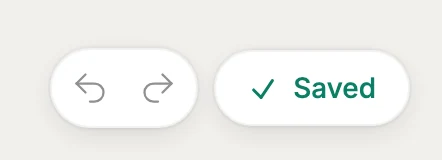
There, the email’s name saves as you type it, and a label at the bottom right tells you where things stand. The two arrows sit beside it.
| It reads | What it means |
|---|---|
| Saving… | Your last change is on its way to Jounce |
| Saved | Everything you see is in your workspace |
| Couldn’t save | Jounce couldn’t save your last change, so it’s only on your screen |
While you’re offline there, the label reads Saving… until your changes reach Jounce. Undo doesn’t change the email’s name.
More in this topic
Updated