

Add a designed layout
Short answer
Select the + at a block’s edge, pick a tile, and choose a card in the panel’s library: it’s added at once. In the earlier editor, the tray’s Layout tile opens that library.
When you’re done, a designed section sits where you pointed, with sample words and photos ready to replace.
These steps are for every email you create. For an email that opens in the earlier editor, see the last section.
- Point at a block and select the + at its top or bottom edge. The tray opens right there in the email.
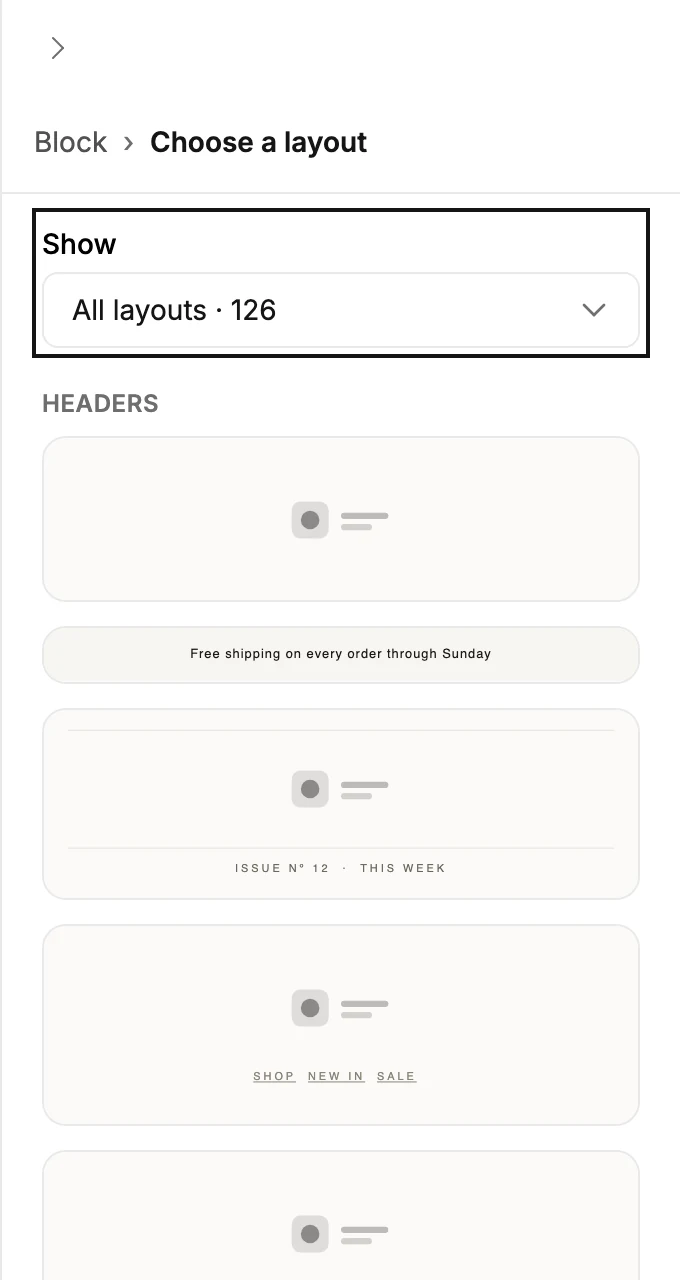
- Pick a tile. Each one opens the library in the panel on its own group, under Choose a layout. All layouts opens every design. Nothing is added yet.
- Select a card. It’s added where the tray opened, selected, with its settings open.
- Select the words in the block to replace them, and each photo to replace it.
The whole tray, tile by tile, is in Add a block.
What a new layout starts with
A design arrives with its sample words and photos, ready to replace. Keep any wording you like, but replace a sample date, price, or name with the real one before you send. Image and Video arrive empty. The block wears the colors and fonts saved on your Brand page.
In an email that opens in the earlier editor
There, the Layout tile holds the library, and the block appears as soon as you pick a card.
-
Point at the block above or below the spot you want. Select the + at its edge.
-
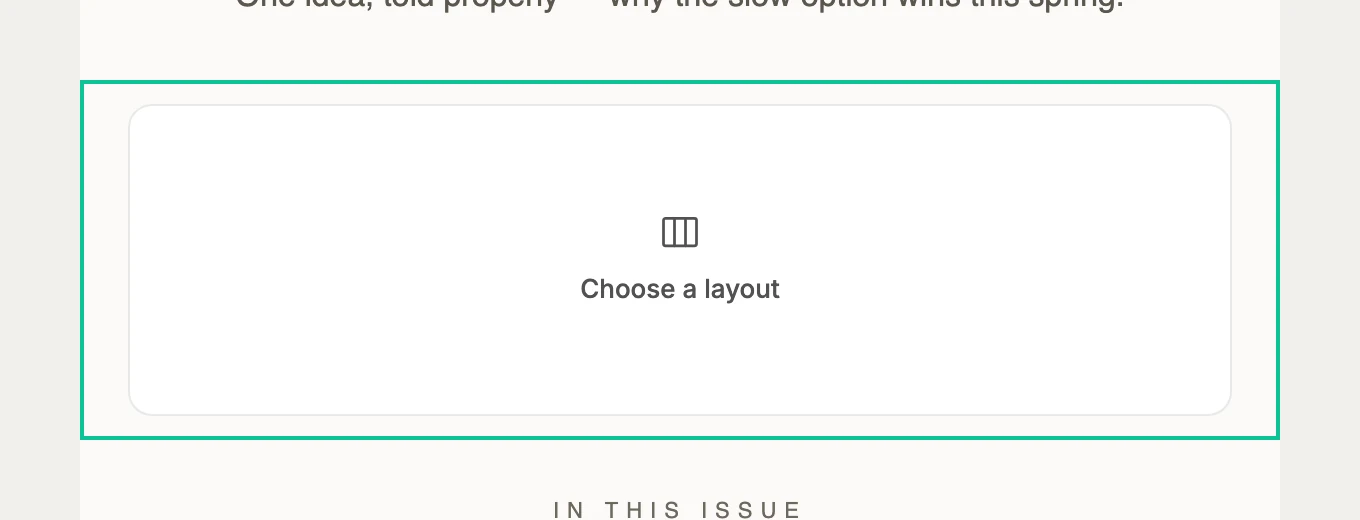
Pick Layout. A card reading Choose a layout marks the spot, and the panel opens the library under the same title. Nothing is added yet.
-
Use Show to pick a group, or scroll the whole library. See The layout library.
-
Select a card. The block is added at the spot. The panel title changes to Swap layout, so you can keep clicking cards until the design is right.
-
Select the words in the block to replace them, and each empty photo spot to add a picture.
To change your mind before picking, select anywhere else or press Esc. The card goes away, and your email is as it was.
A layout there starts with the design’s sample words, and every photo spot starts empty. See Apply your brand to new emails.
Next step
Not the right design? Your words stay when you follow Swap a layout. For the photo spots, see Add an image to your email.
More in this topic
Updated