

Choose who gets your email
Short answer
On the Recipients step, pick one or more segments, or select Add people and type addresses. The number at the top counts who will receive the email.
When you’re done, the count at the top of the step shows how many people will receive the email. Continue takes you to the subject line.
-
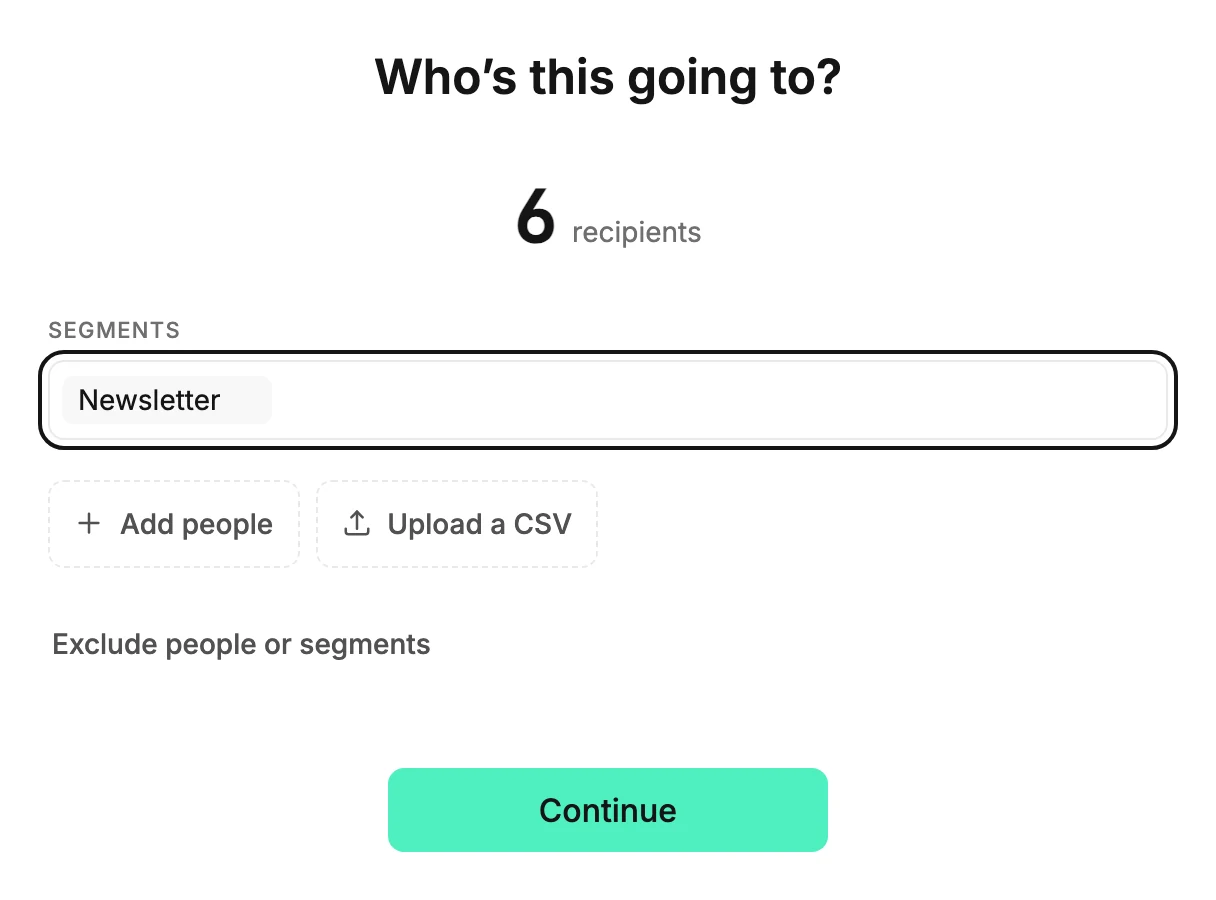
In the editor, select Continue. The Recipients step asks Who’s this going to?
-
Under Segments, select the field and pick a segment from the list, or type part of its name. Pick as many as you like. Someone in two of them gets the email once.
-
Read the number at the top. It says Counting… for a moment, then shows how many people the send reaches.
-
Select Continue.
To add people one at a time
Select Add people. A People field appears. As you type, Jounce offers matching subscribers by name and address. Pick one, or type a full address and press Enter to add someone who isn’t on your list yet.
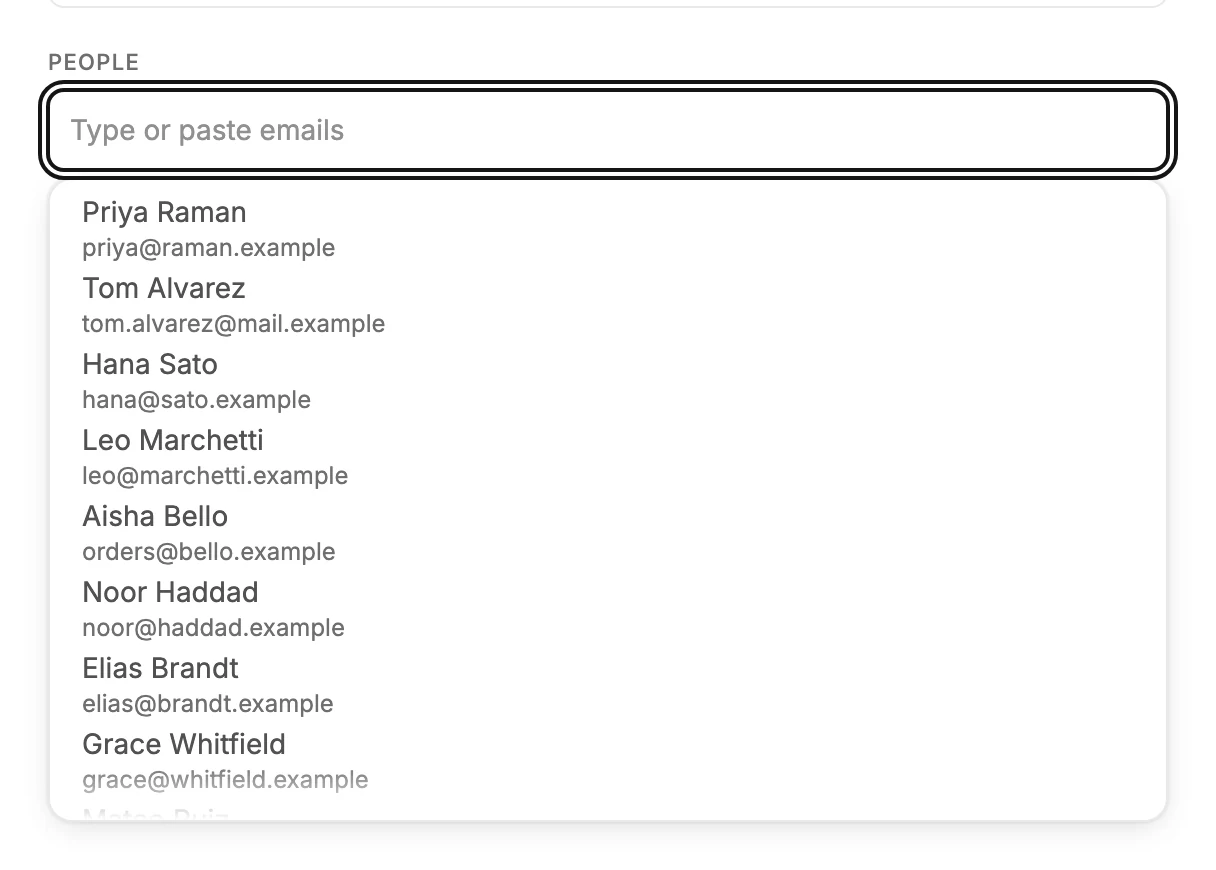
Someone you add by address becomes a subscriber on your list when you send, schedule, or hand off the email. The line under the field says why that matters: Only add people who asked to hear from you.
Two kinds of address aren’t added. A temporary address still gets the email, and a note on the step says so. For an address someone on your list used to have, the email goes to their current address instead. If you deleted them, it goes to no one.
To send to a list you haven’t imported
Select Upload a CSV. The import screen from the Audience page opens, with the same column matching and permission statement. When it finishes, Jounce says it added the list as a segment and picks it for you. See Import subscribers from a CSV file.
A long list imports in the background. The segment is picked for you right away, and Continue shows a spinner until the import finishes. Until then, the note under the fields says Jounce is adding your list. If the import stops partway, the note says Jounce couldn’t finish adding your list, and the count shows who made it in.
What the count means
The number is how many people will get the email. Jounce has already taken out duplicates and anyone it won’t send to. The count can be lower than a segment’s size. See Why is Jounce skipping some people?.
While your list is warming up, Jounce emails only so many people a day for it. If the count is over your daily limit, a note above Continue gives the limit, and Continue stays off until the audience fits.
To ask Jounce to lift it sooner, select Request an earlier increase in the note. See Why can’t I email my whole list yet?
Note Pasting a long list of addresses that aren’t on your list yet turns the send into an import. With more than a couple of dozen new addresses, Jounce asks you to select Import these addresses. That moves them into the import screen, where they’re checked and recorded the same way. They come back as a segment, already picked.
Next step
Next on the steps: Write the subject line and preview text. To leave some people out first, see Exclude people or segments.
More in this topic
Updated