

Swap a layout
Short answer
Select the block, choose Swap design in the panel, and pick another card. Each similar design’s card shows your own words and photos, just as the swap would land, and Undo brings the old design back.
When you’re done, the block wears a different design and still says what you wrote.
These steps are for every email you create, where the button reads Swap design. For an email that opens in the earlier editor, see the last section.
-
Select the whole block. With a part of it selected, press Esc, or select Block at the top of the settings panel. Swap design shows beside it.
-
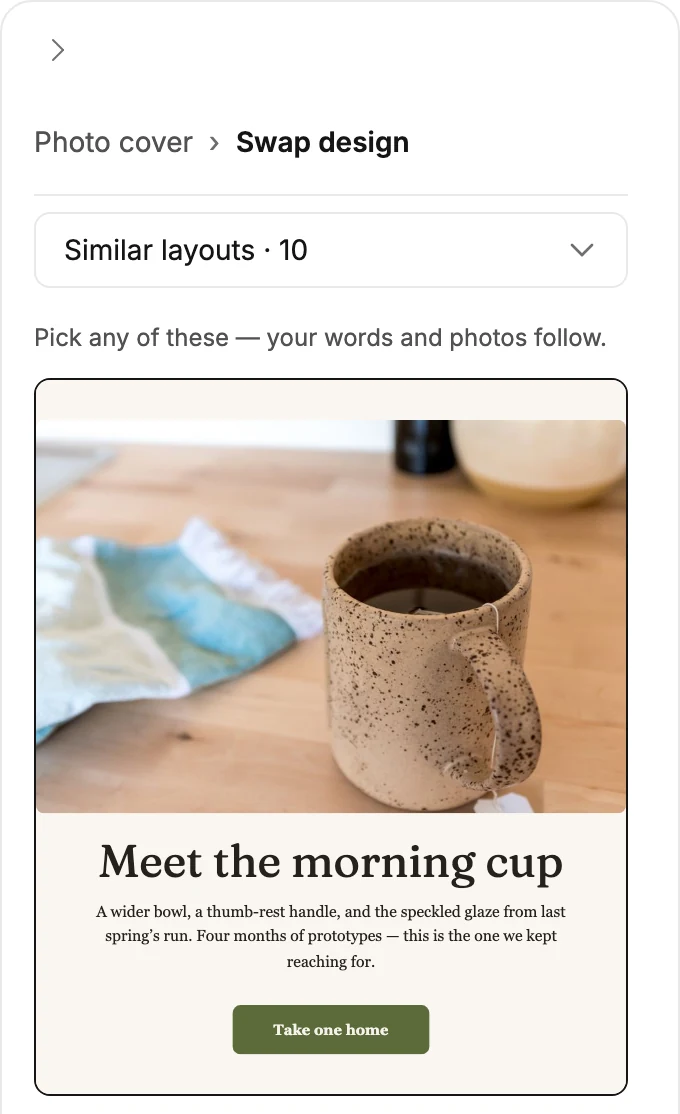
Select Swap design. The library opens on Similar layouts: designs built from the same main parts as yours. Each card shows your own words and photos, as many as that design will hold. The outlined card is the design your block has now.
-
Select a card. The block changes at once, to just what the card showed.
-
Keep trying cards until it looks right. The panel stays open.
-
Press Esc to return to the block’s settings.
Undo in the top bar brings the last design back.
Note If you don’t see the settings panel, it’s folded. Select Settings at the right edge of the window.
What moves and what stays
Only similar layouts keep your words and photos. A part the new design doesn’t have, such as a badge, stays behind. It returns if you switch back.
Words go to the spot that means the same thing. A course name becomes a link’s title, and its link goes with it. A paragraph never lands in a one-line spot, such as an offer’s deadline or its code.
A photo whose background you removed moves as the original photo. The cutout returns if you switch back.
When you switch back to a similar design you tried earlier, what you’ve typed since always wins. Your words and photos move in as they are now. The earlier version only fills the gaps: a part the other design had no room for, such as a price, and the items it set aside.
When a similar design has room for fewer photos or items, Jounce says how many fit. If it has none of them, like a logo design with no links, Jounce says that instead. The rest come back if you switch back while your list still has the same number of items. If you’ve shortened it since, they don’t.
A block link moves with the block. A design with no Block link, such as a list of links, sets it aside. Jounce says This design has no block link. Yours returns if you switch back.
The rest of the library
Pick All layouts from the menu at the top. Every design but the logo ones is there, a plain paragraph and a single photo too.
A design that isn’t similar starts with its own words and photos, and its card shows them. One you tried earlier in this block comes back as you left it, and its card shows it that way.
A block with your logo swaps only with the other logo designs, and your logo follows into each one. Its list has no menu.
A block with no similar layouts opens on its own group, or on every layout, and says so. See Why does Swap layout show only some layouts?
In an email that opens in the earlier editor
The button there reads Swap layout.
-
Select the block. Point at its edge until the label reads Swap this layout, then click. Or select any part of it and then Block at the top of the panel.
-
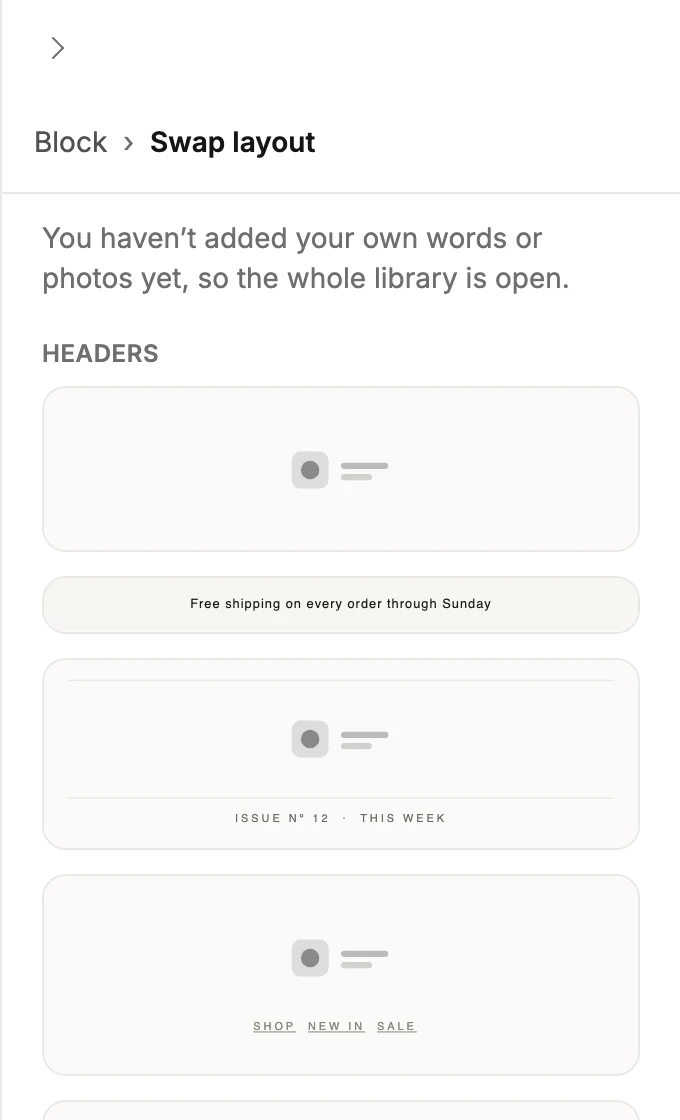
In the panel, select Swap layout. The library opens, showing the layouts with room for what you’ve written.
-
Select a card. The email changes at once, and your words and photos show up in the new design.
-
Keep clicking cards until it looks right. The panel stays open.
-
Select Block at the top of the panel, or press Esc, to return to the block’s settings.
Undo at the bottom right returns the last design. Jounce also remembers what you wrote in each recent design you tried in this block. Pick one of those cards again and that version comes back exactly as it was.
A design you haven’t tried in this block arrives fresh, in the colors and fonts saved on your Brand page. See Apply your brand to new emails.
Swap layout shows only the layouts with room for everything you’ve written and every photo you added.
Next step
To turn off a part the new design brought along, see Show or hide part of a block.
More in this topic
Updated