

Select what you want to edit
Short answer
Point at your email and a thin outline shows what a click selects. Click once to select it and see its settings, and click selected words again to type in them.
When you’re done, the thing you want to change is selected, and its settings show in the panel on the right.
These steps are for every email you create. For an email that opens in the earlier editor, see the last section.
- Point at the email. A thin outline shows what a click selects.
- Click. The panel shows the settings for what you selected. In a block with several parts, its heading names the part, with Block › before it, such as Block › Heading.
- To change the words, click the selected text again. The cursor appears where you clicked, and you type as in any document.
- To reach the whole block’s settings, select Block at the top of the panel, or press Esc once. The heading reads Block, and the block’s tools stand beside it.
Note If the settings panel is folded, select Settings at the right edge of the window to open it.
Stepping back out
Esc walks you back one level at a time: out of the words, then from a part to its block, then to nothing selected. Select the space around the email to select nothing. The panel then shows the email’s own settings, under the heading Email.
A block with one part
A block with one part, such as a paragraph or a photo on its own, is that part. Its heading reads Block whichever you select, and its tools show beside it. See The email editor screen.
In an email that opens in the earlier editor
There, a small label above the outline names what a click edits: Edit heading, Edit text, Edit image, Edit button.
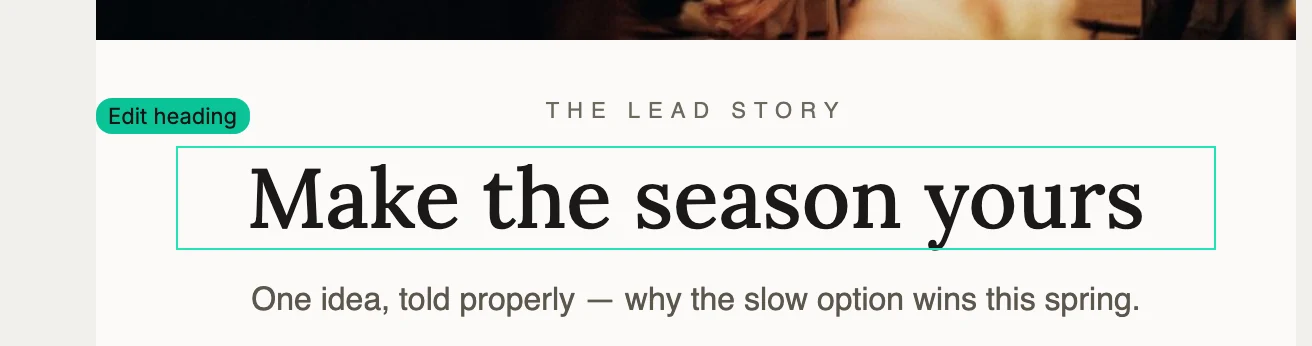
Click, and the outline turns solid. The panel opens with that element’s settings. Click the selected text a second time to type. To reach the whole block’s settings, select Block at the top of the panel, or press Esc once.
Esc walks you up one level at a time there too. Click the gray background outside the email to select the email itself.
The label is the promise. The outline under your pointer is exactly what a click selects. A block made from a designed layout says Swap this layout when you point at its edge. Point at a photo or a line of text inside it and the label names that element.
Next step
To change the words, see Edit text in your email. For the block’s look, see The Block panel.
More in this topic
Updated