

Add a countdown timer
Short answer
Pick the tray’s Countdowns tile and choose a timer, then set the moment it ends under Ends and Timezone. Each reader sees the true time left when they open the email.
When you’re done, a timer sits in your email counting down to the moment you set. Every reader sees the real time left when they open it.
These steps are for every email you create. For an email that opens in the earlier editor, see the last section.
- Point at a block and select the + at its top or bottom edge, then pick the Countdowns tile. The panel shows the timers.
- Select a card. The timer is added, and the panel shows its Countdown settings.
- Under Ends, pick the date and the time. Under Timezone, pick the zone that time belongs to.
- Type the label and the button’s words in the Label and Button boxes. On most timers you can type them in the email too.
- On most timers, select the button in the email and put its address in the box under Link. A tap on the timer opens that address too.
A timer you add starts with a sample end time, and its button has no address yet. Until you pick an end under Ends, Before you send lists The countdown still needs its end time.
Until the button has an address, or you turn it off under Elements, it lists One button still needs a link. The email can’t be sent before both are done.
What to expect next
The editor shows the timer as it stood when you opened it or last made a change. It doesn’t tick there. The sent timer does. See How a countdown works in the inbox.
Every timer counts to one moment for everyone. Its look and the rest of its panel are in The Countdown block.
In an email that opens in the earlier editor
There, the Countdown tile adds a timer, and its panel adds a schedule.
- Hover the line between two blocks and select +. The block tray opens.
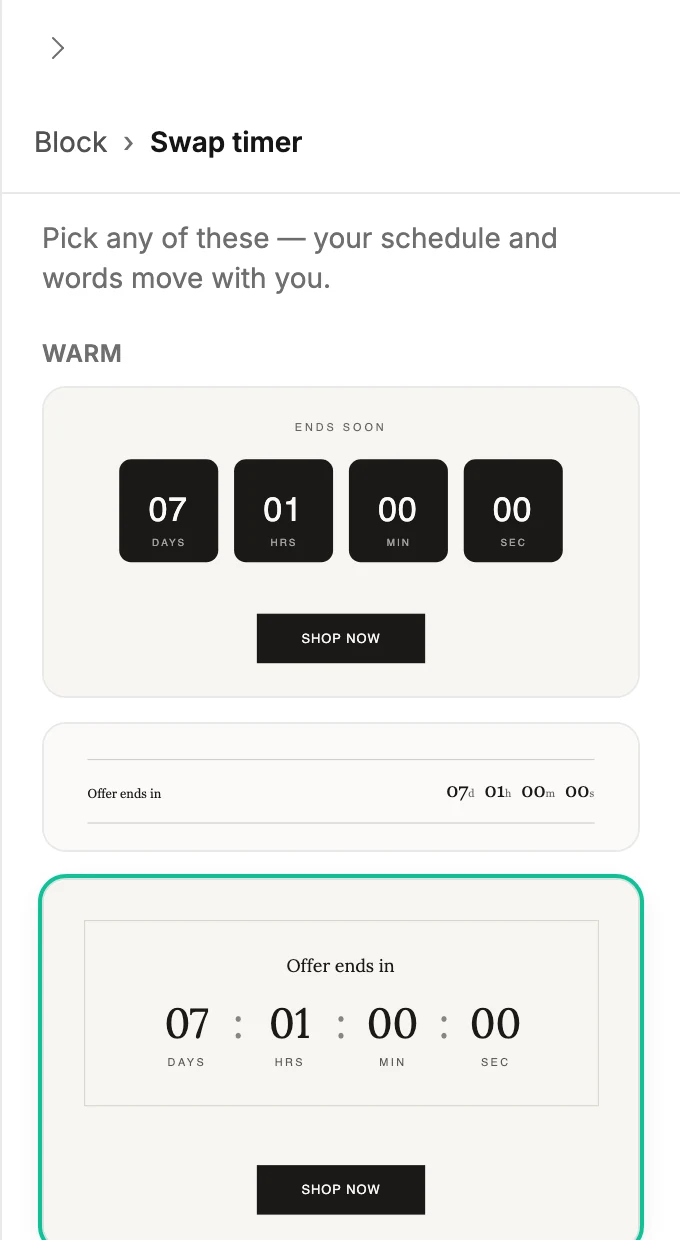
- Select Countdown. A timer appears, and the panel opens on Swap timer with the designs grouped by look.
- Pick a design, or select Block at the top of the panel to keep the one already there. The panel shows the timer’s settings.
- Under Schedule, leave Type on Fixed. Under Ends, pick the date and the time. A time that has passed can’t be picked.
- Under Timezone, pick the zone the time belongs to. Type to search the list.
- Select the timer’s label in the email to change its words, and the button to change its.
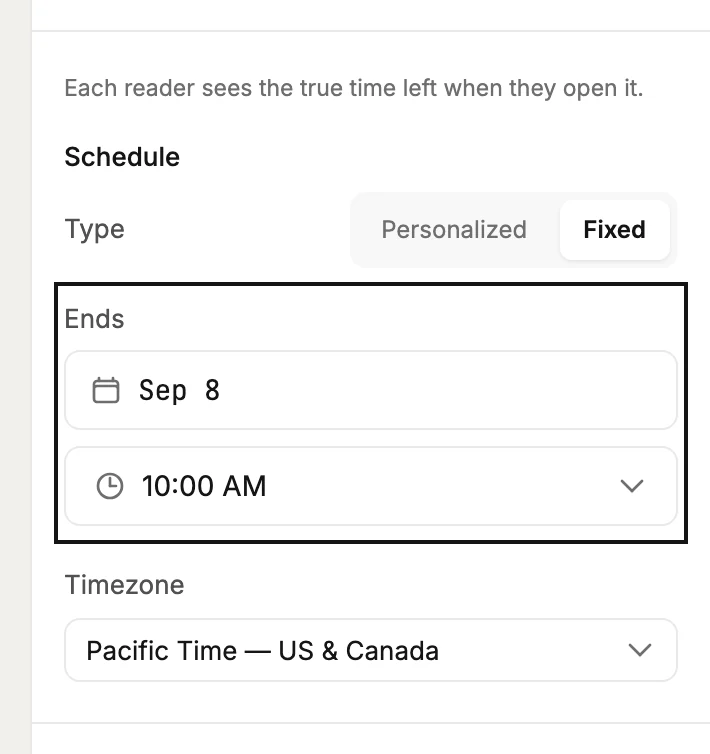
Personalized under Type counts a set length of time from each reader’s first open there, not to one moment.
Next step
Watch it tick in a real inbox: Send a test email.
More in this topic
Updated