

Preview your email
Short answer
Select Preview in the top bar. The email opens the way it arrives, on a phone first, with Desktop and Plain text a click away.
When you’re done, you’ve seen the email as your readers will, on a phone and on a desktop.
These steps are for every email you create. For an email that opens in the earlier editor, see the last section.
-
Select Preview in the top bar. The preview opens on Mobile, the view you can’t see while editing.
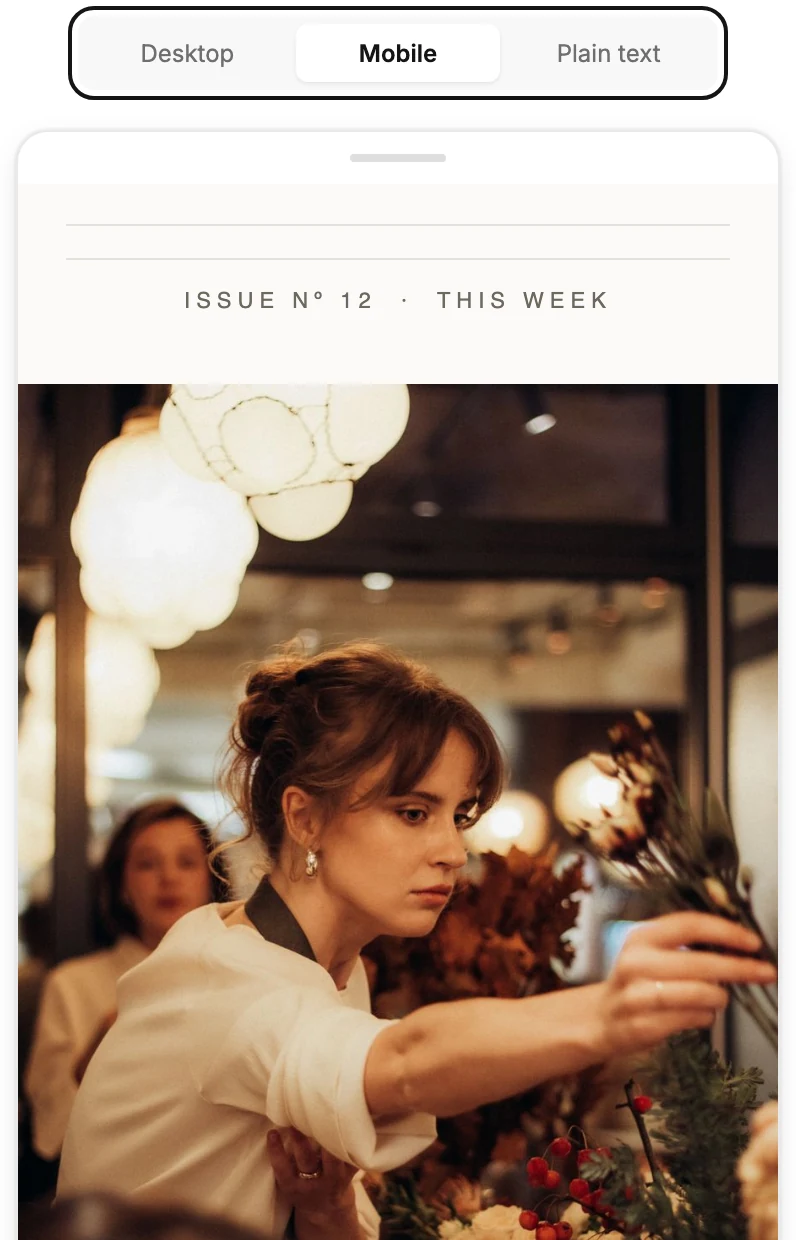
-
Switch to Desktop for the wide view. Plain text shows the words alone, which is what a mail app shows when it can’t show the design.
-
Select Back to draft at the top left to return to the editor, or press Esc.
What you see is the email as Jounce sends it, not a sketch of it. Photos are in place, fonts are the ones that arrive, and the footer carries your address.
What’s worth fixing
The preview shows only the email. What’s worth fixing is listed in Before you send at the foot of the settings panel, and Review asks for your postal address. See What an AI draft leaves to you.
A preview isn’t a test send. To see the email in your own inbox, see Send a test email.
In an email that opens in the earlier editor
There, the button back to the editor reads back to template. A few lines sometimes show above the phone, each something worth fixing before you send.
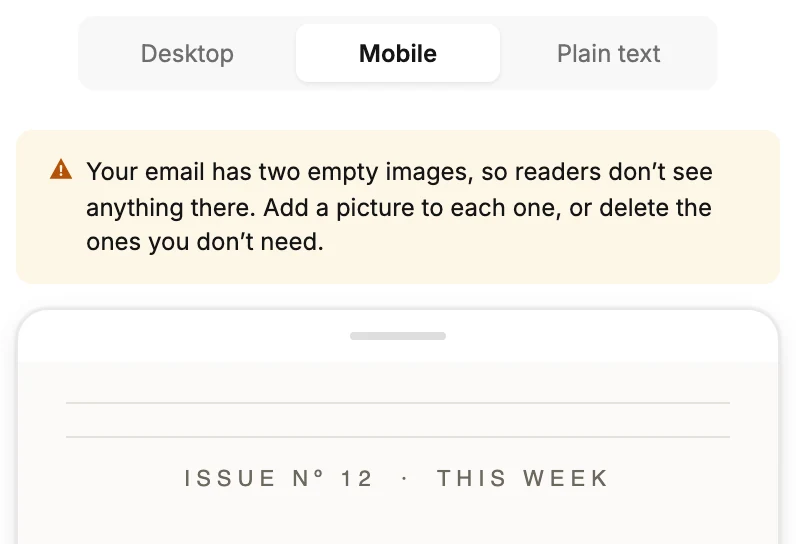
- This preview shows the email, but your postal address is missing. An email can’t send without one. See Add your mailing address.
- Most of this email is images. Readers who don’t see images have nothing to go on, and neither do spam filters. Add your main point as text.
- There’s almost no text in this email. The same fix: say what the email is about in a line or two of text.
- Your email has an empty image, so readers don’t see anything there. The sent email leaves it out. Add a picture to it, or delete it.
- The email is near or past Gmail’s size limit. See Why does the editor say Gmail will clip this?.
- Some links start with http://. Chrome asks readers to confirm before it opens an unencrypted page. Switch them to https://.
Next step
When it looks right, Continue opens the send steps: Send or schedule your email.
More in this topic
Updated