

What an AI draft leaves to you
Short answer
Jounce drafts the whole email first and fills in details your description didn’t give, which stay yours to keep or change. Before you send lists only what’s broken or empty, and the send waits until only Worth a look lines are left.
Jounce writes the whole email first and asks for your facts second. A date, a price, or a name in your description goes in as you gave it.
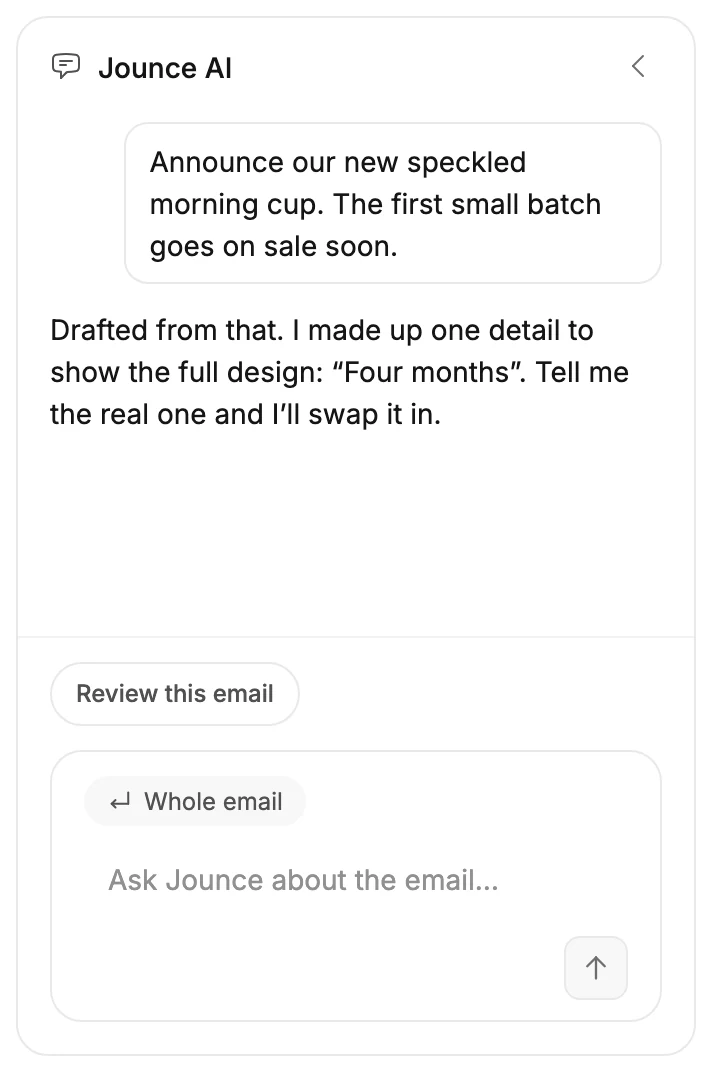
Where your description said nothing, Jounce does one of two things. It fills in a detail to show the finished design, or it leaves the spot open. A detail it filled in is yours to keep or change, and the chat’s first reply names it once. Jounce never judges whether your words are true.
What’s broken or still empty shows under Before you send, at the foot of the settings panel. The send button stays off until you fix the lines that stop the send.
The list
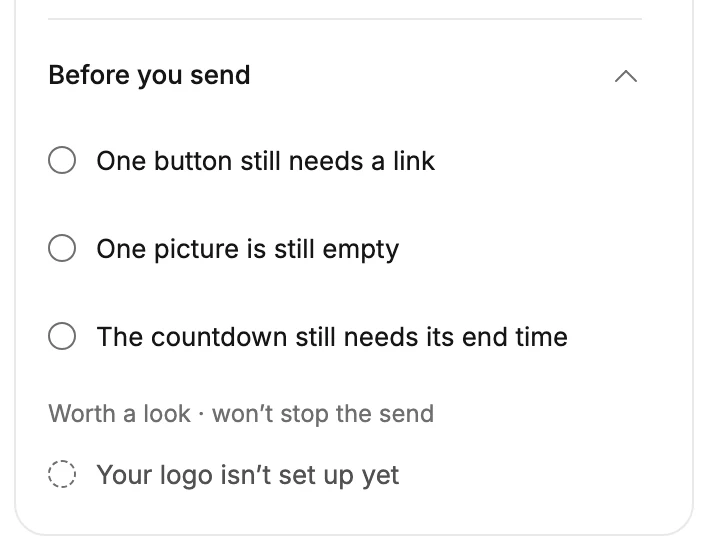
The lines come in two groups. Each line at the top has a solid ring and names something that stops the send. Under Worth a look · won’t stop the send, each line has a dashed ring. Those are worth checking, but the email can go without them.
Each line names one kind of fix. Select a line and Jounce selects the first spot that needs it, scrolling to it if it’s out of sight. With more than one of a kind, the line counts them: Three lines still have sample text. The count goes down as you fix them, and fixing one never brings up another.
Fix the last one, and the line shows a check and what’s done, such as No sample text left, before it goes. With nothing left that stops the send, the list says Ready to send.
A block you add can bring a line of its own, such as an Image block with no picture yet. So can an item you add to a list, until you fill it in.
Select Before you send and the list folds to its title, with a count of the lines that stop the send beside it. Lines under Worth a look aren’t counted. Fold the settings panel and the same count sits on its edge.
Lines that stop the send
| The line | What to do |
|---|---|
| One button still needs a link | Jounce never fills in where a button goes. Select the line and add the web address under Link. For a link that isn’t a button, the line reads One link still needs a destination. |
| One link isn’t a real web address | The address on a button, a link, a picture, or a Block link goes nowhere, often from a typo. Select the line, and Jounce selects it so you can correct it. When some links have no address yet and others have a broken one, the line reads Two links still need a real web address. |
| One testimonial still has sample text | The quote and the name are still the design’s sample, or the placeholder words of a testimonial you added. Type a real customer’s words and name. |
| One testimonial still has a made-up quote or name | Replace the quote and the name with a real customer’s words. Jounce won’t send a made-up testimonial, since a review from a customer who doesn’t exist is against the law. The detail beside the name, such as Verified buyer, can stay as it is. |
| One line still has sample text | A date, price, name, or other detail from the design’s sample copy is still there. Type the real one. In a Text block you add, replace Write a few lines here with your own words. In an item you add to a list, write over its placeholder words, such as Product name. |
| One number is still missing | A figure Jounce didn’t know shows as a dash. So does a price or other number in an item you add to a list. Type it. |
| One picture is still empty | Jounce found no photo for that spot, or an Image block, a video, or a list item you added has none yet. Add one from the image picker, or delete it. |
| The countdown still needs its end time | Set the date and time it counts down to. Jounce leaves the end open when the end it had in mind falls on another day than the one you named. |
| One personalization tag is inside a picture | A personalization tag sits in the words of a design that goes out as a picture, so every reader would see the tag itself. Move it into text outside the picture. |
| One link is inside a picture | A link sits in the words of a design that goes out as a picture, where nobody can tap it. Put the link on the design’s button. |
| One design too many goes out as a picture | One email can send only so many designs as pictures, and each video on its own is one. The line counts how many to delete. Select it, and Jounce selects the first one. |
| The email still needs some text | The email has almost no words a reader gets as text, and inboxes may filter it as spam. Select the line, and the tray opens near the end of your email with Text picked. Pick a design to add it. |
| Your brand kit isn’t saved yet | Jounce can’t send until you save it. Select the line to open it, check your logo, colors, and fonts, and select Save kit. |
The words inside a design that goes out as a picture don’t count as text. With one in the email, the line reads The email still needs words outside its pictures.
If a block has a part with words that is switched off, selecting the line selects that block instead. Turn the part back on under Elements. See Show or hide part of a block.
The text line shows once you send a test or select Continue, and so does the line about pictures and words below. A new email often has no words while you build it.
Worth a look
| The line | What to do |
|---|---|
| The sign-off still needs your name | A letter is still signed with the design’s sample name. Type yours. |
| The countdown has already ended | Its end has passed, so every reader would see Ended and the date. Select the line and pick a later end, or delete the countdown. |
| Jounce set the countdown to end a date and time | Jounce picked the end, on the day you named or, if you named none, on a day that fits the email. Check it, or set your own. The line goes once you pick. |
| One play button has no link | A video layout’s picture has no link, and its button is off or has no words. Select the line, select the picture, and paste your video’s address under Link. |
| Your logo isn’t set up yet | The email has a spot for your logo, and your brand kit has none yet. The editor shows an empty Your logo box there, and the sent email leaves it out. Select the line, then add your logo, or pick Brand name or Nothing under Without a logo. |
| Your social links aren’t set up yet | Your sign-off shows your social links, and your brand kit has none yet. The editor shows an empty Your social links box, and the sent email leaves it out. Select the line, then select Add platform and paste your page’s address. |
| The email is mostly pictures | Anyone who doesn’t see the pictures gets a short description of each, not your words. Add your main point as text. Select the line to open Text, as for the text line above. With very few words, it reads The email has very few words. |
| Gmail will cut off the end of this email | The email is past Gmail’s size limit, so Gmail hides its end, and the unsubscribe link with it. Select the line, and Jounce selects the block that adds the most to the email’s size. Shorten it. See Why does the editor say Gmail will clip this? |
| One link starts with http:// | Chrome asks readers to confirm before it opens an unencrypted page, so some clicks stop there. Select the line, and Jounce selects the first such link. Change its http:// to https://, if the page opens that way. If the only ones are in your brand kit, such as a social link, the line opens your brand kit. |
Once you’ve checked a line here, select Hide at its end to put it away for this email. How it comes back is in The email editor screen.
A detail Jounce filled in is never on this list, in the email, the subject line, or the preview text. Jounce can’t tell a real price or date from one it filled in, so it never stops the send over one.
Where else it shows
The chat’s first reply names the made-up details in quotes. Tell it the real ones and Jounce swaps them in. For a made-up testimonial, the reply asks you to replace it yourself. See Edit your email with Jounce AI.
On the Review step of the send steps, each line that blocks sending shows as a note above the send button, which stays off. A test email still goes out. Sent from the editor, its dialog says how many things still need fixing, and See what they are brings this list back up.
One line stops a test email too: too many designs that go out as pictures. Jounce says how many to delete.
In an automation, Launch checks the email of each Send email step first. It refuses a gap Jounce left, a link that isn’t a real web address, or a block it can’t show. It also refuses too many designs that go out as pictures.
The step’s card names the fix, as in Your button points somewhere that isn’t a real web address.
In an email from a template or from scratch
An email you make from a template shows the same list. A template can’t know your links or your name. So its most common lines are One button still needs a link and The sign-off still needs your name. Some designs also hold sample text or a sample testimonial to write over.
An email you start from scratch shows the list too. Each block you add can bring a line of its own, until you fill the block in.
More in this topic
Updated