

Schedule an email from the calendar
Short answer
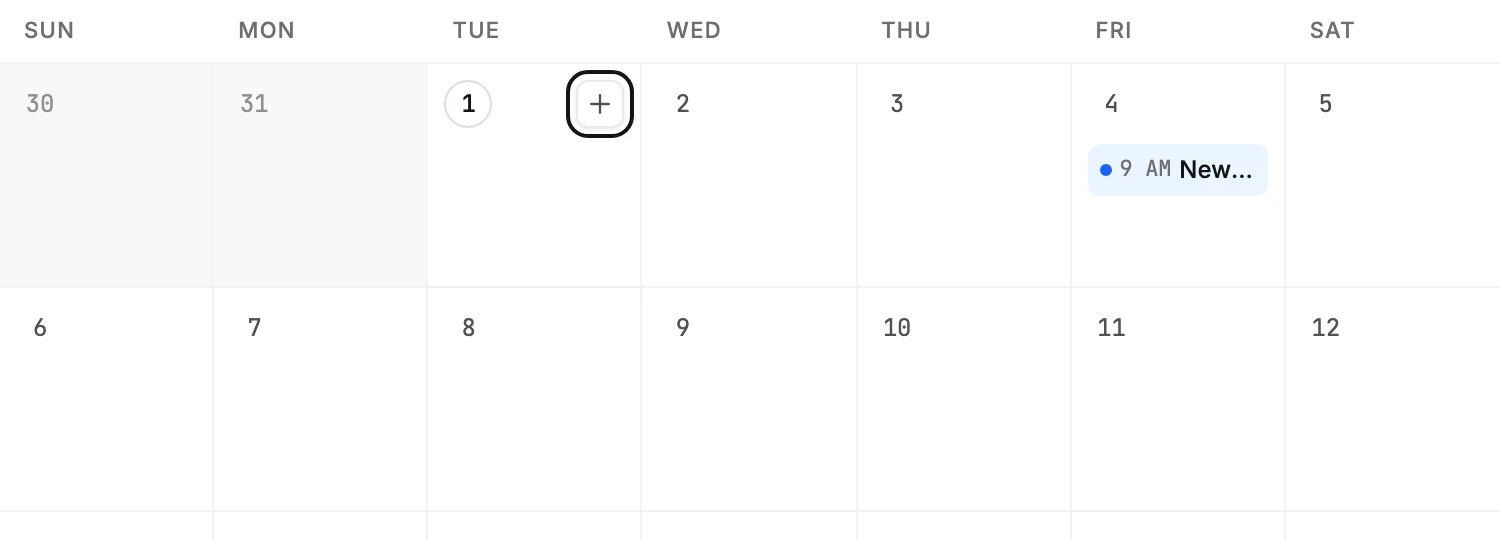
On the Calendar tab, select the + on the day you want and make your email. When you reach the Review step, the schedule is already set to that day at 9:00 AM.
When you’re done, your email is scheduled for the day you picked, and it sits on that day of the calendar.
-
Open Emails, then Calendar.
-
Rest your pointer on the day you want. A + appears in its corner on today and any later day. Select it, or select the empty part of the day.
-
Jounce asks How do you want to start? Pick a template or start from scratch, the same way as any other email. See Create an email from a template.
-
Build your email, then select Continue at the top right of the editor.
-
Walk the send steps. On the last step, the send button already reads Schedule for your day at 9:00 AM. Change the time there if you like, then confirm. See Send or schedule your email.
What to expect
- If you picked today and 9:00 AM has passed, Jounce picks a time about an hour from now, on the quarter hour, still on today.
- Days that have passed offer no +, because an email can’t be scheduled into the past.
- The day carries over when you go from the calendar straight through to the Review step. If you leave that email and come back to it later, set the day at the Review step instead.
Next step
It sits on its day in The Calendar tab. To change your mind, see Cancel a scheduled or sending email.
More in this topic
Updated