

Why does Swap layout show only some layouts?
Short answer
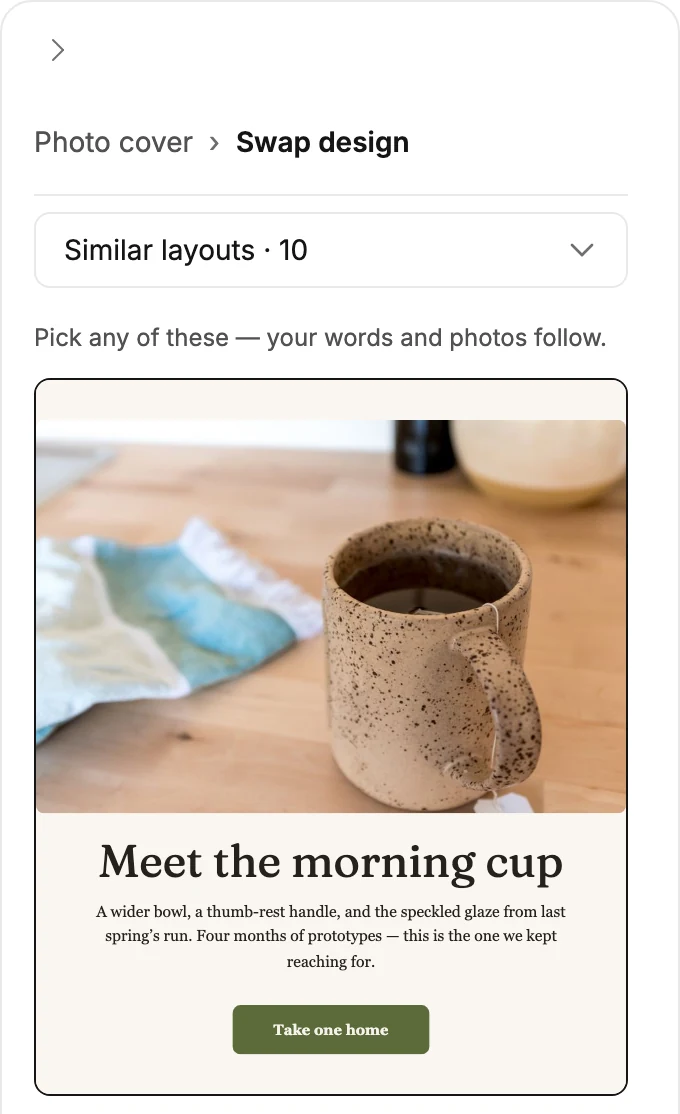
Swap design usually opens on Similar layouts, the designs your words and photos can move into, with the rest under All layouts in its menu. In an email that opens in the earlier editor, Swap layout lists only the designs with room for everything you wrote.
Your block is unchanged, and every layout is still in the library. This article leads with what you see in every email you create. For an email that opens in the earlier editor, see the last section.
Swap design opens on Similar layouts, the designs your words and photos can move into. The line above the cards says so: Pick any of these — your words and photos follow.
The rest are one step away. Pick All layouts from the menu at the top and every design but the logo ones is there. The line above those cards starts Only similar layouts keep your words and photos. Other designs start with their own words and photos, or as you last left them.
No similar layouts yet
Some blocks have no similar layouts. The list then opens on the block’s own group and reads No similar layouts yet, so these start with their own words and photos.
When that group holds nothing else, the rest of the library shows. The line then reads No similar layouts yet, so every layout is here — each starts with its own words and photos. Your block stays as it is until you pick a card.
A block with your logo
The logo designs are the one exception. A logo block swaps only with the other logo designs: the logo by itself, with links under it or beside it, or with an issue line. Its list has no menu, and the line reads Pick any of these — your logo follows. For any other layout, add a block.
No other block’s list offers a logo design. To put one in your email, see Add a block.
In an email that opens in the earlier editor
The Swap layout list narrows itself to the designs that can hold what you wrote. When you swap, your words and photos move into the new design. So the list offers only designs with a place for each thing.
A headline needs a headline spot, two paragraphs need two paragraph spots, and a photo needs a photo spot. The line above the cards says so: Pick any of these — your words and photos move with you. For the rest of the library, add a block.
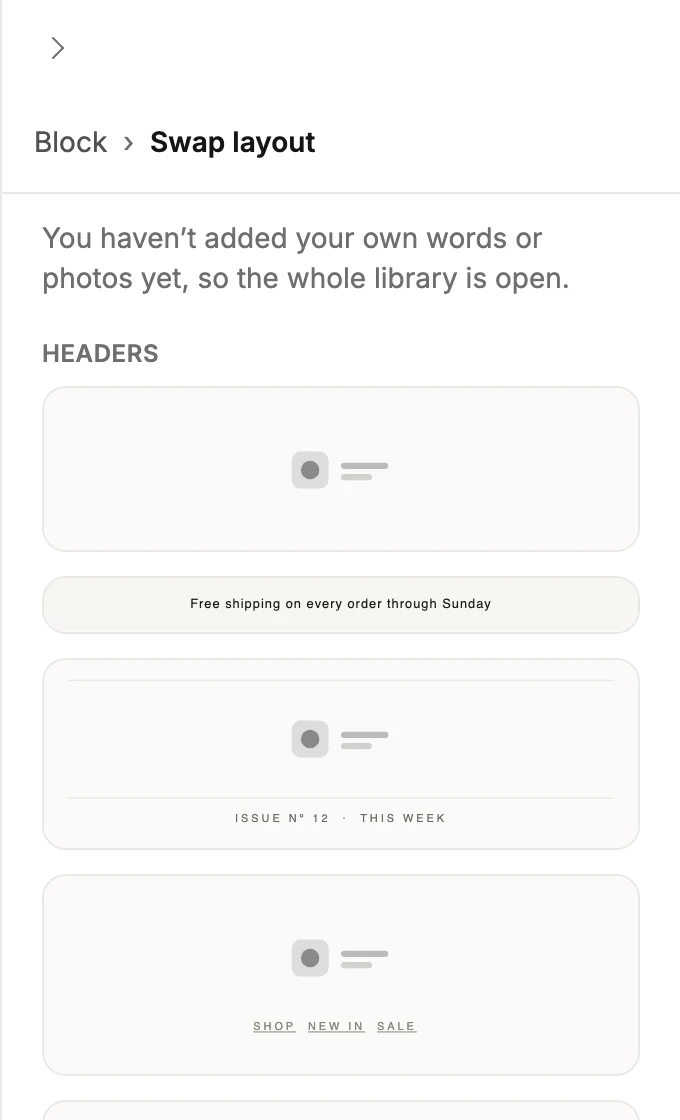
A block you haven’t written in yet opens the whole library. The line reads You haven’t added your own words or photos yet, so the whole library is open.
To use a layout that isn’t offered, add it as a block of its own, move your words over, and delete the old block. See Add a designed layout and Move, duplicate, or delete a block.
When no other design can hold everything in the block, the list says so. It reads Nothing else has room for everything here, and under it, Add a block to use another layout — this one stays as it is. Your block keeps its design and its words.
More in this topic
Updated