

The Create email screen
Short answer
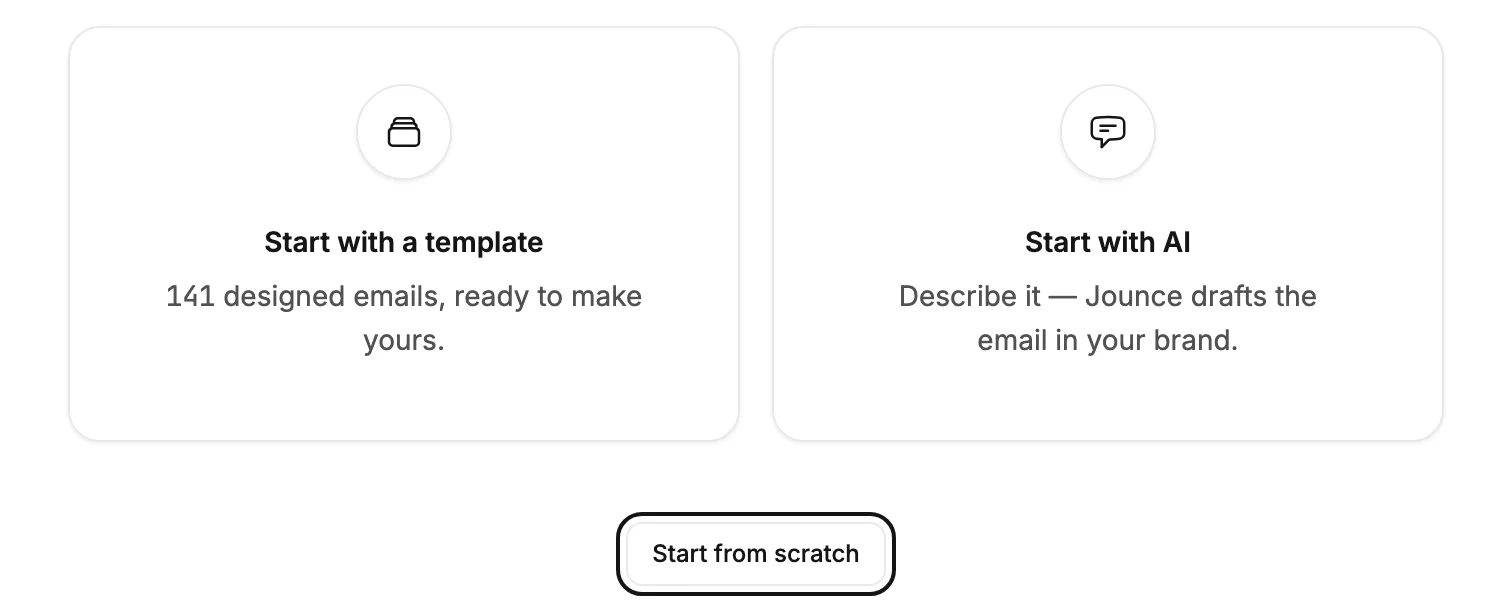
Create email opens a screen that asks how you want to start. Start with a template opens the gallery, Start with AI drafts from your description, and Start from scratch opens the editor on an empty email.
Every Create email button opens this screen first. That’s the one at the top right of the Emails page, and the one on the page before your first email. The screen asks one question, How do you want to start?, and offers three ways.
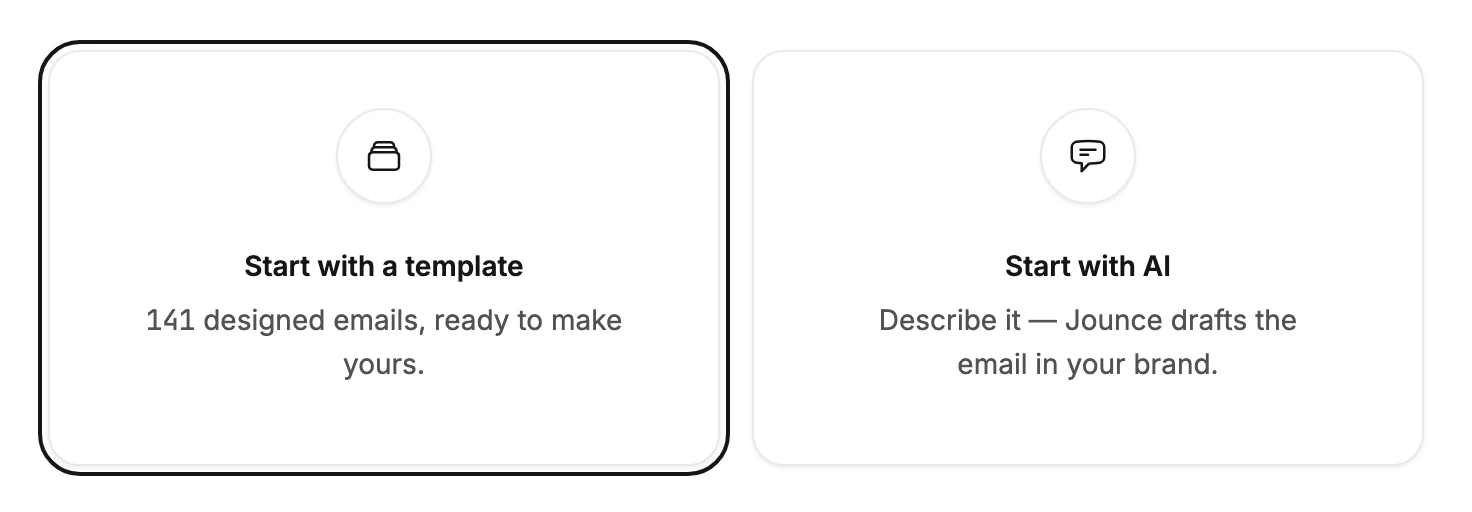
Start with a template
The first of the two large boxes counts the designed emails in the gallery. Select it to open the template gallery, where you browse by goal and industry. Selecting a design makes the email and opens it in the editor. The steps are in Create an email from a template.
Start with AI
The second box reads Describe it — Jounce drafts the email in your brand. Select it and a page asks What’s the email about?. Describe the email and select Generate email. The editor opens, and Jounce builds the draft in front of you. The steps are in Start an email with AI.
Start from scratch
The small button below the boxes skips both. The editor opens on an empty email, with a tray of layouts to pick from. Jounce saves the email at your first change, so one you leave empty never shows on your Emails page. See Start an email from scratch.
Leaving the screen
Emails, at the top left, takes you back to the Emails page. Pressing Esc does the same. Nothing is made until you pick a way to start, so leaving costs nothing.
More in this topic
Updated