

Describe an image for readers who can’t see it
Short answer
Select the photo, open Advanced at the foot of the panel, and type a short description under Describe this image. Screen readers read it aloud, and it shows in place of the picture when a mail app hides images.
When you’re done, every reader gets what the picture means, even those who don’t see it.
Alt text is a one-line description of an image. A screen reader reads it aloud. A mail app that hides pictures shows it in the picture’s place. And some apps show a plain-text copy of your email instead of the designed one. That copy shows your description in the image’s place.
These steps are for every email you create. For an email that opens in the earlier editor, see the last section.
- Select the photo. The panel shows its settings.
- Open Advanced at the foot of the panel. It appears once a photo is in.
- Type the description under Describe this image. Empty, the box reads For readers who can’t see it.
What to write
Say what the picture shows, the way you’d describe it over the phone: The new stoneware mugs lined up on the studio shelf. Skip “image of” and “photo of”. A picture that’s pure decoration can stay blank.
Where else it lives
- A logo shows the box under Advanced once this email has a logo of its own. In most layouts, the logo from your Brand page carries the Name you gave it there.
- A video on its own takes the video’s title when a link brings its picture, if Jounce can read one. Left empty, the email says Watch the video. See Add a video on its own.
- A free photo comes with the description its library gives it. A few come without one.
A layout that goes out as one picture is described by the words set on it, followed by your description of its photo.
Note A photo sent with no description gets a stand-in label in the email, such as Photo or a product’s name. It still sends, but it tells those readers little.
In an email that opens in the earlier editor
There, the field is Alt text, under Accessibility at the foot of the panel. Its hint reads Describe the image.
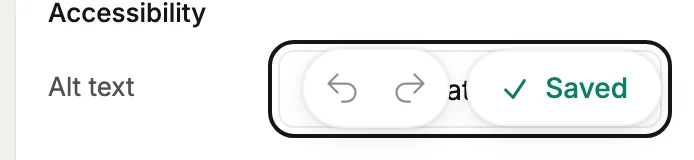
- A logo has its own Alt text field, with the hint Describe the logo. Left blank, the sent email labels it with your sender name when the logo is your brand logo, or with Logo.
- A video has one too, with the hint Describe the video. It describes the video’s picture.
- A reused picture keeps its description. Type one for a picture that lives in Your images and Jounce saves it with the picture. The next time you pick that tile, the description comes along.
Next step
The Plain text view in Preview your email shows the words readers get in place of the picture.
More in this topic
Updated