

The Block panel
Short answer
Select a whole block and the panel’s heading reads Block, with Swap design beside it. Under it sit a list’s item count, Elements, Appearance, and a link for the whole block.
Select any block. If the panel’s heading reads Block › and a part’s name, select Block or press Esc once, and the panel shows the block’s own settings. See Select what you want to edit.
This is the Block panel in every email you create. For an email that opens in the earlier editor, see the last section.
Swap design
Swap design, beside the heading, offers similar layouts to switch the block to, which keep your words and photos. See Swap a layout.
The groups, in order
- On a countdown, Countdown, with its end time.
- A list’s name, such as Products, with − and +, to set how many items it holds.
- Elements, a switch for each part you can show or hide. See Show or hide part of a block.
- Appearance, the choices that design offers, such as Size.
- Block link, to send a click anywhere in the block to one address. See Link a whole block.
A block with one part, such as a paragraph or a photo, shows that part’s settings first.
Colors and spacing
There’s no Background, Border, Thickness, or Padding row. The design and your brand set those. See Change a block’s background or border.
The email’s own settings
Select the space around the email, and the panel’s heading reads Email. See The Email settings panel.
In an email that opens in the earlier editor
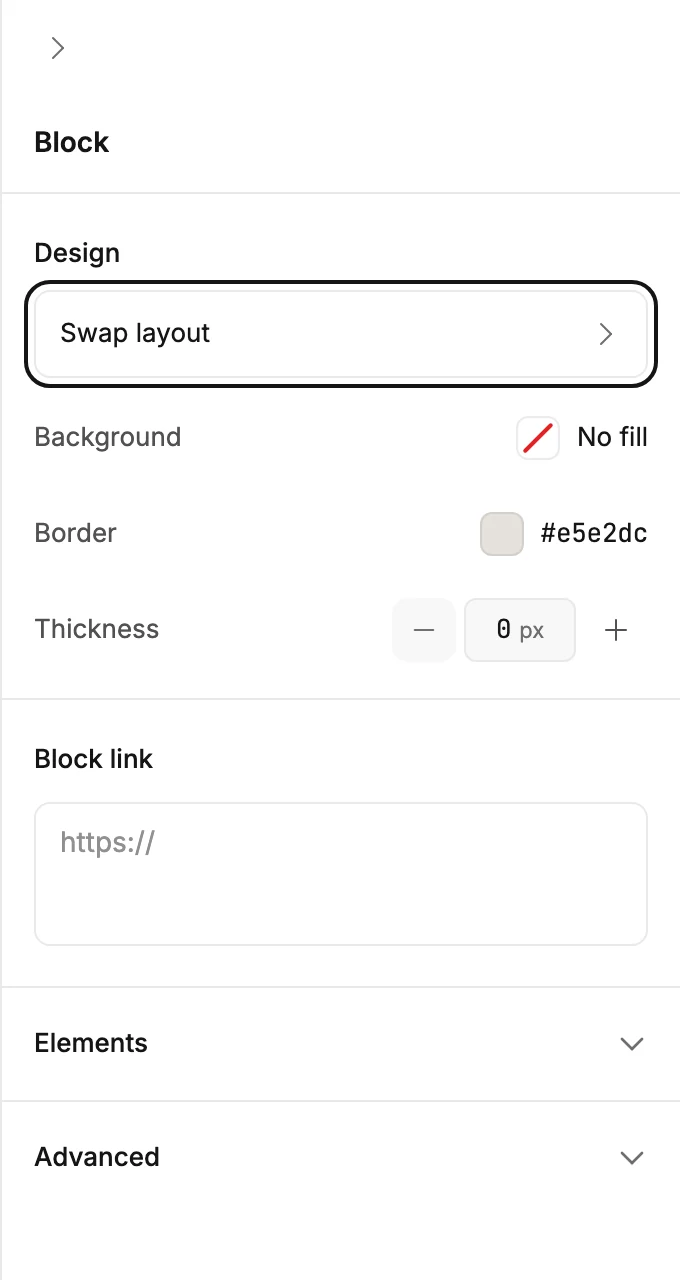
There, the whole block’s panel holds these groups.
Design
- Swap layout opens the library so you can change the design and keep your words. A block you added with the Layout tile reads Choose a layout instead, with the note This block is empty until you choose a layout.
- Background colors the whole block, edge to edge. Select the swatch to open the color picker. No fill removes the color.
- Border and Thickness draw a line around the block. They appear only on a block whose parts stack in one column.
Some designs add a switch or two of their own here, such as Text position.
Block link
One box. Paste a web address there and everything in the block opens it.
Elements
One row for each part of the block, named by kind: Title, Text, Image, Button. A second part of the same kind is numbered, Text 2. Select a name to jump to that part’s settings. The switch beside it shows or hides the part.
The list is folded when the block has more than one part. Its header counts what’s hidden, Elements · 1 hidden. A block made of one thing, like a paragraph on its own, lists that one name with no switch.
Advanced
Folded at the bottom of the panel. Padding sets the space inside the block’s edges. See Change the space around a block.
The gray area outside the email there has a panel of its own, titled Email.
More in this topic
Updated