

Schedule your email for later
Short answer
On the Review step, choose Schedule under When, pick a date, a time, and a time zone, then select Schedule for and the time. The email waits on your Emails page as Scheduled until then.
When you’re done, Jounce shows Scheduled with the date and time. The email waits on your Emails page and calendar until it sends.
-
Go through the send steps to Review.
-
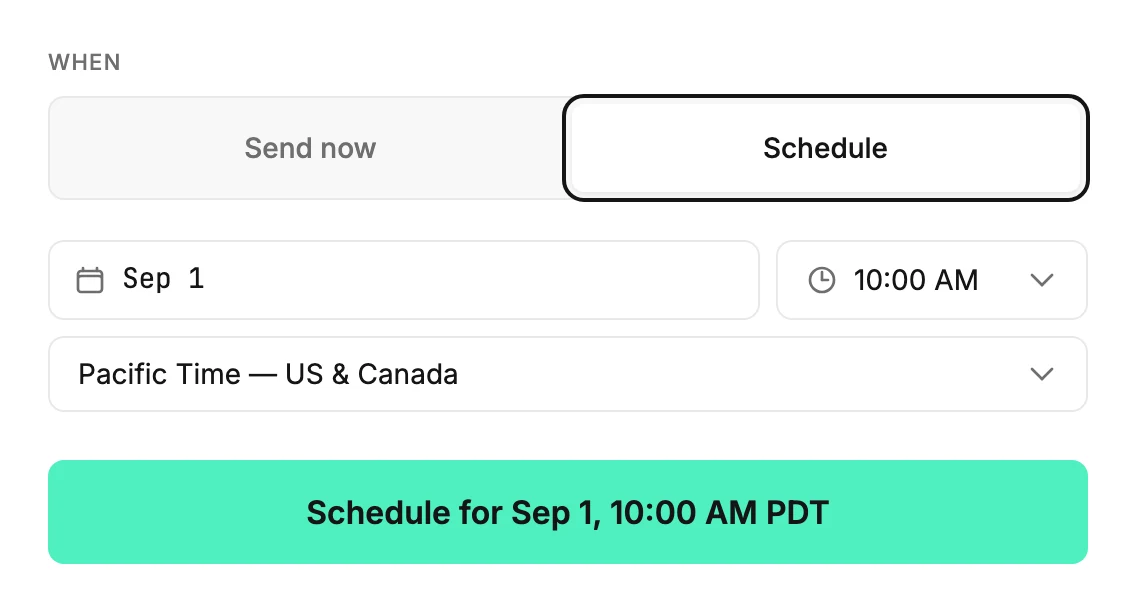
Under When, choose Schedule. A date, a time, and a time zone appear, set to about an hour from now in your own time zone.
-
Select the date to open a calendar and pick a day. Select the time to pick from the list.
-
Pick a time zone if your readers are somewhere else. The list offers common zones and your own; type to search it.
-
Select the button at the bottom. It reads Schedule for and the moment you picked, with a short form of the zone, like PST.
Jounce then shows Your email is set to send on that moment. It adds You can cancel it from the emails list any time before then.
Everyone gets the email at the same moment. The time zone sets what that moment is; Jounce doesn’t send at each reader’s own local time. The Time zone on the Basics settings page plays no part here. See Why didn’t my scheduled email use my time zone?.
If the time is refused
A message under the time says what to change, and the button stays off until you do.
- That time has already passed. Pick a time in the future.
- Pick a time at least 5 minutes out so the send has time to start.
- Pick a date and time for this send. when one of them is missing.
The first two go by your device’s clock. Jounce sends by its own, so it checks again when you select the button. If your device’s clock is behind, your time may be too soon by Jounce’s. A message at the bottom of the screen then says so, like this:
This device’s clock is 12 minutes behind, so that time has already passed. Nothing was scheduled. Pick Jun 1, 9:15 AM MDT or later.
Pick the time it names, or later, and select the button again. To keep it from coming back, set your device’s date and time to update automatically.
If the email was already scheduled, that send still stands. The message reads It’s still set for and that time, or It still goes out once its hold clears, in place of Nothing was scheduled. Either way, it uses the subject, preview text, From name, and recipients you set in the steps.
While your list is warming up, your daily limit may have no room for the email at the time you pick. Then it waits and goes out by itself once there’s room.
A line under the time shows only when that wait would make the email more than a day late. It says when the email can go out, such as tomorrow at about 2:15 PM. It adds but that’s more than a day late, so it waits for your OK instead. The button stays on.
To change or cancel a scheduled send
Open the email’s card menu on your Emails page and choose Cancel sending. It cancels at once, with no confirmation step, and Jounce says Sending canceled.
The card can’t schedule it again, but its results page can. Point at the card and select See what happened, then Review and send. These steps open again, so you can pick another time. If anyone already got the email, duplicate it and schedule the copy instead. See Cancel a scheduled or sending email.
If the status label reads Won’t send instead of Scheduled, see Why does my email say Won’t send?
Note If you got here by selecting a day on the calendar, Schedule is already chosen, with that day filled in.
Next step
See it on its day in The Calendar tab, and what the page after the button says in The page after you send.
More in this topic
Updated