

The image picker
Short answer
Browse images, or Replace on a filled spot, opens the picker over the editor. Your images holds every upload, and removing one there touches no email; Free photos searches a stock library.
Select a photo spot and its panel opens. On an empty spot, Browse images opens the picker. On a photo that’s already in, point at the photo and select Replace at its top right. Under a logo, the button reads Replace image.
The Image block, the Logo block, and every photo spot in a layout all use this picker.
The picker opens as a window over the editor. Two labels at its top left, Your images and Free photos, switch views. It always opens on Your images. Both views show every picture at its own shape, in rows. A wide banner reads as wide and a tall photo as tall before you pick.
Select a picture and the window closes with the picture in the spot. To close it without picking, press Esc, select the × at its top right, or select anywhere outside it. The arrow keys move between the pictures, and Enter uses the one you’re on.
Your images
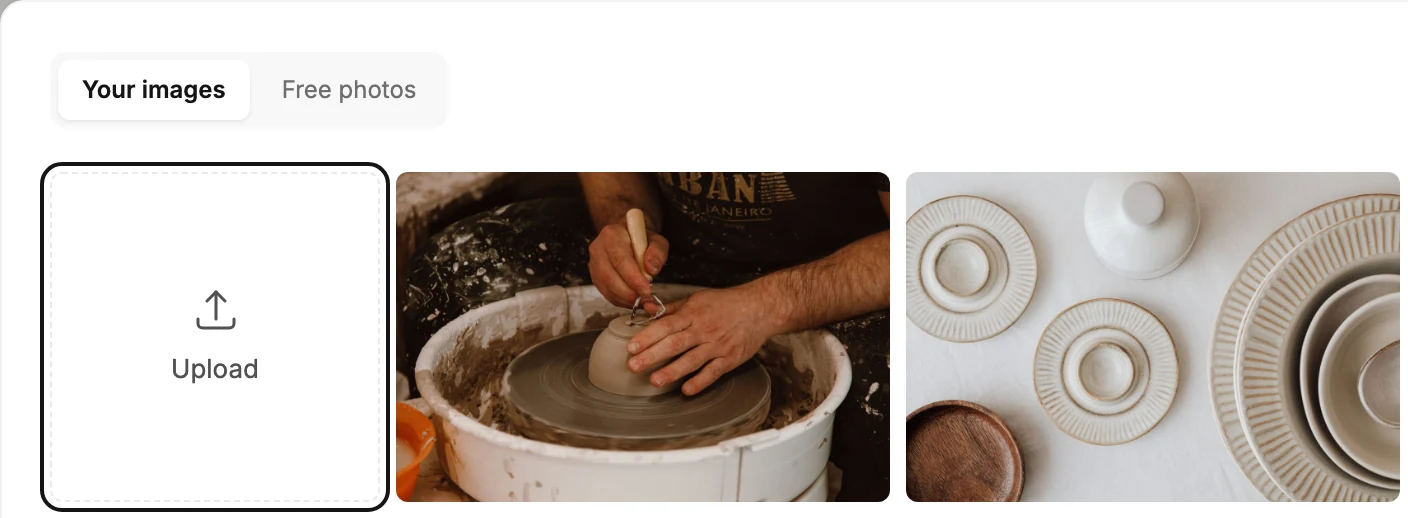
The pictures you upload are saved here, newest first. Upload the same file again and it usually shows once, not twice. Everyone in your workspace shares them. Select a tile to use that picture. If you gave the picture a description last time, its Alt text, the description comes with it.
A video’s picture is saved here too, when Jounce brings one into a video layout. See Link a video layout to your video.
- Upload is the first tile. Select it to choose a file, or drop a file on it. Uploading a picture places it in the spot and adds it here. If you upload the same file twice, Jounce reuses the copy it already has.
- Remove from your images is the small × on a tile. It takes the tile out of Your images and nothing else. Jounce says Removed from your images. It still shows wherever you used it, with Undo beside it. Emails you sent and emails you’re editing keep the picture.
- Once Your images holds a couple of rows of pictures, Search your images joins the window’s top row. It filters by file name and description as you type.
- Show more sits under the pictures when there are more than the list has loaded.
When you haven’t uploaded anything, the view reads No images yet. Every photo you upload lands here, ready to use again, with an Upload an image button. If the list can’t load, it reads Couldn’t load your images with Try again.
Free photos

A search over a library of free stock photos from Pexels. Search free photos sits in the window’s top row, beside the two labels. Photos from Pexels, in the window’s bottom-left corner, opens their site.
- Search free photos searches as you type. The photos fill the window under it. Clear the field and they go.
- Select a photo to use it. Its own description comes with it. Point at a photo and the photographer’s name shows in its corner.
- Show more under the photos loads the next page of results.
A free photo goes straight into the spot. It isn’t added to Your images.
The photographer’s name shows only in the picker. The email you send doesn’t carry it.
If the search finds nothing, the view reads No photos found. Try another search. If it can’t be reached, it reads Couldn’t reach free photos. Try again.
Free photo searches have an hourly limit, per person and for all of Jounce together.
Past the limit, the view reads Free photos are paused until a time, when the hour turns, and Your images still work. If the photo library itself is busy, it reads Free photos are busy right now. Try again in a minute. Your images and Upload keep working meanwhile.
Free photos also have a monthly limit for all of Jounce together. Near it, the AI stops adding free photos first, and you can still search by hand. At the limit, the view reads Free photos are paused until the date the month starts over, and Your images still work.
More in this topic
Updated