

Add an image to your email
Short answer
Select a photo spot, or add a photo from the tray’s Photos tile, then choose Browse images. You can upload a picture, reuse one from Your images, or search free photos.
When you’re done, your picture sits in the email and the panel shows it, ready to zoom or replace.
These steps are for every email you create. For an email that opens in the earlier editor, see the last section.
Most layouts come with photos to replace. For a photo on its own, pick the tray’s Photos tile: Image is the first card, and its empty spot reads Your photo. See Add a block.
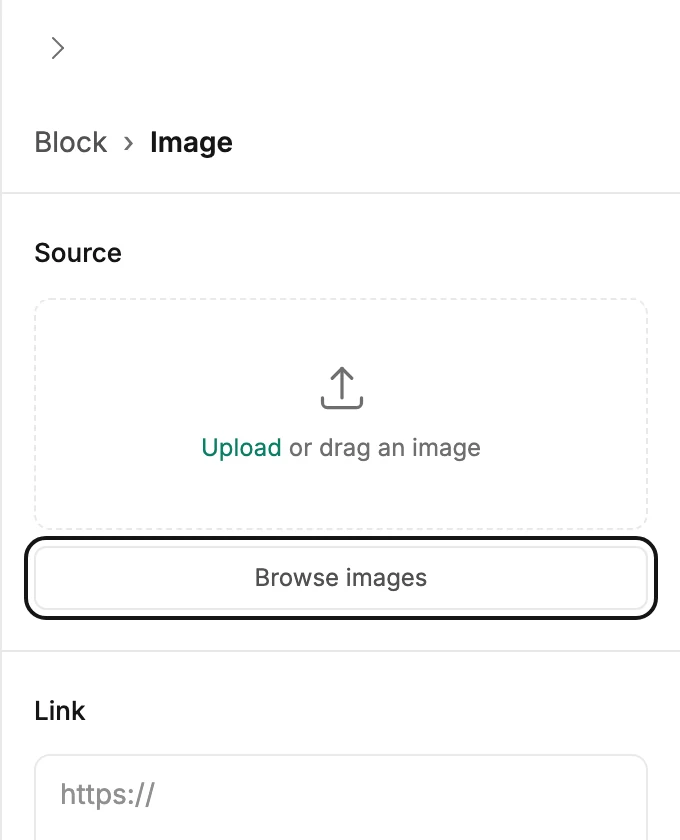
- Select the photo. The panel shows it, or an empty spot reading Upload or drag an image.
- Choose Browse images, or Replace on a photo that’s already in. The image picker opens as a window over your email. You can also drop a picture file onto the panel’s photo or its upload area.
- Pick where the picture comes from. Upload, the first tile, opens your files. Before your first upload, the button reads Upload an image. Pick any other tile in Your images to reuse a picture you uploaded. Free photos searches a library of free stock photos.
- The window closes and the picture is added. While it uploads, the panel shows a spinner. When it’s in, the panel shows the picture with a Zoom slider under it.
What you can upload
A PNG, JPG, GIF, or WebP under 10 MB. Inboxes don’t show SVG files, so Jounce turns an SVG into a PNG before it uploads. Uploads are saved to Your images, so you can use them again in any email. See The image picker.
What to expect next
The picture keeps its own shape and fills the width of its spot. You can zoom and reposition every photo. See Zoom and reposition a photo.
Give the picture a description before you send. See Describe an image for readers who can’t see it.
Fill or delete every empty spot before you send. An empty picture is listed under Before you send, and the email can’t be sent until it’s filled or gone. See How images travel in email.
In an email that opens in the earlier editor
There, empty photo spots read Your image goes here, and the Image tile in the block tray adds one on its own. Select the spot: its label reads Edit image, and the panel reads Block › Image. The picker then works as above.
The Review step there points out an empty Image block, and the sent email leaves it out.
Next step
To crop it square, portrait, or landscape, see Give a photo a set shape.
More in this topic
Updated