

The Social links block
Short answer
Your social icons come with the closing layouts under the tray’s Footers tile and show the links saved in your Brand kit. Select them to change a link or set the icons' size.
In every email you create, social icons are part of a closing layout, not a block of their own. Pick the tray’s Footers tile and choose a card that shows them. For an email that opens in the earlier editor, see the last section.
The icons show the links saved in your Brand kit. Until the kit has any, a dashed spot reads Your social links in the editor.
Social links
Select the icons and the panel shows Social links: a row for each network, with a box for its address. + Add platform adds a network, and the × at the end of a row drops it.
Once your Brand kit is saved, a change here reaches every email. The panel says Saved to your Brand kit. See Edit your social links from an email.
Appearance
Icon size sets the icons to S, M, or L, for this block alone. It shows once you have at least one link. There’s no Icon color: the icons take the color that reads on the block’s background.
Leave them out of one email
Turn off Social links under the block’s Elements. The icons leave this email, and your links stay in your Brand kit.
In an email that opens in the earlier editor
There, a Social links block is a row of icons with rows of its own. The Social tile in the block tray adds one. Some designed footers already have one. Point at it and a small label reads Edit social links. For a row of short text links instead of icons, see The Link bar block.
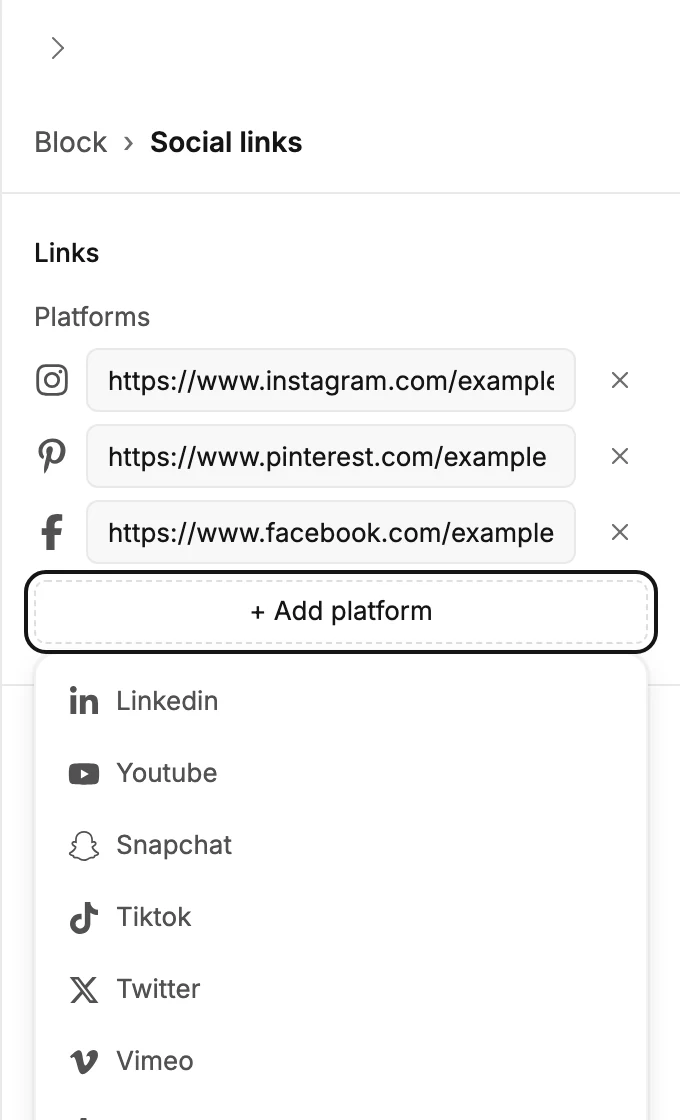
Select it and the panel reads Block › Social links.
Links
Platforms lists the networks in the row. Each row is the network’s icon, a box for the address, and a ×. The box reads the network’s name until you fill it, Instagram link for example. Type or paste the profile’s address; a bare address gets https:// added when you leave the box.
+ Add platform opens the list of networks you haven’t added yet. Pick one and its row appears. The list covers the networks most people link. Among them: Instagram, Facebook, Pinterest, LinkedIn, YouTube, TikTok, and X, under its older name Twitter. With no rows left, the panel reads No links yet.
Note An icon with no address is left out of the sent email. Fill the row or remove it.
If the Social links card on your Brand page has any links, every Social links block uses those instead of its own rows. See Why did the links in my Social block change?
Appearance
- Icon color opens the color picker. A light color sends white icons, which suit a dark background.
- Icon size is S, M, or L.
Background and padding
Select Block at the top of the panel. Background under Design and Padding under Advanced belong to the block. See The Block panel.
In the sent email
Each icon goes out as a small picture with the network’s name as its description. A reader whose mail app hides pictures still sees the name. A whole-block link replaces every icon’s own link. See Link a whole block.
More in this topic
Updated