

The Image block
Short answer
An Image block holds one photo. Its panel sets the picture and its zoom, the photo’s shape, a link for the whole block, and the photo’s description.
An Image block is one photo, as wide as the email. One photo on its own is the first card under the tray’s Photos tile, and most layouts hold one or more photos too. This is the Image block in every email you create. For an email that opens in the earlier editor, see the last section.
It arrives empty, reading Your photo. Select it and the panel’s heading reads Block.
The picture
- Empty, the well reads Upload or drag an image with a Browse images button. Drop a file on it, or open the picker. See The image picker.
- Filled, it shows the photo across the panel, in its email shape, with a Zoom slider under it. See Zoom and reposition a photo.
- Point at the photo and Replace appears at its top right. It opens the same picker. On a touch screen, Replace always shows.
- You can also drag a picture file onto the photo. It reads Drop to replace, and letting go puts the new picture in its place.
- A GIF shows whole, with no slider. Replace works on it the same way.
To take a photo out, select it in the email and press Delete. Jounce says Photo removed and offers Undo. Press Delete again and the empty block goes too, with Block deleted and Undo.
Shape
Shape sits under the photo once one is in. See Give a photo a set shape.
Block link
Block link is where a tap goes. A photo has no Link box of its own. The picture in a video layout is the one that does. See Link a whole block.
Advanced
Advanced, under Block link, holds Describe this image. It appears once a photo is in, and stays closed until you open it. See Describe an image for readers who can’t see it.
Corners and edges
This layout runs edge to edge with square corners, so it has no Corners, Background, or Padding row. Photos in most other layouts take their corners from Shape on your Brand page.
The photo in an offer poster also has Picture under Appearance, where Cutout removes the photo’s background. See Remove the background from a photo.
In the sent email
The picture fills its spot’s width and shrinks to fit a phone’s screen. A zoomed or shaped photo goes out as a cropped copy. An empty spot is left out, or it stops the send. See How images travel in email.
In an email that opens in the earlier editor
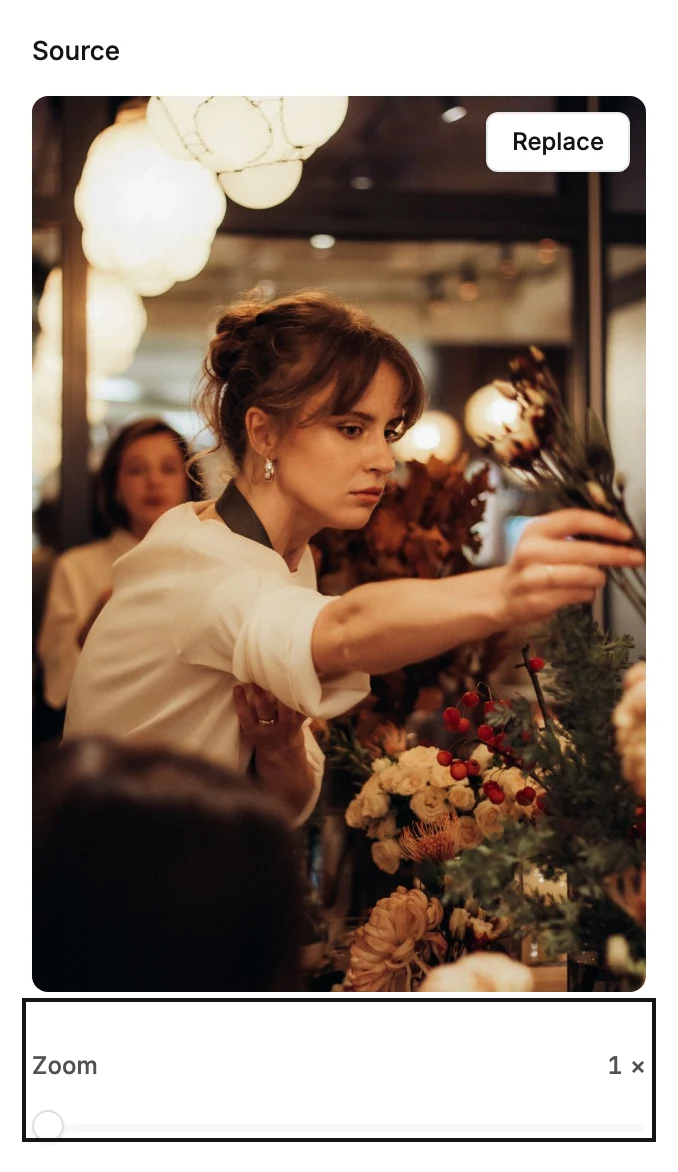
There, the Image tile in the block tray adds one on its own. Point at it and a small label reads Edit image. Empty, it reads Your image goes here. Select it and the panel reads Block › Image, with the picture under Source. The picture works as above.
A photo has no × there either. Press Delete on it, and Jounce deletes an Image block on its own and offers Undo. Inside a layout, it hides the photo instead, when the design allows. See Why can’t I delete this block?
Link
The box under Link is where a tap on the picture goes. Paste a web address, an email address, or a phone number. Once a web address is in, Link actions appears under it. See Link actions. A picture inside a block that has its own link opens the block’s link instead.
Appearance
- Shape sets the photo to Original, Square, Portrait, or Landscape. It appears for a photo in a spot of its own, never beside text and never for a GIF.
- Corners rounds the picture’s corners: None, Soft, Round, or Pill. Each button’s name shows when you hover it.
Accessibility
Alt text is the picture’s description for readers who don’t see it. The hint reads Describe the image.
An Image block that stands on its own there, outside a layout, also carries Background and Padding, like any block. See The Block panel. Its picture runs edge to edge across the email’s card.
More in this topic
Updated