

Hand off an email for someone else to send
Short answer
As an Editor, walk the send steps and select Save and hand off on the last one. Jounce saves the subject, preview text, and recipients, and the email waits on the Emails page as Ready to send, for an Admin or Manager.
When you’re done, Jounce says Saved. An admin or manager can send it from here, and returns you to your Emails page. There the email’s card reads Ready to send.
An Editor drafts and edits but can’t send. The send steps still open for you, because they’re the only place to write the subject line and preview text. What changes is the last button.
-
In the editor, select Continue. Walk the steps: pick the recipients, write the subject and preview text, and check the review.
-
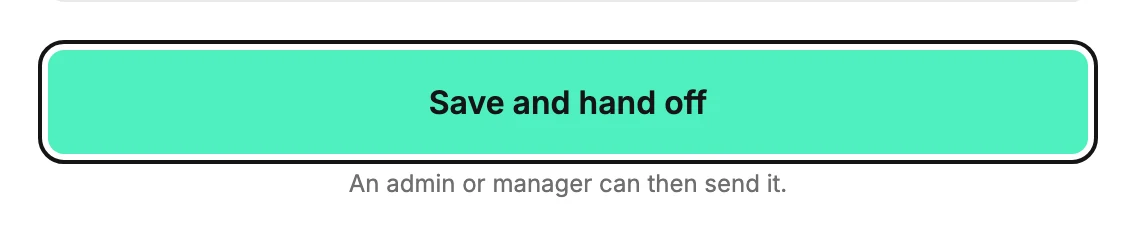
Select Save and hand off at the bottom. The line under it says An admin or manager can then send it.
What the sender sees
On the Emails page, the card reads Ready to send. Rest your pointer on it to see who handed it off and when. Jounce doesn’t message the sender, so tell them it’s ready, and when it should go out. They open the email and select Continue. What you saved is already in place for them to send.
Handing off saves the subject, preview text, sender name, and recipient list. It doesn’t keep what you chose under When or a second subject line. Nothing gets scheduled.
You don’t need a postal address to hand off. If the workspace has none yet, you can add it on the review step, or leave it for the person who sends.
If a send is refused
Your role can change while the steps are open. If it does and you select a send button, Jounce says Sending needs an admin or manager. Nothing was sent — ask one of them to send it. Your work on the email is saved in the editor. For what each role can do, see Workspace roles.
Next step
The person who sends it walks the same steps: Send or schedule your email.
More in this topic
Updated