

The Countdown block
Short answer
A countdown is a timer that shows every reader the true time left. Its panel sets when it ends, its label and button words, which parts show, and whether it shows tiles and seconds.
A countdown is a timer. It shows the time left to a moment you set, with a label above and a button below. In every email you create, you add one from the tray’s Countdowns tile, which holds four timers. For an email that opens in the earlier editor, see the last section.
Select it and the panel’s heading reads Block, with Swap design for the other timers. The editor shows the timer as it stood when you opened it or last made a change; it doesn’t tick there. See How a countdown works in the inbox.
Countdown
- Ends and Timezone set the moment. If the moment has passed, the panel says the email shows Ended and the date.
- Label and Button hold the words. On most timers you can type them in the email too.
Elements
Elements shows or hides the label and the button.
Appearance
Tiles sets whether each part of the count sits in a tile of its own: the days, hours, minutes, and seconds. Only the two timers that draw a clock have this row:
- Countdown clock: Tiles starts Off, and the timer sits on a card. Pick On and each part sits in a thin outlined tile, with no card.
- Countdown last call: Tiles starts On, with each part in a tile on a band of your brand color. Pick Off and the count sits straight on the band.
Seconds is Shown or Hidden, on the same two timers.
Link
On most timers, select the button in the email and use the box under Link. A tap on the timer opens that address too. A countdown has no block link.
Its look
The timer wears your brand’s colors and, where it can draw them, your fonts. There’s no Background, Font, or Padding row.
You can duplicate or delete a countdown like any block. You can’t save it to favorites.
In an email that opens in the earlier editor
There, the Countdown tile in the block tray adds a timer that shows days, hours, minutes, and seconds. Point at it and the editor labels it Edit countdown. The timer’s label and the button’s words are text in the email. Select either and type.
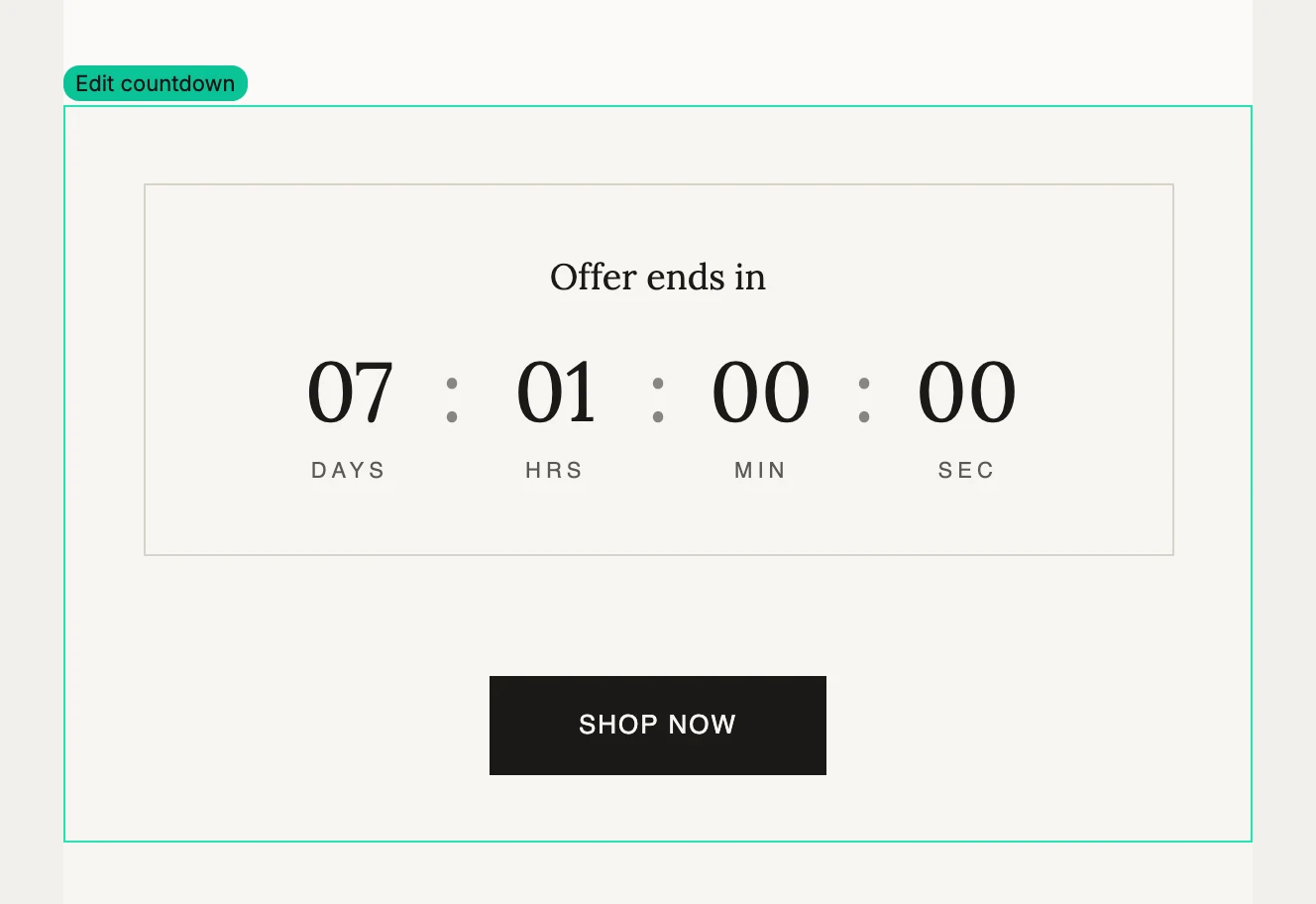
Select the timer and the panel reads Block, with a line under it: Each reader sees the true time left when they open it.
Schedule
Type is Fixed or Personalized.
- Fixed counts to one moment. Ends takes the date and the time. Timezone is the zone that time belongs to; type to search the list. If the moment has passed, the panel says so: This moment has already passed — the strip shows zeros until you pick a future time.
- Personalized counts a set length of time from each reader’s first open. Duration takes Days, Hrs, Mins, and Secs. If all are zero, the panel warns: Set a duration above zero, or the strip shows zeros the moment it opens.
Design
- Swap timer opens the designs, grouped by look: Warm, Personal, Editorial, Bold, Elegant, Playful, Modern, and Calm. When your email’s other layouts share one look, that group comes first. Your schedule and words move to the design you pick.
- Background is the timer’s base color.
Link
The box under Link is one link for the whole timer. A tap anywhere on it goes there. When the button is showing and has a link, a tap on the button opens the button’s own link; the panel says so. Link actions appears once a web address is in. See Link actions.
Elements
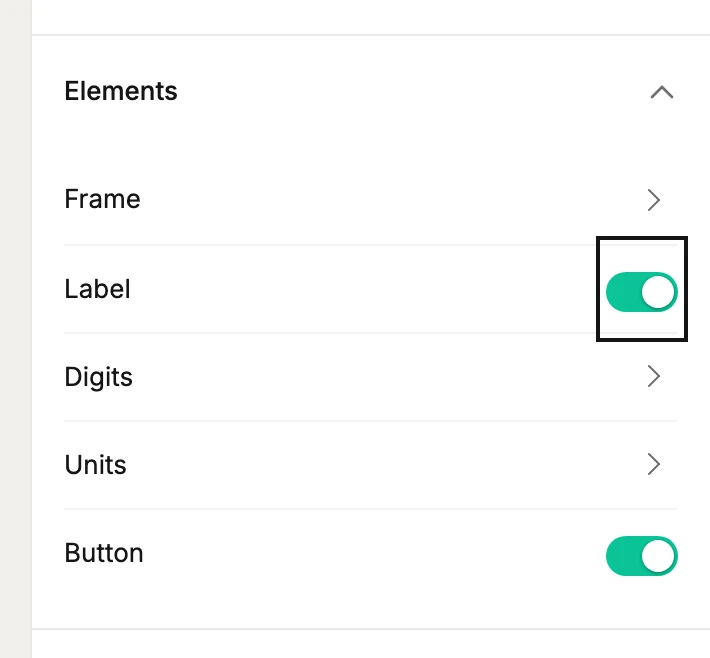
One row per part of the timer. The first row is the design’s own frame, tiles, or ring. Then Label, Digits, Units, and Button. A row’s name opens that part’s settings. A row’s switch shows or hides the part. The digits never hide. On some designs the units always show too, so their row has no switch.
Each part offers Font, Weight, and Color. The timer goes out as a picture, so every font in the list arrives exactly as you see it.
- Digits also has Show seconds. The caption says it plainly: Seconds are exact when the email opens — a short tick, not a live clock.
- Button also has its own Links to box and Link actions, Case, Fill, Text, Border, Thickness, and Corners. Turn the button’s switch on and a button appears with the design’s own words. Turn it off to hide it; your words are kept.
Advanced
Padding sets the space around the timer. See The Block panel.
More in this topic
Updated