

Verify your email address
Short answer
Open the email called Verify your email for Jounce and select Verify email. If the page that opens asks, select Verify email there too.
When you’re done, Jounce opens, and it doesn’t ask again. A new account opens on setup, which starts with your website.
This applies to accounts made with an email and a password. If you signed up with Google, your email is already verified, and your Sending page has no Your email card.
The Check your email page
After you select Create account, the page says Check your email, then Almost there. Open the link Jounce sent to your address to confirm it’s you. This page refreshes on its own. Signing in before you’ve verified opens the same page. Under it sit three links:
- Send it again sends a fresh link.
- Use a different email signs you out and opens the sign-up page.
- Sign out signs you out.
If the first link couldn’t go, the title reads Jounce couldn’t send your link. Your account is fine, so select Send it again in a moment. If the address can’t get mail, the page says That address didn’t work. See If it didn’t arrive.
Now and then, sign-up links can’t go out for a while. The page then says Your account’s fine, but Jounce can’t send sign-up links right now, and when to come back. Only Sign out stays. You can sign out and continue with Google instead.
Open the link and verify
- Find the email called Verify your email for Jounce. It comes from no-reply@jounce.com, so check your spam folder if it isn’t in your inbox.
- Select Verify email in that email.
- If you’re signed in to Jounce in that browser, you’re done: the page verifies you and Jounce opens.
- Anywhere else, a page opens headed Verify your email, with your address under it. Select Verify email on that page. The page says Email verified. Signed out there? Select Sign in, or go back to the Check your email page, which carries on without you.
The extra press is on purpose. Some mail apps and security tools open every link in an email before you do, so a page that can’t tell it’s you waits for your press. The link works on any device, signed in or not.
Check where you stand
Open the account menu at the top right and choose Sending. The Your email card at the top shows your address with a Verified badge. If you’re in before verifying, it reads Unverified.
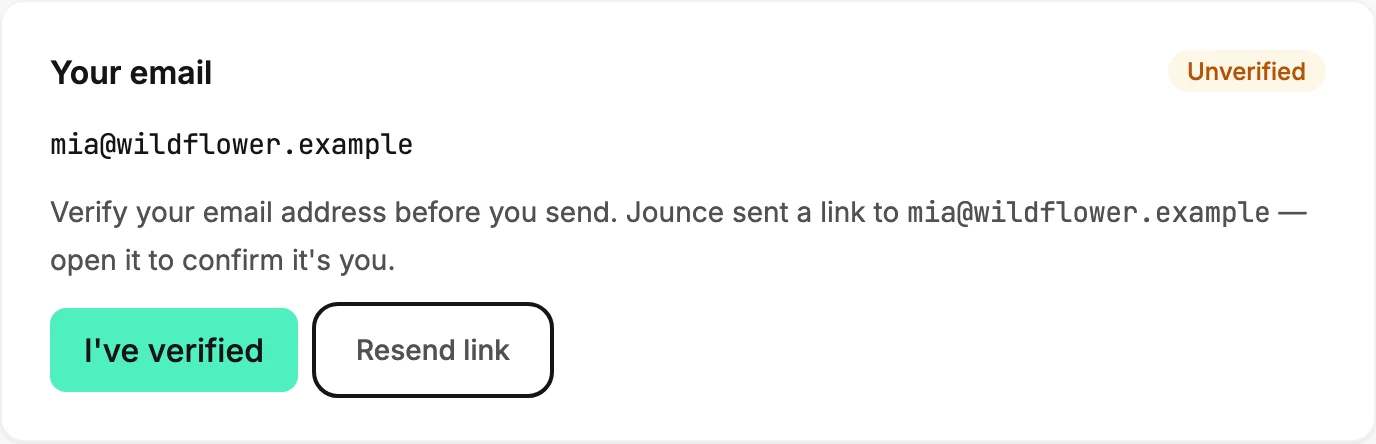
While it reads Unverified, the card has two buttons:
- Resend link sends the email again. Jounce says Verification link sent to your address. If it can’t, it says Couldn’t send the verification email. Try again in a moment. When links can’t go out for a while, it says Jounce can’t send verification links right now, and when to try again. If your address turns out to be verified already, it sends nothing and says Email verified.
- I’ve verified checks again after you’ve verified. Jounce says Email verified., or Not verified yet — open the link in your email and select Verify email, then try again.
Opened the link and still Unverified? Open it again, and select Verify email if the page asks.
If it didn’t arrive
Check your spam folder first. Jounce sends at most one link a minute to your address, and a few a day. Every resend button counts toward that. Ask too soon and it says Wait a minute, then ask for another verification email.
After the day’s last link, it says That’s today’s last verification email. Check your spam folder, or ask again tomorrow. The count starts over at midnight Pacific time, which may not be midnight where you are.
An address can get ten links in thirty days. After that, Jounce says This address has had 10 verification emails in 30 days, which is the limit.
If an earlier link bounced, or was reported as spam from that mailbox, Jounce stops sending links there and says Jounce couldn’t deliver to your address, then Check it for a typo, or use a different email. A bounce clears after thirty days.
When Jounce asks
Jounce checks your email before it opens, so most people never see these. If you’re in before verifying, each of these needs a verified email first, and opens a window named for what you were doing:
- Your first send. The Review step shows Verify your email to send.
- Inviting someone to your workspace. The invite dialog shows Verify your email to invite.
- Joining a workspace. The invite’s Join workspace button shows Verify your email to join.
- Importing a long list. The import screen shows Verify your email to import.
- Using AI. This covers Start with AI, the Jounce AI chat and Cutout in the editor, and Scan my site on the Brand page. The window says Verify your email to use AI, or Verify your email to scan your site on the Brand page.
- Launching an automation. Launch and Relaunch show Verify your email to launch.
- Publishing a form or a page. The publish button in Share shows Verify your email to publish.
- Setting your public address. Claim address in Share and Save handle in Settings show Verify your email to set your public address.
- Creating an API key. Create key shows Verify your email to create a key.
- Connecting an app. The Allow button on the screen Zapier, Claude, ChatGPT, or Gemini opens shows Verify your email to connect an app.
Each window says where Jounce sent the link, and offers Didn’t get it? Resend and an I’ve verified button, so you can finish without leaving the page.
Nothing is created, changed, or sent while the window is open. When you use AI, your words stay in the box. Once Jounce says Email verified., select the button again, or send your message again. Jounce doesn’t go ahead on its own.
These never ask: Pause, Unpublish, Revoke, Disconnect, and Not now. Forms that are already live stay live, and keys and connected apps you already have keep working.
A change to a form that’s already live waits for you, though. Jounce says so in a message with a Resend link button: The live page didn’t update. Your changes are saved — verify your email with the link Jounce sent you, and your next change puts them live.
Your subscribers’ confirmation emails depend on the workspace owner’s address. If your forms ask people to confirm, Jounce sends that email only if the owner has verified. See Why is someone still Unconfirmed?
A test email is different. Until you verify, Send test sends only to people in your workspace who have verified their own address. Once you verify, a test can go to any address, unless your workspace is still new. See Why won’t my test email send?
Jo, the chat behind the Help button, still answers while your email is unverified. A card from Jo that starts an email, a form, or an automation opens Start with AI, which asks first.
If the Review step asks for your postal address instead, that’s a different check, and it’s the next step below.
Note A link that says it has expired is not a problem with your account. See Why does the link in my email say it expired?
Next step
Jounce asks one more thing before your first send: Add your mailing address. The whole path is Send your first email.
More in this topic
Updated