

Give a photo a set shape
Short answer
Select the photo and pick Square, Portrait, or Landscape under Shape, below its Zoom slider. Original keeps the photo’s own shape, and a layout that sets its own shape has no Shape row.
When you’re done, the photo holds the shape you picked in the editor and in the sent email, cropped from its middle.
These steps are for every email you create. For an email that opens in the earlier editor, see the last section.
- Select the photo. The panel shows it, with its Zoom slider under it.
- Find Shape under the slider. Each button’s name shows when you hover it.
- Pick Square, Portrait, or Landscape. The photo takes that shape at once.
- Drag the photo’s preview in the panel to choose which part stays in view. See Zoom and reposition a photo.
The four shapes
- Original keeps the photo’s own shape. Picking it again removes a shape you set.
- Square is as wide as it is tall.
- Portrait is taller than it is wide, 4:5.
- Landscape is wider than it is tall, 3:2.
Which photos have it
- One photo on its own, and the two full-width photo layouts, offer all four shapes. A photo there starts at Original.
- A photo cover, a photo band, an offer banner, and an offer poster offer Square, Portrait, and Landscape. The layout’s own shape is picked to start.
- In every other layout, the design sets the shape. Choose Swap design for a different one. See Swap a layout.
A GIF has no Shape row: it can’t be cropped without losing its motion. The row appears once a photo is in.
The tall-photo note
A photo taller than a standard phone photo makes the reader scroll a whole screen before reaching your words. When a tall photo is set to Original, a note under the row says how tall it will be and that Portrait crops it to 4:5. Pick a shape and the note goes.
In an email that opens in the earlier editor
There, select the photo and the panel reads Block › Image. Shape sits under Appearance, with the same four buttons.
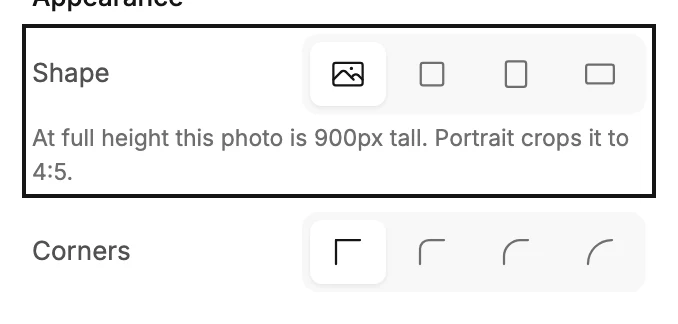
Every photo there starts at Original, and a saved email never changes shape on its own. The row appears for a photo in a spot of its own. When a layout puts a photo and words side by side, the design decides the photo’s shape; swap the layout to change it.
Next step
The cropped photo at its sent size shows in Preview your email.
More in this topic
Updated