

Change the name your email comes from
Short answer
On the Review step, select Change beside From, type the name readers should see, and select Done. The address beside it is the one the email really goes from: your business name at send.jouncemail.com, or your own domain once you’ve set one up.
When you’re done, the From row on the Review step reads the name you typed. Your readers see that name in their inbox.
-
Go through the send steps to Review. The From row shows a name, then the address, as Name · address. Before you set one, the name reads Your name.
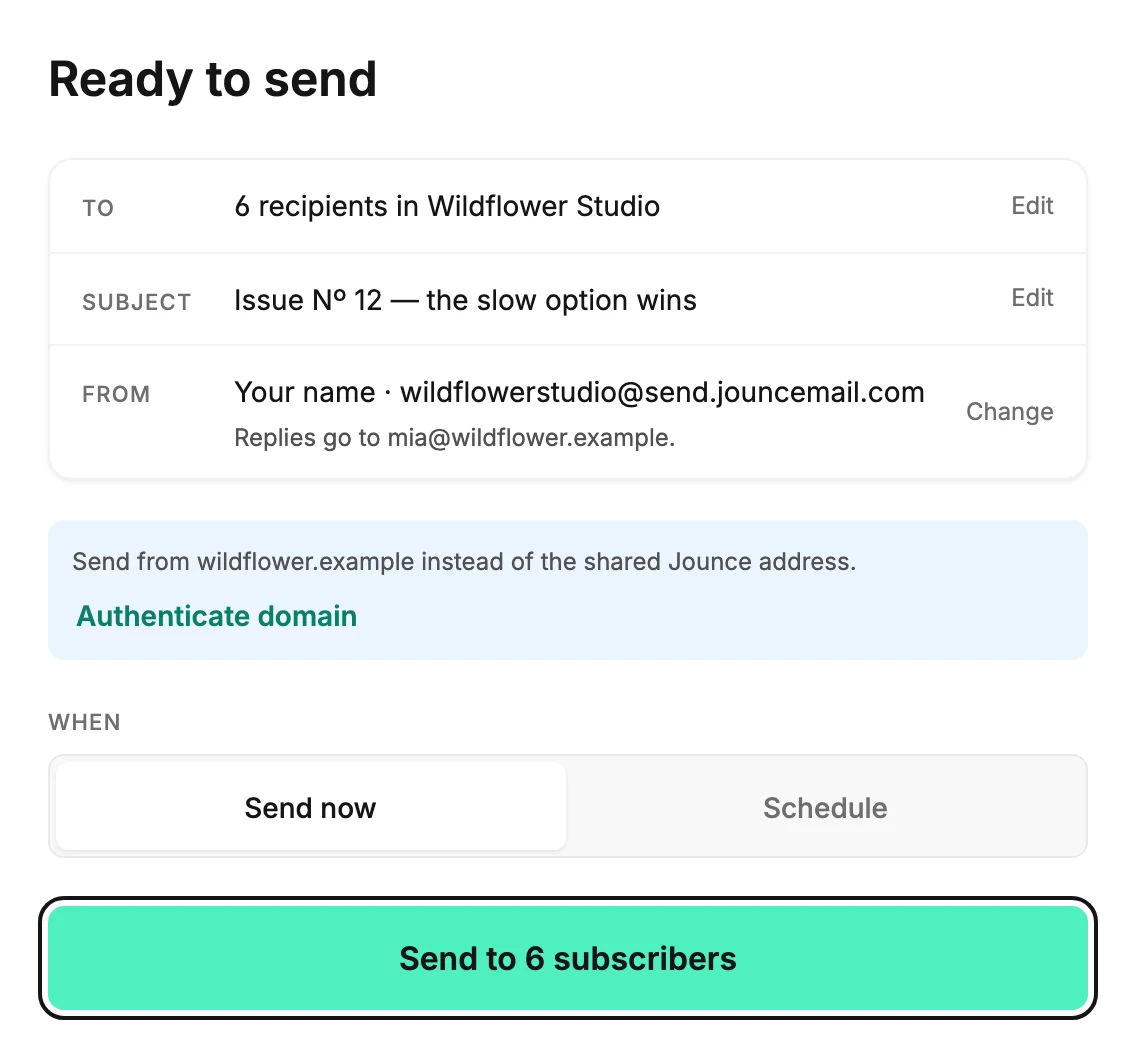
-
Select Change at the end of the row. A field opens with the current name selected, so you can type over it.
-
Type the name your readers should see, a person or a business, and select Done.
Jounce saves the name with this email when you send, schedule, or hand off. A new email starts with the From name from your Sending page.
Note Until your emails come from your own domain, Jounce guards the name beside its shared address. It won’t send a name that looks like a well-known company’s, such as PayPal, or one with Jounce in it. Readers see another name Jounce has for your workspace, such as the From name on your Sending page, or the address alone.
The address
You can’t type the address. Jounce chooses it:
- If you’ve set up your own sending domain, the email comes from it. A line under the card says This email goes out from your authenticated domain.
- Otherwise it comes from your business name on Jounce’s shared address, such as calpreserving@send.jouncemail.com. The row shows that address, the same one your subscribers see.
Under the address, the row says where replies go: Replies go to, then the workspace owner’s sign-in email. See The address your emails come from.
Changing the name on this step changes this email’s name only. The address is made from the From name on your Sending page.
The line about your domain
Under the card, Jounce says one thing about where the email comes from.
- This email goes out from your authenticated domain. Nothing to do.
- The workspace owner signed up with an address at their own domain. The line reads Send from, then that domain, then instead of the shared Jounce address. Select Authenticate domain to open your sending settings.
- The owner signed up with a Gmail, Yahoo, or similar mailbox, which can’t be authenticated. The line reads Send from your own domain instead of the shared Jounce address. Select Set up your domain to start.
Either link takes you out of the send steps to your sending settings. Your email is saved, but these links don’t keep the subject, the preview text, or the recipients you set on the steps. (The close button keeps the subject and preview text.) So set up the domain first, then come back.
Next step
To put your own domain in the address too, see Send from your own domain.
More in this topic
Updated