

Start an email with AI
Short answer
Select Create email, then Start with AI, describe the email, and select Generate email. The editor opens at once and Jounce builds the draft in front of you, in your brand, with a chat ready for changes.
When you’re done, a draft Jounce wrote from your description is open in the editor and saved with your emails. It’s built in your brand, and the parts only you can fill in are marked.
-
Open Emails and select Create email. Jounce asks How do you want to start?
-
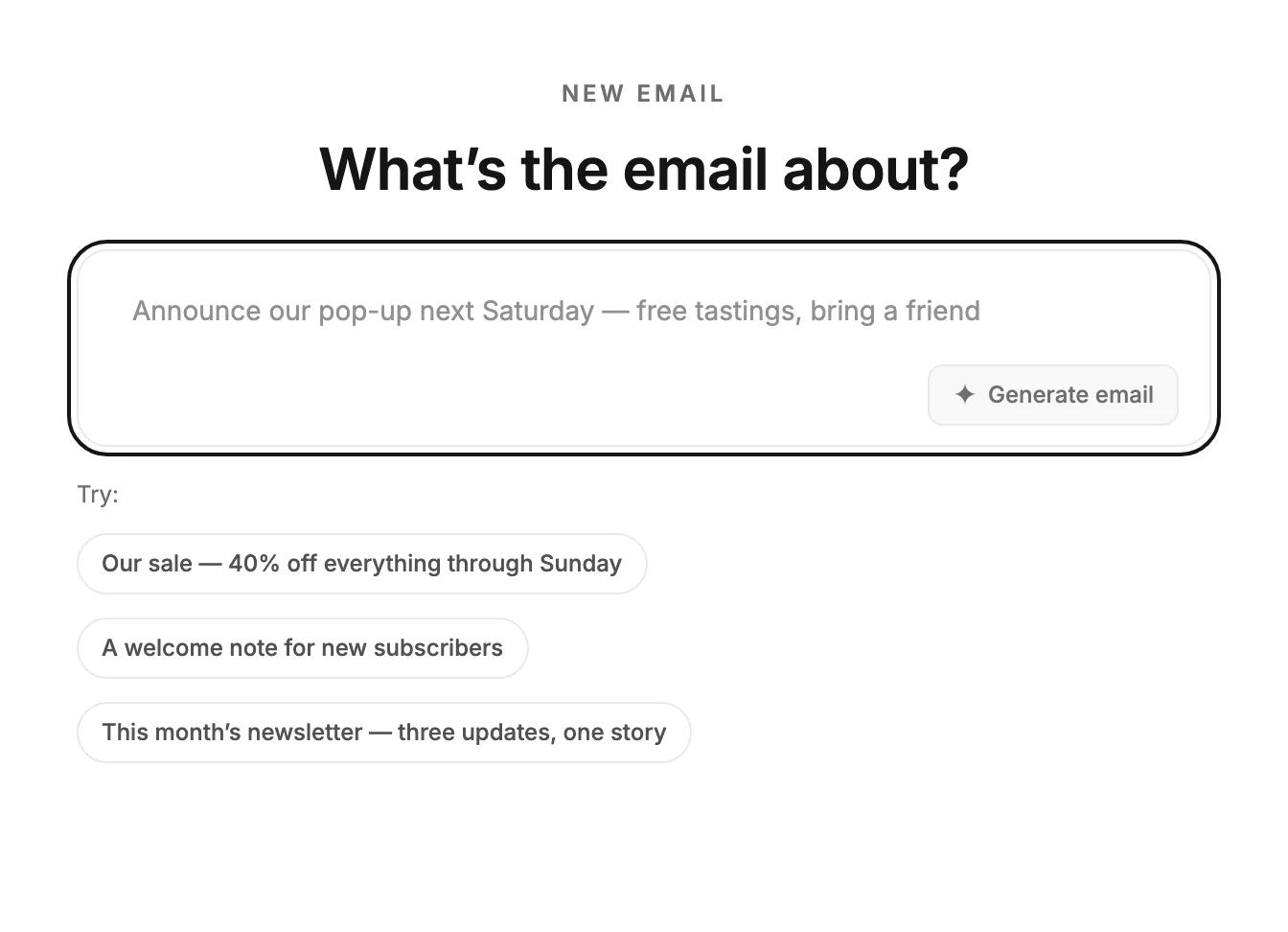
Select Start with AI. A page opens with one question, What’s the email about?, and a text box.
-
Describe the email in the box: what it announces, who it’s for, and the facts you want in it. The grey example in the box shows the shape. To try one, select a line after Try: and it fills the box. The examples fit the industry on your Brand profile.
-
Select Generate email, or press Enter. The editor opens at once, and a line says what Jounce is doing, starting with Reading your request. Within seconds the email’s layout appears on the page, and the line says Building the layout. Then it says Writing your copy while the words fill in, and each photo appears in its spot as soon as Jounce finds it.
-
When the draft is whole, the chat on the left opens with your description as its first message. Jounce’s reply starts Drafted from that and names anything it made up.
Note If you signed up with an email and a password, verify your email first. Until you do, Generate email opens a window titled Verify your email to use AI, and your description stays in the box. Open the link in your email, select Verify email if asked, then I’ve verified, then Generate email again.
Starting from Jo
You can also ask Jo, the chat behind the Help button, to make an email. Select Generate email on the card it shows, and this page opens with the description in the box. Jounce starts drafting at once, and the editor opens as in step 4.
If a draft is open and not saved yet, Jounce waits for you instead. A line above the box says generating replaces it. While it waits, Back returns you to the page you were on.
Writing the description
Say what the email is for and give the facts. Our sale — 40% off everything through Sunday is enough for a sale. A date, a price, or a place in your description goes into the email as you wrote it. Leave one out and Jounce either writes around it or fills it in and says so.
A counter under the box shows how much room is left as you type.
What Jounce works from
The draft is made from Jounce’s designed layouts, in your brand’s colors, fonts, and logo. Jounce reads your Brand profile for what you do and how you sound. It signs a letter with your own name and picks photos from the free photo library.
What Jounce leaves to you
A detail Jounce made up to show the full design, such as a price or a date, is yours to keep or change. The chat’s first reply lists them; tell it the real ones and it swaps them in.
Sending waits on a customer quote Jounce made up, a photo it couldn’t find, a countdown with no end time, or a number it didn’t know. See What an AI draft leaves to you.
The draft takes a name from Jounce. Rename it from your Emails page. See Rename an email.
If it doesn’t go through
Jounce brings you back to the description, with your words still in the box. One line says what happened: Jounce couldn’t draft that email — nothing was created. Try describing it differently. Change the description and try again.
If Jounce finds your email isn’t verified after the editor opens, it brings you back the same way. The Verify your email to use AI window opens over your words.
If the line is Jounce paused AI features for everyone for now, Jounce has paused its AI for every workspace, not only yours. Try again later; it’s back within a day. Until then, you can start from a template.
If the line is You’ve reached your AI limit for now, you’ve used all the AI you can for now. The line names when it opens again. Until then, you can start from a template.
Back, at the top left, returns you to the Create email screen. Leave the editor while Jounce is still building and the draft finishes on its own. A message says Your draft is ready in Emails.
Next step
Ask for changes in Edit your email with Jounce AI, then see Send or schedule your email once the marks are gone.
More in this topic
Updated