

The page after you send
Short answer
When you press the send button, Jounce opens one page with one message: Sent, Sending, Scheduled, your A/B test is running, or what stopped it. Each state names what went out and offers the next step.
The page has no menu and no preview. It says what your send is doing, in one line, and gives you a button for the next step. The title says the same thing as the email’s status label on your Emails page, so the two never disagree.
Sent
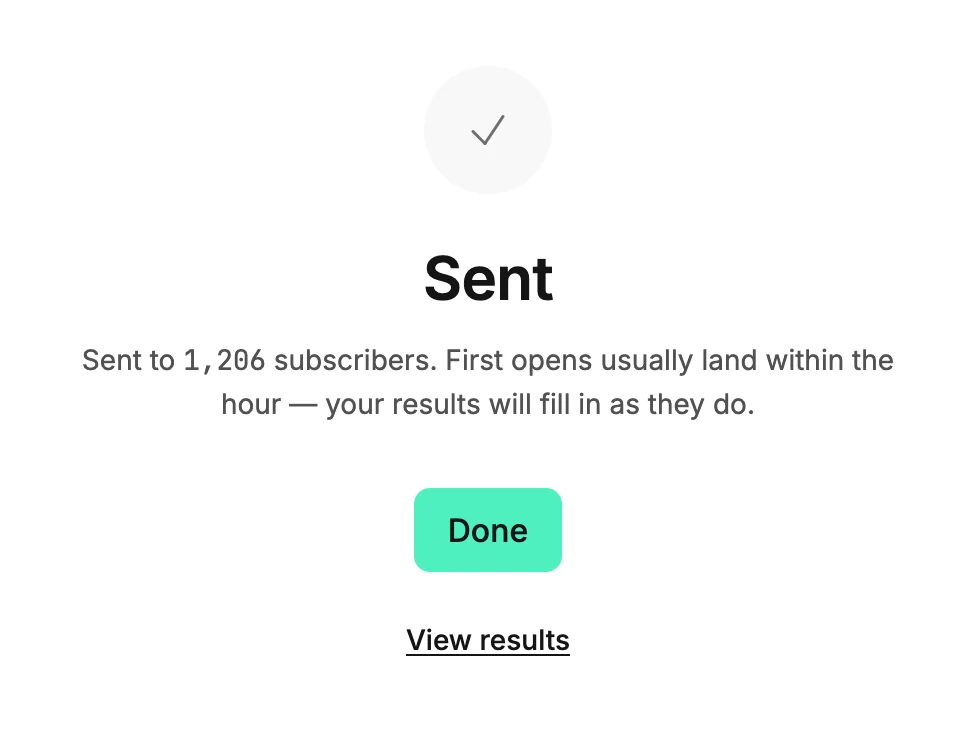
The send finished. The line reads Sent to and the number of subscribers. Then: First opens usually land within the hour — your results will fill in as they do. On your workspace’s very first send, the line starts with That’s your first one out the door. Done takes you back to your Emails page.
Under it, View results opens the email’s results page, where the numbers live. That page has Back to emails at the top left. See Open an email’s results.
Sending
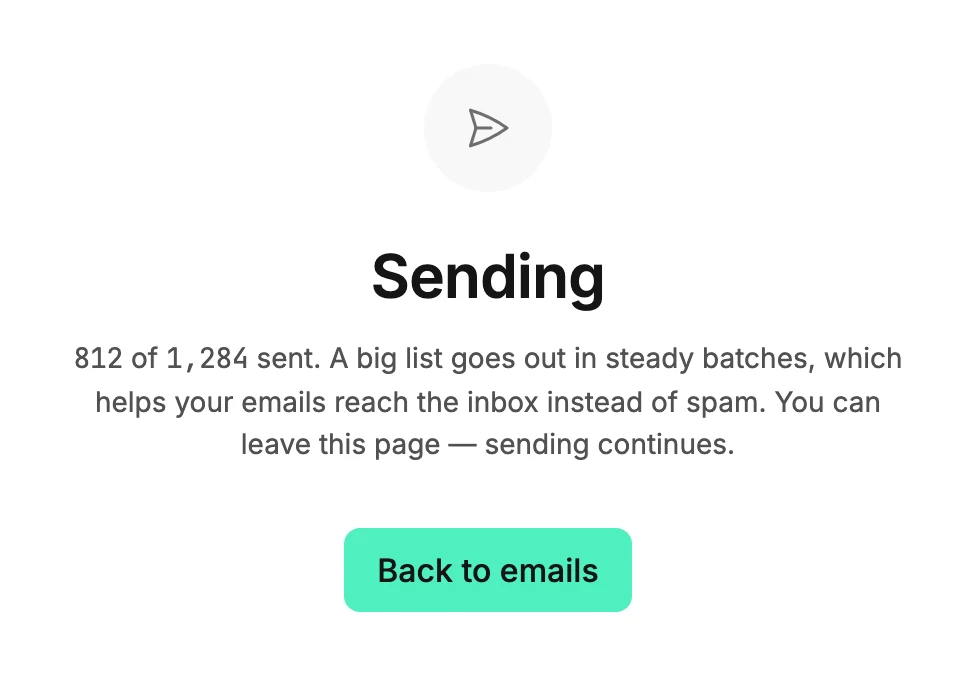
A big list goes out in steady batches. The line ends You can leave this page — sending continues, so you can close the tab. Under it, a count shows how many have gone out: 812 of 1,284 sent.
The page flips to Sent on its own when the last batch goes out. A smaller send reads Sending to and the number instead of a count.
Scheduled
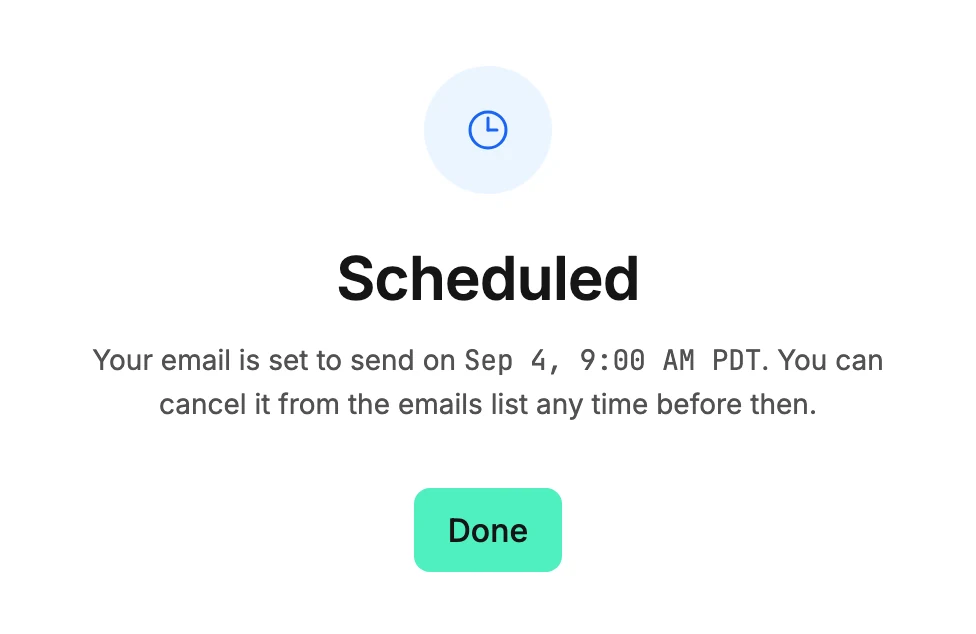
The line names the moment the email goes out, in the time zone you picked. It reads Your email is set to send on the date and time. Then You can cancel it from the emails list any time before then. Nothing goes out until then. See Cancel a scheduled or sending email.
Your A/B test is running
Right after the button, the line reads Both subject lines are going out to your test group now. Once they are out, it says how many people got each one and how many are waiting for the result.
After the test’s wait, the subject with more clicks goes to everyone else. If they tie, subject A wins. See Test two subject lines.
Sometimes the two test groups are your whole list, so no one is left waiting. Then the line ends That’s your whole list — you’ll see which got more clicks in your results, and View results sits under Done, as it does on a sent email.
The states that need you
- This email wasn’t sent. Nothing went out. The line says why, in the words Jounce recorded. The button under the line opens the fix or reads Try again. If the line reads The send you canceled is still stopping, only Back to emails shows. Usually within about a minute, the page changes on its own to how that send ended. See Why did my send fail?
- Partly sent. Some of your list got it and the rest couldn’t be delivered. If a sending pause stopped it partway, the line says how many got it before it stopped and that it can’t be sent again, with Get help under Back to emails. See Why does my email say Partly sent?
- Won’t send, Waiting on you, Needs your OK, or Waiting to send. Jounce is holding the send. The line says what ends the hold. A send that needs your OK offers Send now and Reschedule above Back to emails. See Why does my email say Won’t send?
- Sending later. Your list is warming up, and its daily limit has no room for this email yet. The line reads While your list is warming up, you can email a limited number of people a day. This email goes out by itself once there’s room; if it’s more than a day late by then, it waits for your OK instead. Only Back to emails shows. See Why can’t I email my whole list yet?
- Sending paused. Sending is paused for this workspace, not for this email. This email is waiting behind the pause. Right after you press the send button, the line gives the reason for the pause, then ends This email is waiting behind the pause and goes out once it lifts; if it’s more than a day late by then, it waits for your OK instead. Come back later and the line says nothing has gone out and your email and audience are saved, then ends Write to hello@jounce.com to get sending again. Jounce picks this email up as soon as the pause lifts; if it’s more than a day late by then, it waits for your OK instead. Either way there’s no Try again, and Get help sits under Back to emails. See Why is my sending paused?
- Sending was canceled. You stopped it. The line reads Nothing went out, or how many people got it before it stopped. While the send is still stopping, it may read Jounce can’t say yet whether any went out. It changes on its own once the send stops. If part of the send was interrupted, Jounce can’t confirm how many got it. The line says so, such as At least 1,200 went out before it stopped. If nothing went out, Review and send appears under Back to emails. It opens the send steps for this email, so you can send or schedule it after all. Only Admins and Managers see it.
- This email hasn’t been sent. You opened this page for an email that no one has sent or scheduled yet. Review and send opens the send steps. An Editor sees Review and hand off instead.
Note Coming back to this page later never sends anything. Only these start a send: the last button of the send steps, Try again, and Finish sending to the rest.
More in this topic
Updated