

Add a block
Short answer
Point at the top or bottom edge of any block and select the + that appears. Pick a tile in the tray, then a design in the panel, and the block is added there with its settings open.
When you’re done, the new block sits where you pointed, and its settings are open on the right.
These steps are for every email you create. For an email that opens in the earlier editor, see the last section.
-
Point at a block, or select it, then select the + at its top or bottom edge. The tray opens right there in the email.
-
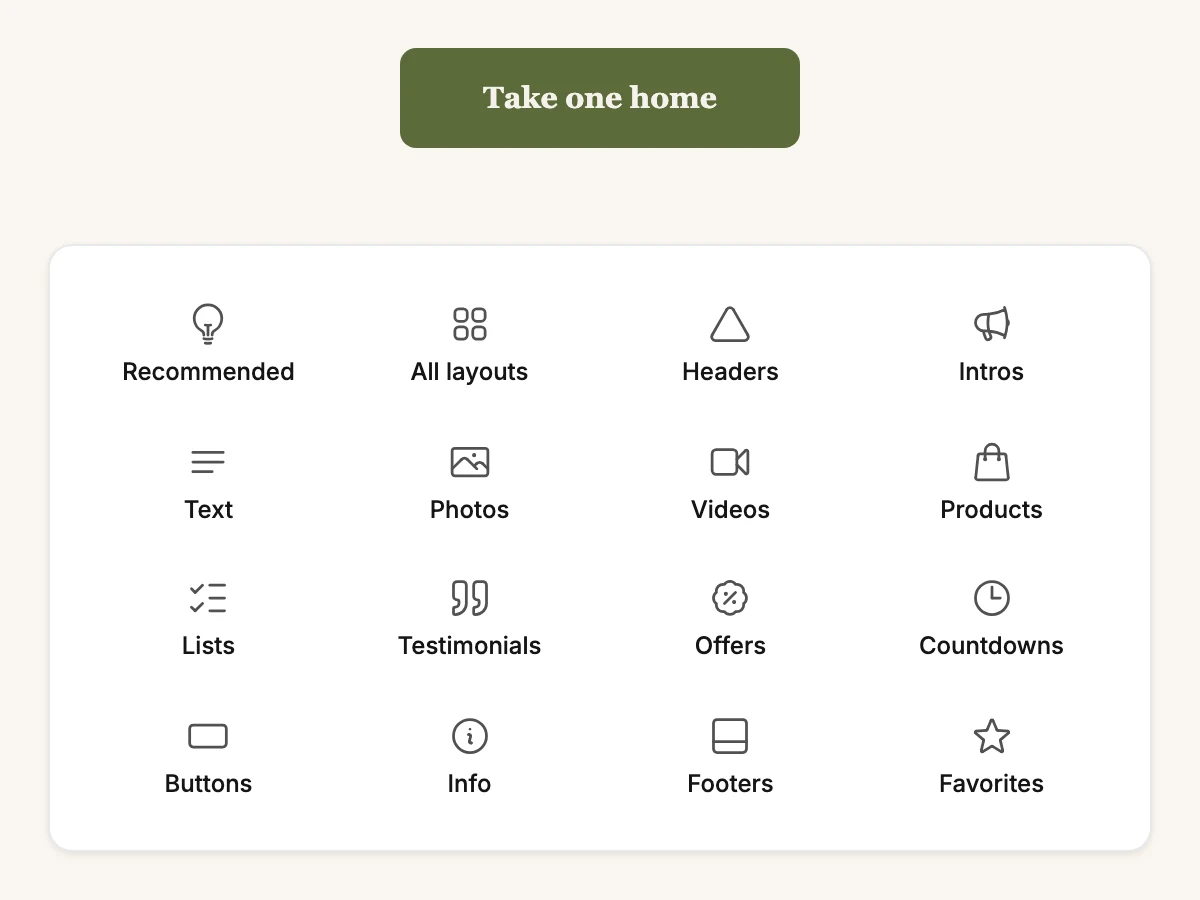
Pick a tile. The panel shows the library on that group, under Choose a layout. Nothing is added yet.
-
Select a card. It’s added where the tray opened, selected, with its settings open.
The tray stays open while you browse, with your tile highlighted, so another group is one click away. Press Esc to close the library, and again to close the tray.
Note The library opens in the settings panel. If that panel is folded, select Settings at the right edge of the window first.
What’s in the tray
The tray is a map of the layout library, so you always pick the design yourself.
| Tile | What it opens |
|---|---|
| Recommended | A few designs picked for that spot |
| All layouts | Every design, group by group |
| Headers to Footers | One group of designs each |
| Favorites | The blocks you saved with the star |
For a plain paragraph, pick Text: a paragraph is the first card, and the Heading switch in its panel adds a heading. For one photo, pick Photos: a single photo is the first card. See The layout library.
For one button, pick Buttons: a button on its own is the first card. See Add a button on its own.
For one video, pick Videos: a video on its own is the one card there. See Add a video on its own.
An empty email
An email with no blocks yet reads Start your email, with the tray already open under it. An email you start from scratch opens that way.
In an email that opens in the earlier editor
There, a tile adds its block at once.
-
Point at the block above or below the spot you want. A + appears at its top edge and its bottom edge.
-
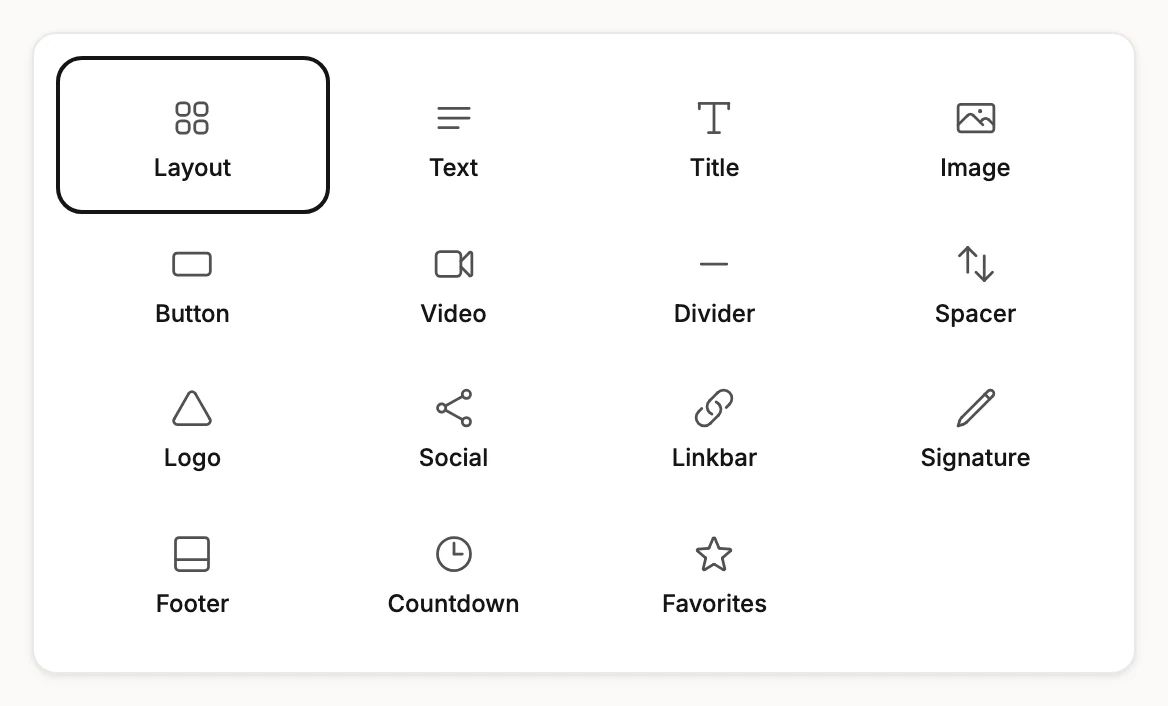
Select the +. The block tray unfolds right there in the email, one tile per kind of block.
-
Pick a tile. The block is added at that spot, already selected, and the panel opens so you can fill it in.
Select the same + again to close the tray without adding anything.
| Tile | What you get |
|---|---|
| Layout | A designed section: a header, an intro, a photo grid, a product row, more |
| Text | A paragraph |
| Title | A heading |
| Image | One photo |
| Button | A button with a link |
| Video | A YouTube or Vimeo video |
| Divider | A line |
| Spacer | Empty space |
| Logo | Your logo |
| Social | A row of social icons |
| Linkbar | A row of text links |
| Signature | A signature in a script font |
| Footer | A small line of footer text |
| Countdown | A countdown timer |
| Favorites | A block you saved earlier |
Layout works a little differently. A card reading Choose a layout marks the spot, and the panel shows the layout library. Nothing is added until you pick one. Click anywhere else and the card goes away.
An email there with no blocks left also reads Start your email, with the tray open below it. The mailing address and the unsubscribe line stay at the bottom, so you only add what your readers should see.
Next step
Put it where you want it: Move, duplicate, or delete a block. For a designed section, see Add a designed layout.
More in this topic
Updated