

The results page
Short answer
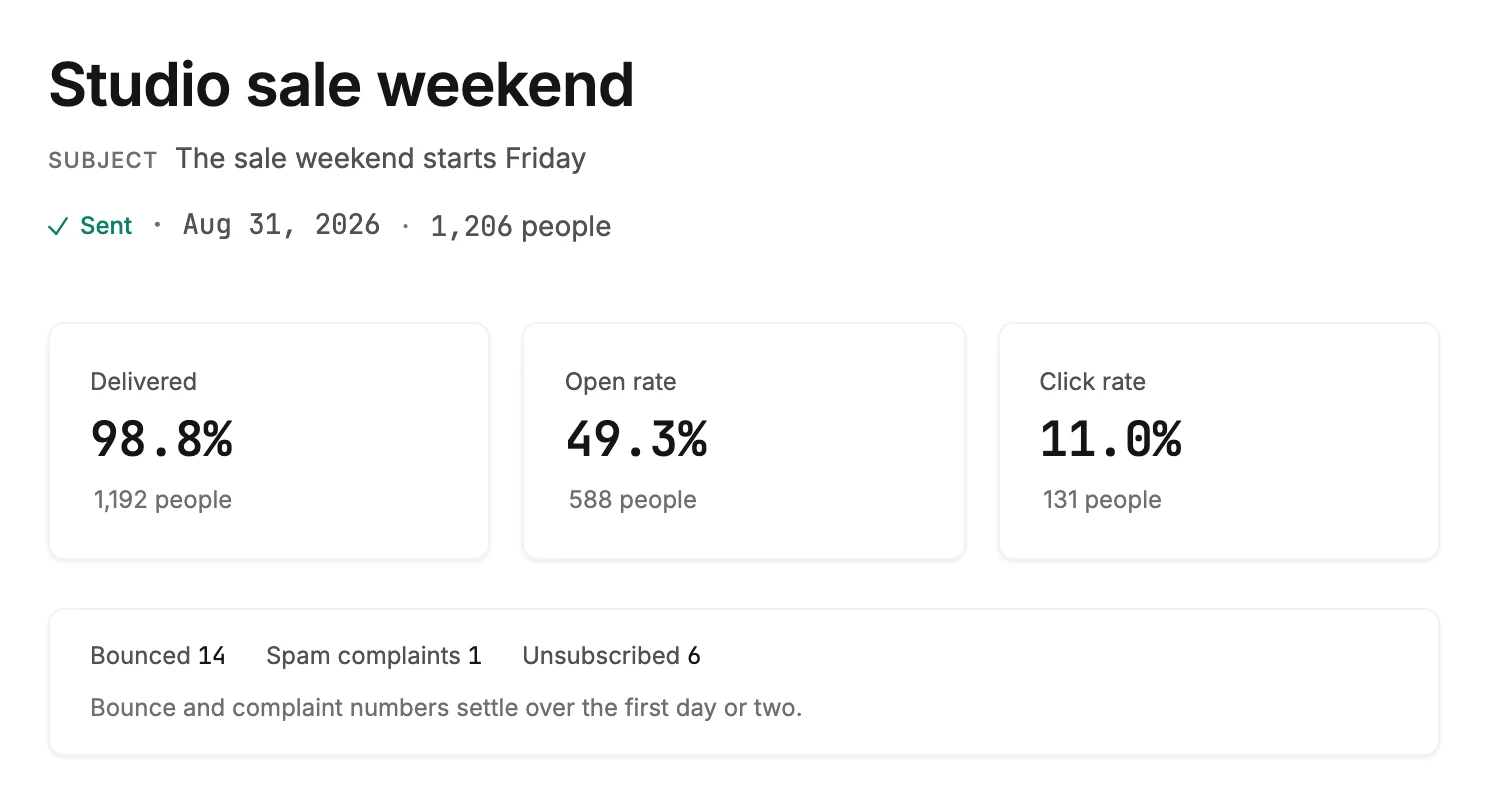
One email’s results: who it reached, then a column of cards, the first with its delivered, open, and click rates over its bounces, spam complaints, and unsubscribes. A warning box leads the page when the send fell short.
The page opens over the app, with everything in one column. One link sits at the top left: Back to emails. Esc leaves too.
The head
The email’s name comes first, then its subject line under Subject. Below them sit the status label, the date it went out, and who it reached, such as 1,206 people. An A/B test shows both subjects further down instead of one here.
While part of the audience hasn’t got the email, the count reads like 480 of 1,200 people. That happens while an A/B test waits for its winner, after a send that stopped partway, and after one you canceled. When Jounce can’t vouch for the count, it starts with at least. People Jounce skipped before sending aren’t counted.
The warning box
When a send fell short, an amber box leads the page, above the numbers. Its title counts the people who didn’t get the email, such as 720 people didn’t get this email. Under it, Jounce says what happened.
- Up to before the count means part of the send may have reached them, or Jounce can’t confirm how far it got.
- haven’t gotten this email yet means the rest can still go out.
- Review and finish in the box opens the page where you finish an A/B test’s winner round, the send to the rest of your list. See Finish an A/B test that stopped.
- Get help in the box opens Why is my sending paused?
A canceled send has no box, since stopping it was a choice. The one exception is a cancel where Jounce can’t confirm how many got it: the box then says so, with no count over it. For what each story means, see Why does my email say Partly sent?
The numbers
Three cards hold the numbers, one each. Each is a rate, with the people it counts under it, such as 1,192 people.
| Number | What it counts |
|---|---|
| Delivered | The share of sent mail that no mailbox refused for good: sent minus bounces. Accepted mail can still land in spam. |
| Open rate | The share of delivered emails that someone opened. |
| Click rate | The share of delivered emails with a click on any link. |
Open rate and Click rate show a dash on an email sent before Jounce tracked opens and clicks. Under each dash, it reads Not tracked for this email.
Under them, one card counts what was lost: Bounced, Spam complaints, and Unsubscribed. A bounce here is a mailbox that refused the email for good. When a count ran high for this list, a note under the row says what it means.
For how each number is worked out, see How Jounce counts opens, clicks, and bounces. There is no pass mark for an open rate; see What a good open rate looks like.
Every send together, over a time range, is on Analytics; see The Emails tab. When its rates don’t match this page, see Why don’t Analytics rates match an email’s results page?
The notes
Short lines in the card of counts, under its row, shown only when there is something to say.
- No opens yet. Most come within the hour, when a send has none in its first few hours.
- A line in amber when bounces or spam complaints ran high for this list. It reads, for example, Spam complaints ran higher than usual for this list. When they ran high enough to hurt your next send, it says what to do first. A small send never raises the line for bounces. For spam complaints it takes more than one complaint and a rate of 0.1% or more, at any size of send. One complaint on its own never raises it.
The A/B test
On a tested email, the A/B test card comes next, with one row for each subject line. See The A/B test results.
The breakdowns
Opens by mail app and Clicks by device follow, a card each, when the send has them. See Opens by mail app and clicks by device.
The foot of the page
Sent from names the sender name and address the email carried.
Under it, Jounce may suggest one next thing to try, such as a sign-up form, with a link that starts it. See The help button.
More in this topic
Updated