

The send steps
Short answer
Select Continue in the editor, and three steps fill the screen: Recipients, Subject, and Review. Review shows who gets the email, from whom, and when, with the send button under it.
The send steps take over the whole window. A back arrow sits at the top left, the three step names run across the top, and a close button sits at the top right.
On a phone, the step you’re on keeps its name; the other two show as dots.
To go back a step, select the back arrow, or a step you’ve finished — its name, or its dot on a phone. On the first step, the back arrow takes you to the editor, just like the close button.

To open the steps, select Continue at the top right of the editor. While the editor’s Before you send list still has something to fix, Continue points at the list instead.
The steps are the only place to write an email’s subject line and preview text, so every role sees the button. For the whole walk, start to Sent, see Send or schedule your email.
Recipients
Who’s this going to? The number at the top counts the people this send reaches. Under it:
- Segments — search and pick one or more segments. A segment is a saved group of subscribers.
- Add people — shows a People field. Type or paste addresses there, and Jounce offers your subscribers as you type.
- Upload a CSV — opens the same import screen as the Audience page. The imported list comes in as a segment, already picked.
- Exclude people or segments — shows a box for people to leave out. They won’t get the email, even if a segment above includes them.
See Choose who gets your email and Exclude people or segments.
Subject
The step asks you to Write the subject line. It holds the Subject field, with a Test two subject lines link under it. Then the Preview text field, which is Shown after the subject in the inbox.
Under them, a line shows the email as an inbox does, and changes as you type. See Write the subject line and preview text.
Review
The step says Ready to send. A card sums up the send. Everything below it is a choice you make at the moment you commit.
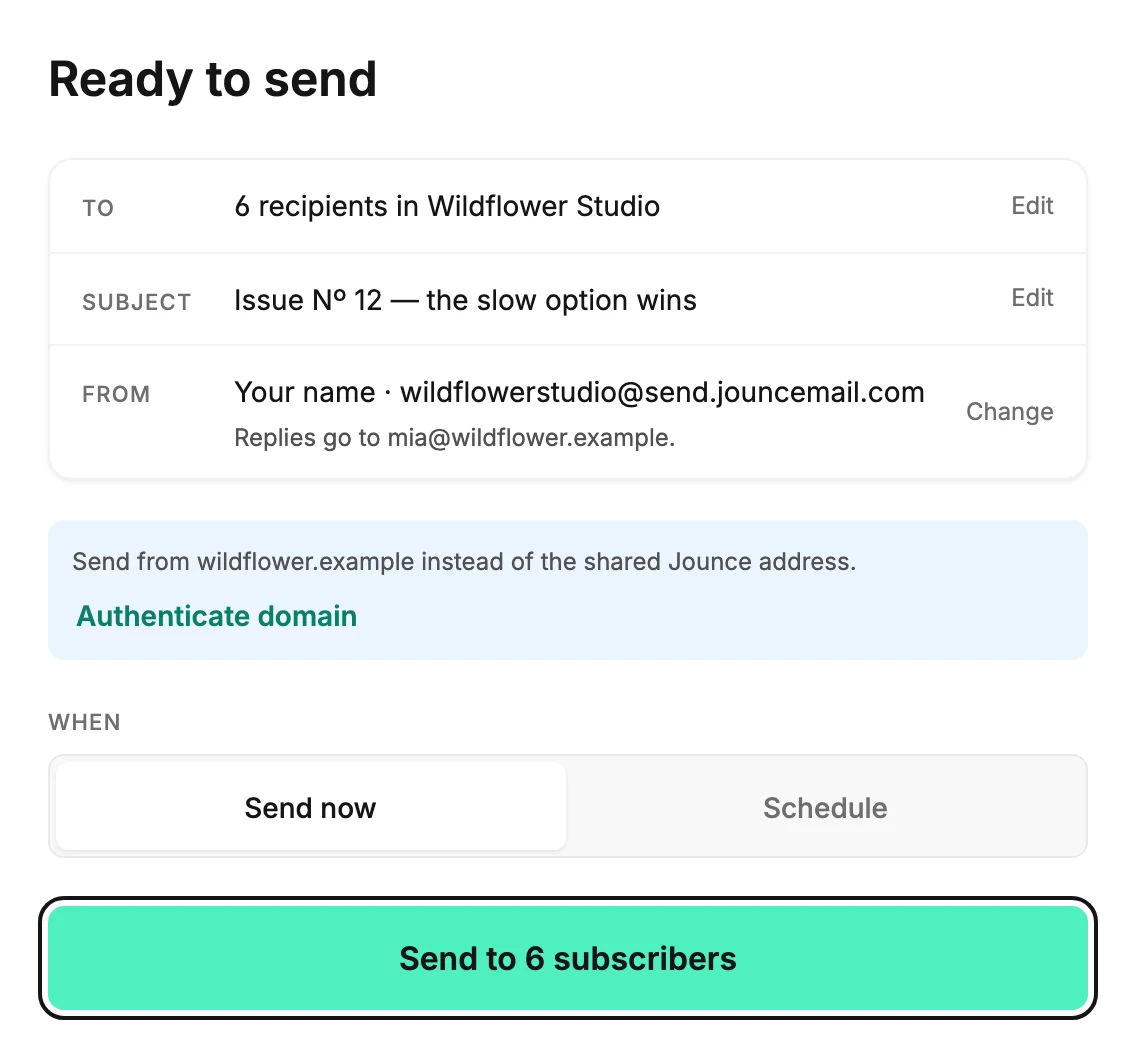
- To — the count and the workspace it comes from, so you notice if you’re in the wrong one. Edit goes back to Recipients.
- Subject — the line as it will read. Edit goes back to Subject.
- From — the name and address your readers see, and under them where replies go. Change edits the name in place. See Change the name your email comes from.
- A line about your sending address. It reads This email goes out from your authenticated domain, or it offers to set one up.
- When — Send now or Schedule, which opens a date, a time, and a time zone. See Schedule your email for later.
- Notes, when something needs attention before you send. See What Jounce checks before it sends.
- The send button. It reads Send to and the number of subscribers, Schedule for the time you picked, or Start A/B test. An Editor sees Save and hand off instead.
Leaving the steps
The close button at the top right takes you back to the editor. It keeps the subject line and preview text you typed. The audience you set here is saved only when you send, schedule, or hand off.
Careful If you close the steps before that, the recipients you picked are not kept. Your email design isn’t touched; the editor saves it as you work.
More in this topic
Updated