

Write the subject line and preview text
Short answer
The Subject step holds the subject line and the preview text, the line inboxes show after the subject. You write both here, and Jounce keeps them when you close the steps, send, schedule, or hand off.
When you’re done, the review step shows the subject as it will read, and the inbox shows your preview text beside it.
-
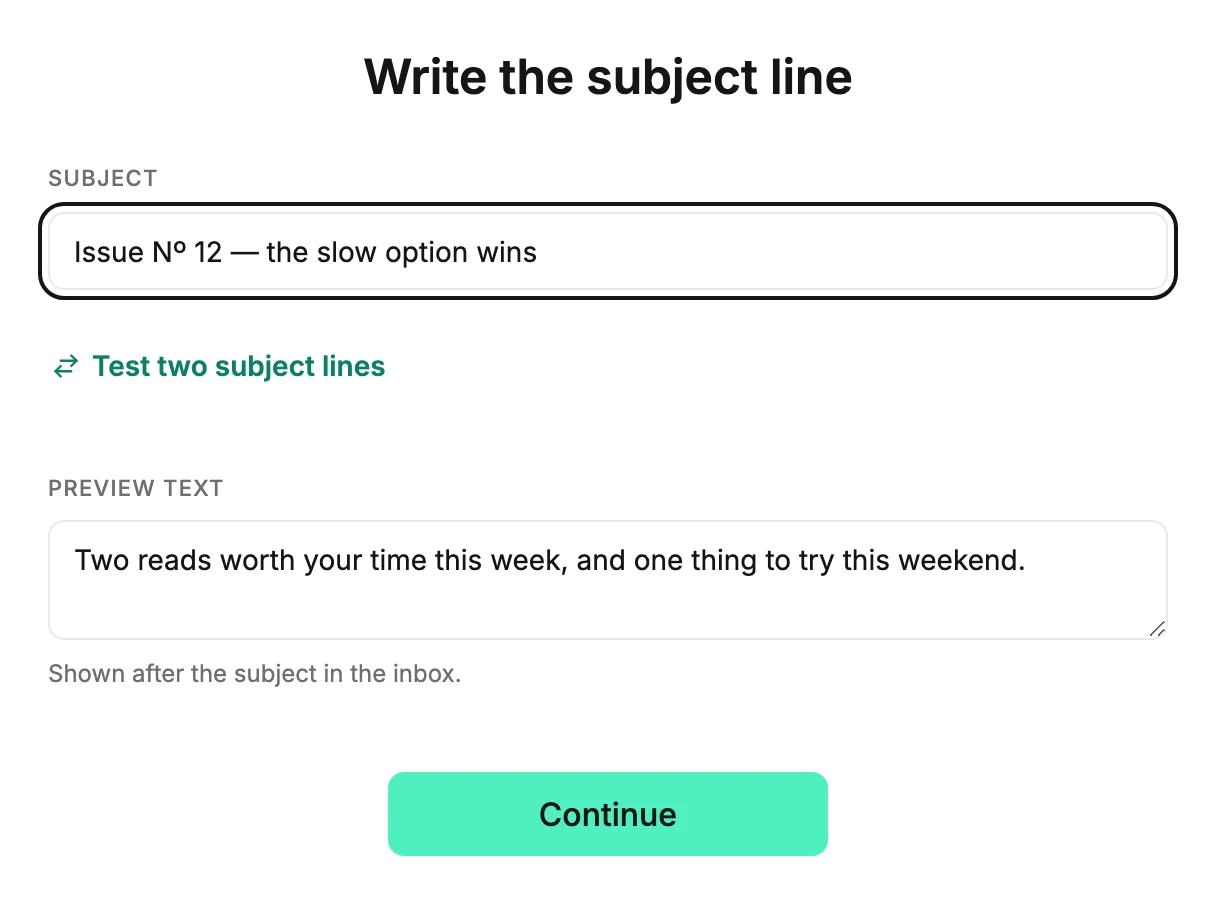
On the Subject step, type the subject line into Subject. If you started from a template, its subject is already here for you to type over.
-
Under Preview text, add a line or two. Most inboxes show it in gray after the subject, before anyone opens the email. If the template came with a preview line, it’s already here.
-
Select Continue. If the subject is empty, Jounce says Add a subject line. and puts your cursor there.
The subject line is not the email’s name. The name is what you see on your Emails page; the subject is what your readers see. To change the name, see Rename an email.
Where these are saved
The subject and preview text live only on this step. The editor has no field for them. Jounce saves both when you close the steps, and when you send, schedule, or hand off the email.
To try two subject lines against each other, see Test two subject lines. If Jounce’s AI wrote your email, it has a second subject ready for the test.
Next step
Both choices on the Review step: Change the name your email comes from and Schedule your email for later.
More in this topic
Updated