

Start an email from scratch
Short answer
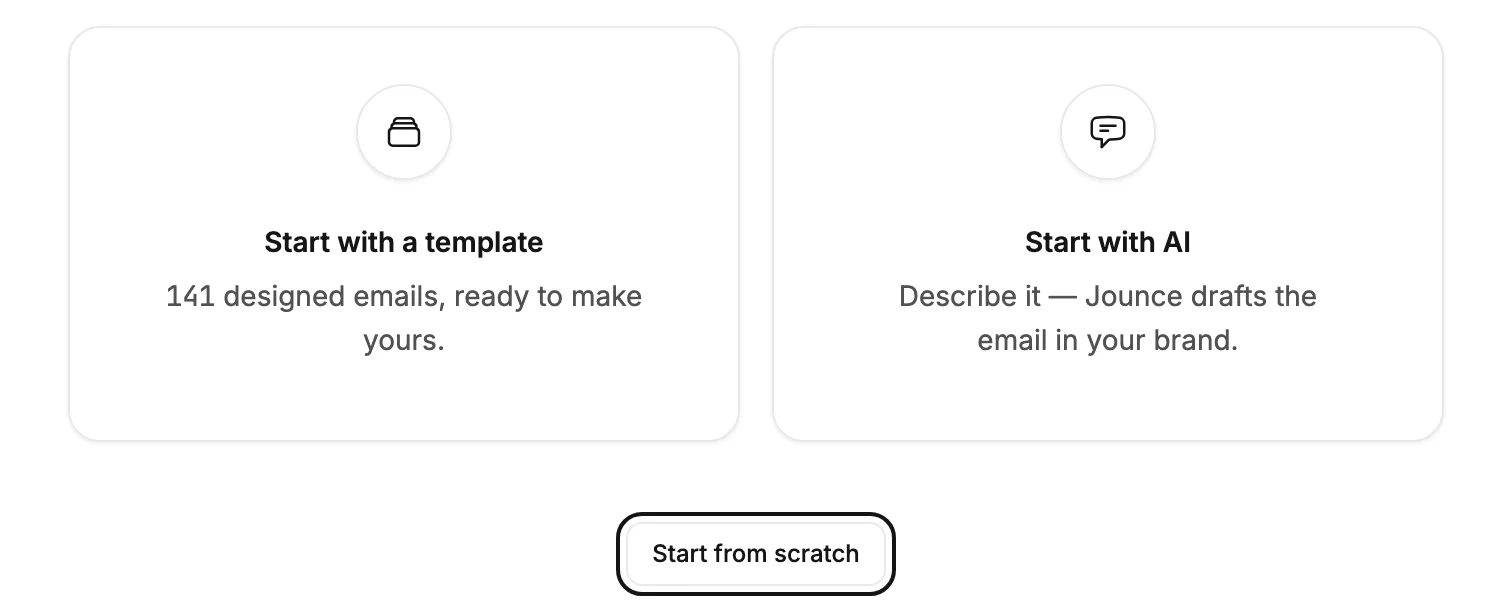
Select Create email, then Start from scratch below the two boxes. The editor opens on an empty email with a tray of layouts, and Jounce saves it once you add the first block.
When you’re done, an email with your first block is open in the editor. It’s listed on your Emails page as Untitled draft.
-
Open Emails and select Create email.
-
Below the two large boxes, select Start from scratch. The editor opens on an empty email that reads Start your email, with a tray of tiles open under it.
-
Pick a tile, such as Headers or Text. The settings panel shows that group’s layouts under Choose a layout.
-
Select a card. The block is added to your email, and Jounce saves the email.
It’s the editor every email you create opens in. See The email editor screen.
Before your first change
Jounce saves the email at your first change, which is usually the first block you add. Until then nothing is saved, and no email shows on your Emails page. Send test and Continue stay dimmed until the email holds a block.
What the email starts with
- The name. It’s listed as Untitled draft. The editor shows no name, so rename the email from its card on the Emails page. See Rename an email.
- No subject line, preview text, or photos. You write the subject line and preview text in the send steps, after Continue.
- Your mailing address and the unsubscribe line. They aren’t blocks in the email. They’re the legal footer the empty email mentions. Jounce adds them at the bottom of every email, and the editor shows them under the first block you add. See What Jounce adds to the bottom of every email.
- Your brand. The email wears your brand kit, like one from a template or with AI. That’s the logo, colors, and fonts saved on your Brand page. Until you save a kit, it wears a draft of it, and Before you send lists Your brand kit isn’t saved yet until you do. See Apply your brand to new emails.
If you’d rather start from a design, the first box on the Create email screen opens the template gallery instead.
Next step
Build it up with Add a block.
More in this topic
Updated