

Move, duplicate, or delete a block
Short answer
Select a whole block, and tools stand beside it: Move up, Move down, Duplicate, a star, and Delete block, which Undo takes back. In an email that opens in the earlier editor, a grip drags the block instead.
When you’re done, the block is where you want it, copied, or gone. A paragraph, a heading, a photo, a button: each is a block, or part of one.
These steps are for every email you create. For an email that opens in the earlier editor, see the last section.
- Select the block. If the panel’s heading reads Block › and a part’s name, select Block or press Esc, so the whole block is selected.
- A column of tools stands beside the block. Point at a tool to see its name.
- Use the tool you need:
- Move up and Move down are the two arrows at the top. Each press moves the block one place.
- Duplicate puts a copy right below and selects it.
- The star, Favorite, saves the block for reuse. A countdown has none. See Save a block to favorites.
- Delete block removes the block. Jounce says Block deleted and offers Undo.
With the whole block selected, the Delete or Backspace key removes it too. For a paragraph or a photo on its own, use Delete block instead.
Move up is dimmed on the first block, and Move down on the last. A dimmed arrow does nothing. You can’t drag a block.
Copy and paste a block
You can also copy a block with the keyboard. Select it and press ⌘C (Ctrl+C on Windows). Then select the block you want it below and press ⌘V (Ctrl+V). The copy lands right below and is selected, as with Duplicate. With nothing selected, it lands at the end.
The copy stays ready until you refresh or close this tab, so you can paste it into another email you open here. One Undo takes a paste back. While you’re typing, the keys copy and paste words as usual.
One item of a list
With one item of a list selected, such as a product, the Delete key removes that item, down to the fewest the design holds. Jounce says Removed — 3 products left.
The bottom of the email
The mailing address and the unsubscribe line aren’t blocks. They stay under the last block, whatever you move. See Why can’t I delete this block?.
In an email that opens in the earlier editor
There, the whole block’s toolbar sits at its top right, and a grip moves the block. Select the block, then select Block or press Esc if a part of it was selected.
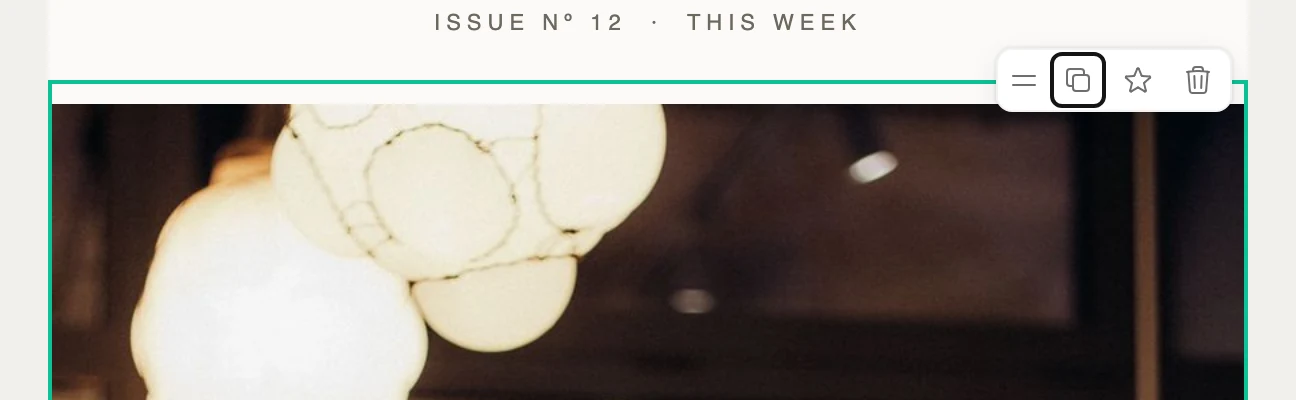
- Drag to reorder is the grip at the left. Hold it and drag the block up or down. A line shows where it will go. There are no up and down arrows.
- Duplicate makes a copy right below.
- The star saves the block for reuse.
- Delete removes the block. Jounce says Block deleted and offers Undo. The Delete or Backspace key removes it too.
Clicking or dragging on the block itself selects it, so a slip of the mouse never moves your email around.
You can’t drag, delete, or duplicate the mailing address and the unsubscribe line there, and no block can be dropped below them.
A designed layout’s parts, like its photo and its caption, aren’t separate blocks, and they keep their places. To arrange them differently, select the block and choose Swap layout in the panel.
Delete a part there and Jounce hides it. Jounce says Hidden — it stays in this block’s Elements list, with a Show button to bring it straight back. Deleting the last visible part deletes the whole block.
Next step
To rearrange the parts of a designed block, see Swap a layout.
More in this topic
Updated