

Cancel a scheduled or sending email
Short answer
Choose Cancel sending from the three dots on the email’s card, while its chip reads Scheduled, Sending, Sending winner, or A/B testing. A scheduled email stops at once; one already going out asks you to confirm first, and anyone who has it keeps it.
Once you cancel, the email stays on the Emails page with a Canceled chip, and its design is untouched. A scheduled email stops at once, before anyone gets it. For one already going out, everyone who has it keeps it. Jounce stops as soon as it can, but some people may still get it before it does.
Which emails you can cancel
Cancel sending is in the card’s menu while the chip reads Scheduled, Sending, Sending winner, or A/B testing. It also shows on a send Jounce is holding: Won’t send, Waiting on you, Needs your OK, Sending paused, Won’t finish, or On hold. A Draft has nothing to stop. A Sent, Partly sent, Failed, or Canceled email is already over.
Managers and Admins see this choice. If your role is Editor, ask a manager. See Workspace roles.
Cancel a scheduled email
- Open Emails and find the card whose chip reads Scheduled.
- Select the ⋯ (three dots) on its card, or at the end of its row.
- Choose Cancel sending. The send stops at once, with no confirmation step. Jounce says Sending canceled, and the chip changes to Canceled. The line under the name reads Canceled with today’s date.
Careful Nothing asks you to confirm on a scheduled email. The moment you choose Cancel sending, the send is off. To send it later, see Send it later below.
Stop an email that is going out
While the chip reads Sending, Sending winner, or A/B testing, people already have the email. So Cancel sending asks first.
- Select the ⋯ on the card and choose Cancel sending. A window opens, naming the email and asking whether to cancel sending.
- Read its line. While mail is going out: Everyone who has it keeps it. Jounce stops as soon as it can, but some people may still get it before it does. You can’t pick it up where it left off. During an A/B test’s wait: Your test group already has it. The rest of your list never gets the winner, and you can’t start it again.
- Select the red Cancel sending. Keep sending closes the window and changes nothing.
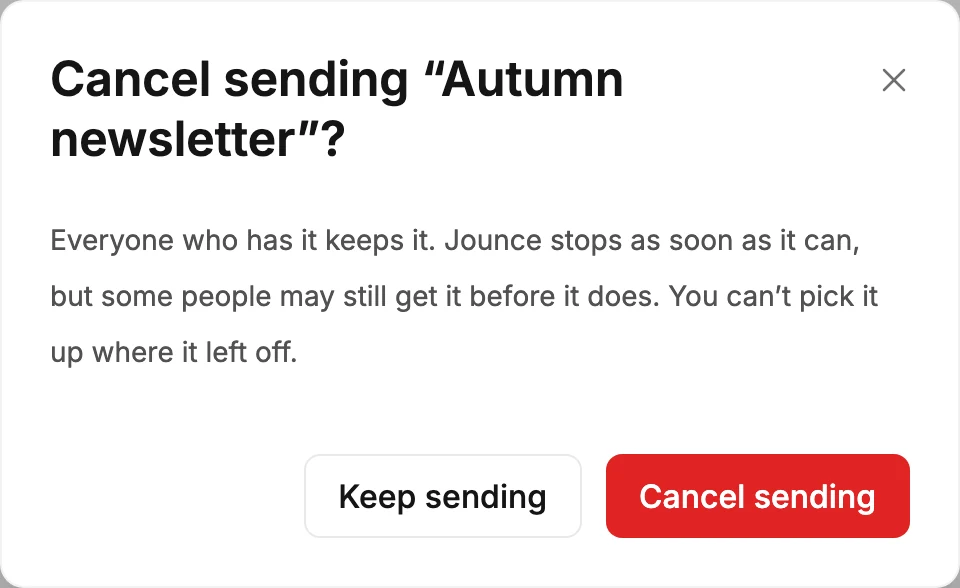
The window closes. Jounce says Sending canceled, and the chip changes to Canceled. If the send finished first, Jounce says This email finished sending before Jounce could stop it. If it had already stopped by itself, you see This email had already stopped sending on its own. Either way, the chip shows how it ended.
If your stop arrives just after the last message went out, there’s nothing left to stop. A moment later, the chip changes to how the send ended, such as Sent.
If the stop doesn’t go through, the window stays open and reads Couldn’t cancel sending. Try again, or refresh to check this email’s status. The send carries on as it was, so try again. On a scheduled email, the same sentence shows as a message instead.
What went out
Afterwards, point at the card and select See what happened. If nothing went out, the results page says Sending was canceled and Nothing went out, with a Review and send button. See Send it later below.
Right after you stop a send that was going out, the page may read Jounce can’t say yet whether any went out. The send is still stopping. The page doesn’t update itself, so reopen it in a minute or so.
If it reached anyone, the page shows the results for the mail that went out, and Analytics counts them too. The count at the top says how many got it, such as 120 of 300 people. See Open an email’s results.
If you stopped an A/B test in its winner round, the A/B test card reads Subject A won — sending was canceled.
If part of the send was interrupted, Jounce can’t confirm how many got it. The results page then says at least before the count, or that Jounce can’t confirm whether any went out. It may show no numbers for that send, and neither may Analytics.
Either way, if you send it to the same audience again, some people could get it twice.
Send it later
You can still send a canceled email that reached no one. Its card can’t start it again, but its results page can.
- Point at the card and select See what happened.
- Select Review and send. The send steps open for this email.
- Go through the steps to Review, and send it or schedule it. Nothing goes out until you select the last button.
Only Admins and Managers see Review and send, and only once the send has fully stopped. The page after you send offers it too, under Back to emails.
If anyone got it, or Jounce can’t confirm that no one did, there’s no Review and send. Duplicate it instead, then send or schedule the copy. Anyone who already got the original gets the copy too. Jounce can’t send only to the people it hadn’t reached. See Duplicate an email.
Next step
Send it after all: The send steps. Done with it: Delete an email.
More in this topic
Updated