

Change your email’s background and card
Short answer
Select the space around your email, and Page sets this email Open or Framed. The background, text color, and corners come from your Brand page, which Brand kit opens over your email.
When you’re done, your email sits in the inbox the way you want, in your brand’s colors.
These steps are for every email you create. For an email that opens in the earlier editor, see the last section.
- Select the space around your email. Nothing is selected, and the panel’s heading reads Email.
- Under Appearance, pick a Page. Open runs the email’s background edge to edge. Framed sets the email in a column on a slightly different shade.
- To change the background, the text color, or the corners, select Brand kit. The Brand page opens over your email. Change your colors or shape there, and select Save kit.
- Select Back to draft to return to your email.
Page is for this email alone. Pick the one your brand kit doesn’t use, and a note under it names your brand kit’s choice, like This email only. Your brand kit uses Open. A change on the Brand page reaches every email.
A piece of text can still take a Color of its own, in its own panel. See The Text block.
In an email that opens in the earlier editor
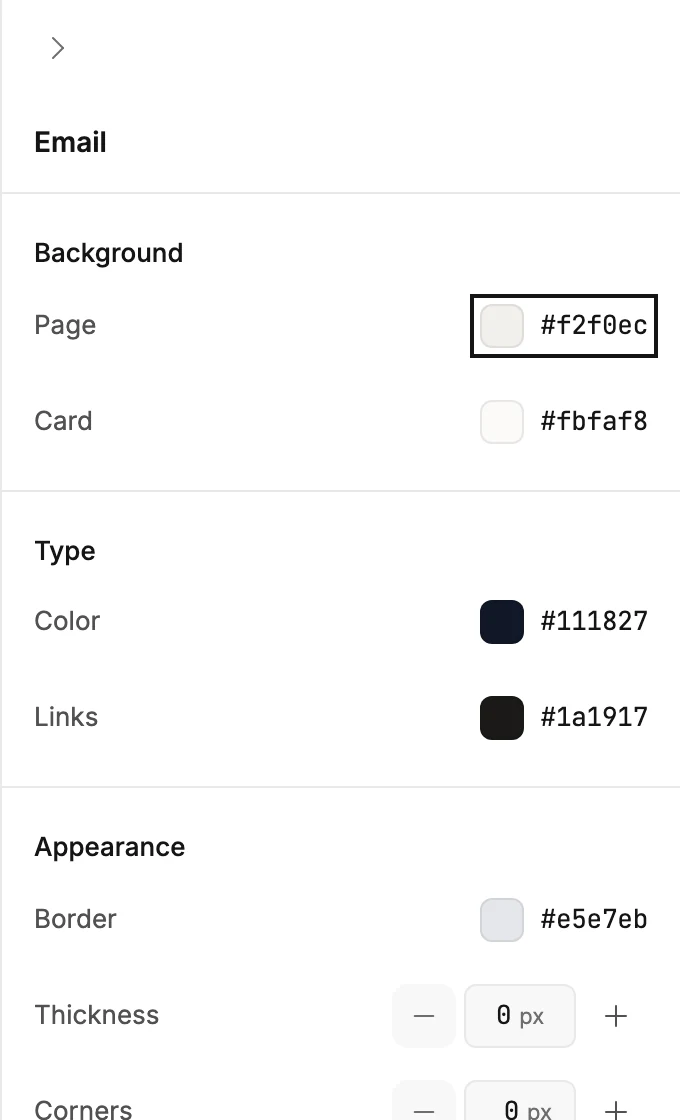
There, the Email panel holds the colors itself.
-
Select the gray area outside your email. The panel reads Email.
-
Under Background, select Page and pick a color for the area around the email. Select Card for the email itself.
-
Under Type, select Color to set the text color for the whole email.
-
Under Appearance, select Border and pick a color. Set Thickness for the line’s weight, and Corners to round the card.
-
Press Esc, or select anything in the email, to close the panel.
What each option changes there is in The Email settings panel. Every swatch opens the same picker; see The color picker.
Next step
One block on a color of its own: Change a block’s background or border.
More in this topic
Updated