

Zoom and reposition a photo
Short answer
Select the photo and drag the Zoom slider in the panel. Once the photo is zoomed, or has a set shape, drag its preview to choose which part shows.
When you’re done, the photo shows the part you chose, in the editor and in the sent email.
A photo always fills the width of its spot. Zooming in shows less of it, larger. Repositioning chooses which part of the photo stays in view.
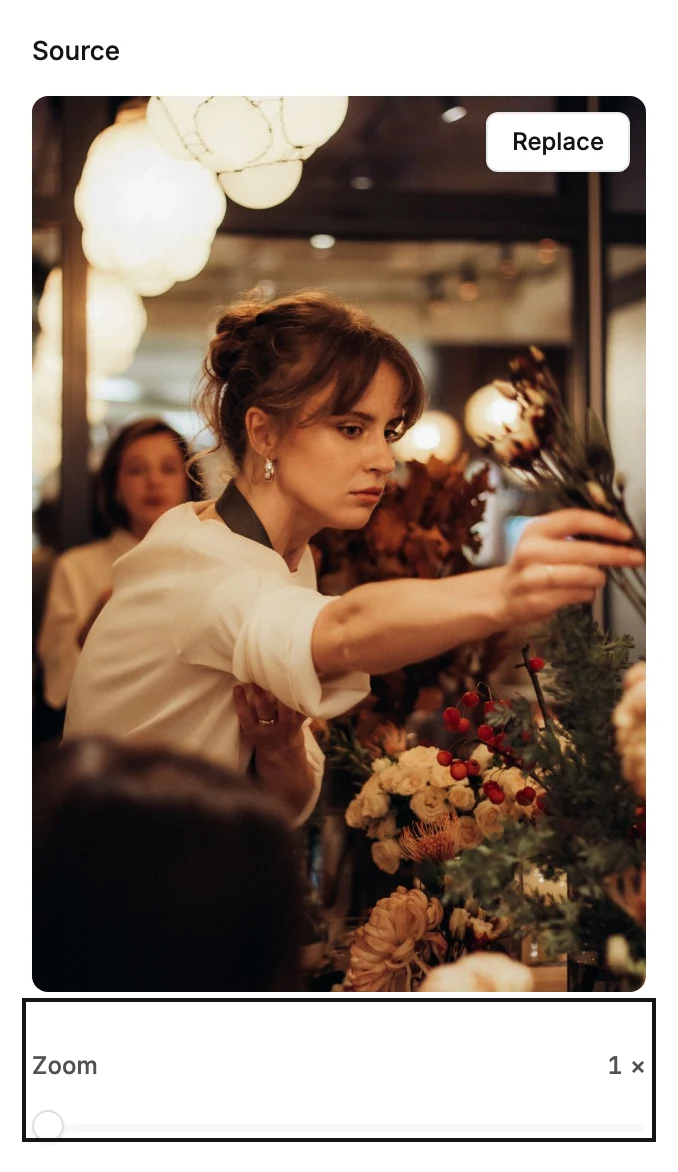
- Select the photo. The panel shows the photo’s preview.
- Drag the Zoom slider to the right. It starts at 1×, the whole photo, and goes up to 3×. The email follows as you drag.
- Once the photo is zoomed, pointing at the preview shows Drag to reposition. Drag the preview until the part you want is in view. The arrow keys nudge it too.
- Select anything else when you’re happy. The change saves with the email.
Why the photo won’t drag
At 1× the whole photo already shows, so there’s nothing hidden to move toward. You can drag once part of the photo is cropped away: zoom past 1×, or give the photo a set shape. See Give a photo a set shape.
A photo in a designed layout takes the shape the design gives its spot. When its own shape differs, you can reposition it without zooming. Whenever the photo can move, pointing at it shows Drag to reposition.
Start over
Drag Zoom back to 1× to show the whole photo again. For a different picture, point at the preview and select Replace at its top right. Or drop a picture file on the preview. A new picture always starts at 1× in the middle.
What the sent email shows
The picture in Your images is never changed. When you send, Jounce makes a copy cropped the way you set it, and that copy goes into the email. See How images travel in email.
Note A GIF can’t be cropped, because a cropped copy would lose its motion. A GIF shows whole in the panel, with no Zoom slider.
Next step
Before you send, give the picture a description: Describe an image for readers who can’t see it.
More in this topic
Updated