

Add a video
Short answer
Pick the tray’s Videos tile, choose the video on its own, and paste a YouTube or Vimeo link under Link. For a video with a headline and a button, add a video layout from the Intros tile and link its picture.
When you’re done, the email shows the video’s picture with a play button on it. A reader taps it and the video opens on YouTube or Vimeo.
An email can’t play a video inside it, so this is how every email tool does video. You don’t upload a file; you link to a video that’s already online.
These steps are for every email you create. For an email that opens in the earlier editor, see the last section.
- Point at a block and select the + at its top or bottom edge. The tray opens.
- Pick the Videos tile, then select its one card: a video on its own.
- Under Link, paste your video’s address and press Enter. A YouTube or Vimeo link brings the video’s picture, with a play button on it.
The whole walk, with what to do when the picture doesn’t arrive, is in Add a video on its own.
A video with a headline and a button
- Select a +, pick the Intros tile, and choose one of the three cards under the heading Episodes and videos.
- Select its picture. Put the video’s address in the box under Link, and press Enter.
A tap on the picture then opens the video, and a YouTube or Vimeo link brings the video’s own picture. See Link a video layout to your video.
In an email that opens in the earlier editor
There, the Video tile in the tray adds a Video block.
- Hover the line between two blocks and select +. The block tray opens.
- Select Video. The block appears with a spot that reads Your video goes here, and the panel reads Block › Video.
- Under Source, paste the video’s link into the box under Video URL. Any YouTube or Vimeo link works. A short youtu.be link changes to the full youtube.com address.
- Press Enter or select elsewhere. In the editor, a YouTube video shows its picture with a play button. A Vimeo video keeps the placeholder in the editor. Jounce fetches the video’s picture when you send.
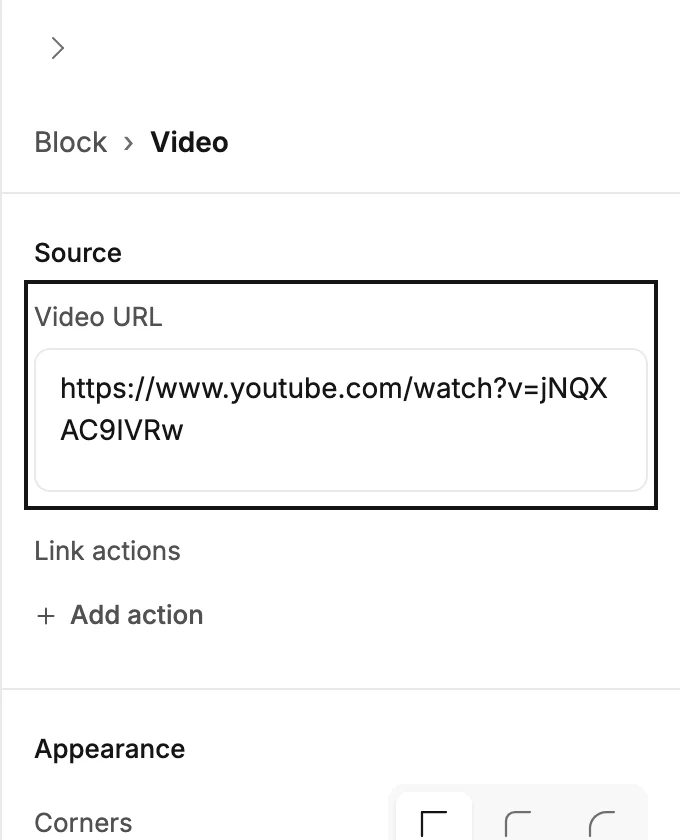
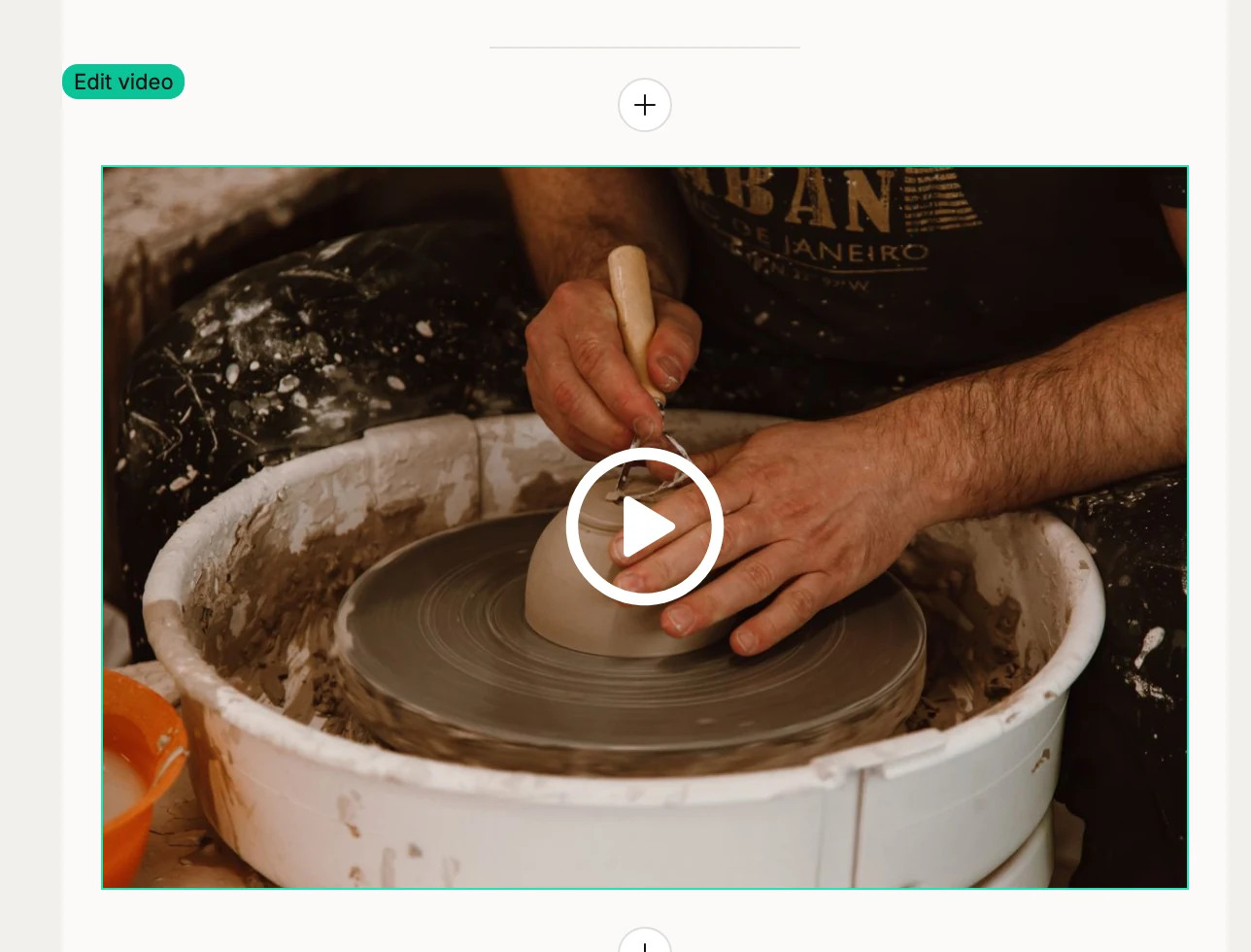
A link the box doesn’t recognize gets Paste a YouTube or Vimeo link under it. The email won’t send until it’s fixed. Copy the link from the video’s own page rather than from a playlist or a channel. See Why doesn’t my video play in the email?.
Once the link is in, Link actions appears under the box. There, a tap on the video can add the reader to a segment. The rest of the panel, corners and a description, is in The Video block.
Next step
Check the picture and its play button as readers see them: Preview your email.
More in this topic
Updated