

The layout library
Short answer
The settings panel’s gallery of designs, sorted into groups, where each card is a live preview and a click puts it in your email. The Videos group holds one video on its own; cover photos and videos with a headline sit in Intros.
The library is the gallery of designs in the settings panel. This article leads with what you see in every email you create. For an email that opens in the earlier editor, see the last section.
The tray opens the library: each tile opens it on its own group, under Choose a layout. See Add a block. Select a card and it’s added to your email, with its settings open. Swap design, at the top of a block’s panel, opens the library too. See Swap a layout.
If the settings panel is folded, select Settings at the right edge of the window to see the library.
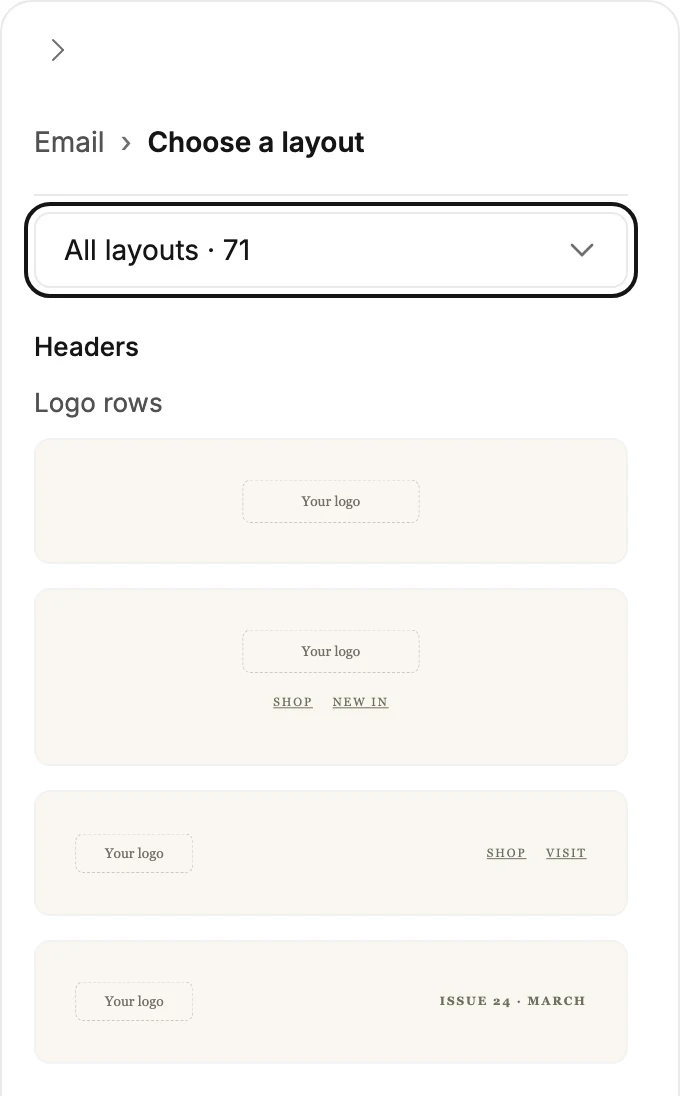
The menu at the top
When the tray opens the library, the menu at the top lists the same things as the tray, in the same order. Most of them show how many designs they hold.
- Recommended holds a few designs picked for the spot you’re adding to.
- All layouts holds every design, group by group.
- Then each group, in the order they sit in an email. The groups are Headers, Intros, Text, Photos, Videos, Products, Lists, Testimonials, Offers, Countdowns, Buttons, Info, and Footers.
- Favorites comes last. It holds the blocks you saved with the star. See Save a block to favorites.
The tray and the menu always agree. Pick another tile and the menu moves to it. Pick from the menu and the tray highlights that tile.
After Swap design the menu is shorter, or absent. See Swap a layout.
Where to find a design
A few designs sit where you might not look first:
- Text opens with a plain paragraph, the first card under the heading Paragraphs. The letters follow. A heading is the Heading switch in that block’s panel, not a card of its own.
- Photos opens with one photo the width of the email, the first card under the heading Stacked with no gap. It comes with an empty spot that reads Your photo. The line Cover photos are in Intros at the top opens Intros.
- Videos holds one video the width of the email. It comes with an empty spot that reads Your video. The line Videos with a headline are in Intros at the top opens Intros. See Add a video on its own.
- Buttons opens with one button on its own, the first card under the heading On its own. See Add a button on its own.
- Intros holds the openings, under four headings: Covers, Episodes and videos, Events, and Bios. The designs under Episodes and videos draw a play button on their picture. To make it open your video, see Link a video layout to your video.
- Under All layouts, Countdowns is one card. Select it to see every timer.
The cards
Each design’s card is a live preview in your brand’s colors and fonts.
Some cards have a small menu under them that names a look, like Background · Soft shade. Choose another look there, then select the card.
In an email that opens in the earlier editor
The library opens in the panel two ways there. Add a Layout block and it opens under the title Choose a layout. Or select a designed block and choose Swap layout. See Add a designed layout.
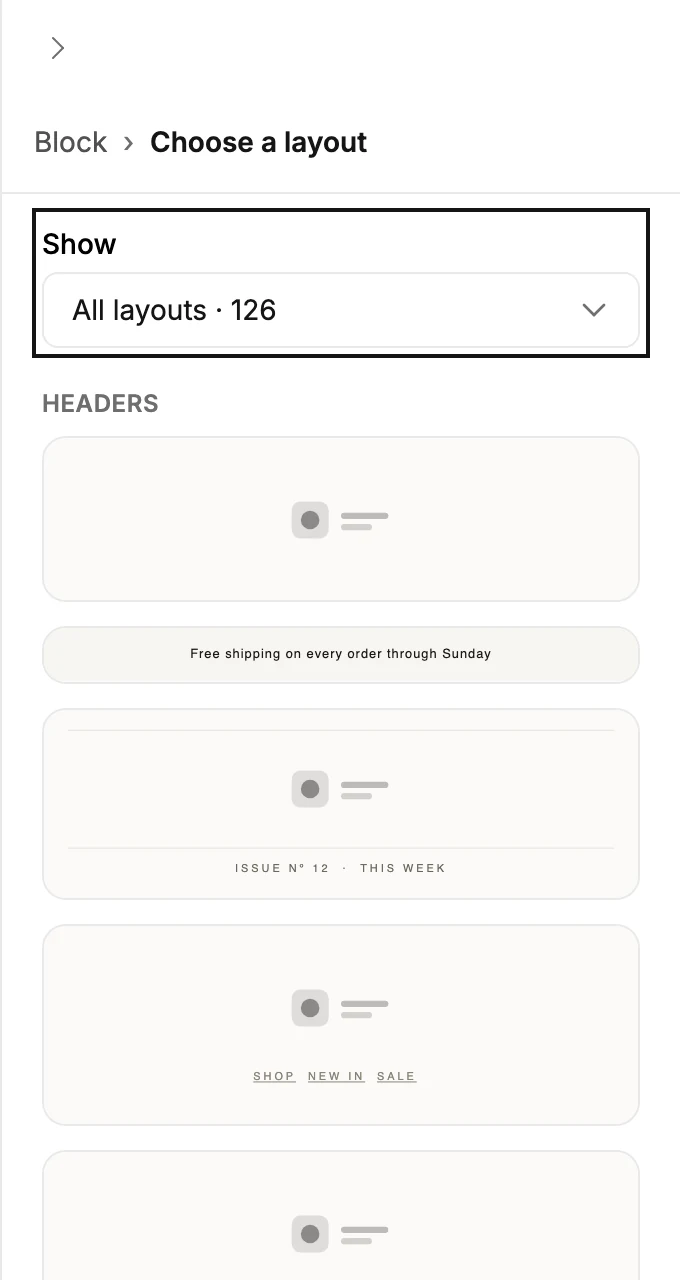
Show sits at the top when you’re choosing a layout for a new block. It narrows the gallery to one group. All layouts shows everything, and Favorites shows the blocks you saved with the star.
The Swap layout list has no menu. It shows only the layouts with room for what you’ve written. See Why does Swap layout show only some layouts?.
The groups run in the same order every time, so a layout is always where you left it.
| Group | Examples |
|---|---|
| Headers | Logo Header, Masthead, Announcement Bar |
| Intros | Cover Story, Manifesto, Host Pair |
| Letters | Letter Opener, Greeting, Calm Note |
| Photos | Full Frame, Grid Four, Mosaic |
| Products | Product Card, Product Duo, Category Tiles |
| Lists | Numbered Step Row, Checklist Row, Menu Dish |
| Testimonials | Pull Quote, Quote Card, Stat Band |
| Offers | Coupon Bar, Sale Banner, Promo Code Card |
| Buttons | CTA Band, RSVP Ticket, App Download |
| Info | Section Break, Event Card, Notice Strip |
| Footers | Signoff, Postscript, Follow Bar |
Two groups split into smaller sets with their own headings. Intros holds Covers, Statements, and People. Lists holds Steps, Checklists, Menus, Schedules, Articles, and FAQs.
Each card is a live preview at your email’s width, so words wrap on the card the way they will in the email. Point at a card and its name appears. A few designs send as one full-width picture; their name says so, sends as one full-width image. The card of the design your block uses has an outline.
Select a card and the design goes into your email at once. The panel stays open, so you can click through several cards and watch the email change. Undo at the bottom right brings the last design back.
More in this topic
Updated