

Change a block’s background or border
Short answer
Select the block, choose Swap design, and pick the same design on the background you want. A block’s colors come from your Brand page, and it takes no border.
When you’re done, the block sits on the background you picked.
These steps are for every email you create. For an email that opens in the earlier editor, see the last section.
A block’s background is part of its design, and its colors come from your Brand page. Some designs come on more than one background.
- Select the block. If a part of it is selected, select Block at the top of the panel, or press Esc.
- Choose Swap design beside the panel’s heading. The panel shows similar layouts.
- Pick the card on the background you want. Each background shows as a card of its own, such as the same product grid on a soft shade or on your brand color.
When you add a block instead, a card with more than one look has a small menu under it, such as Background · Soft shade. See The layout library.
No color or border rows
A block has no Background or Border row. To change the colors every design uses, change them on your Brand page.
In an email that opens in the earlier editor
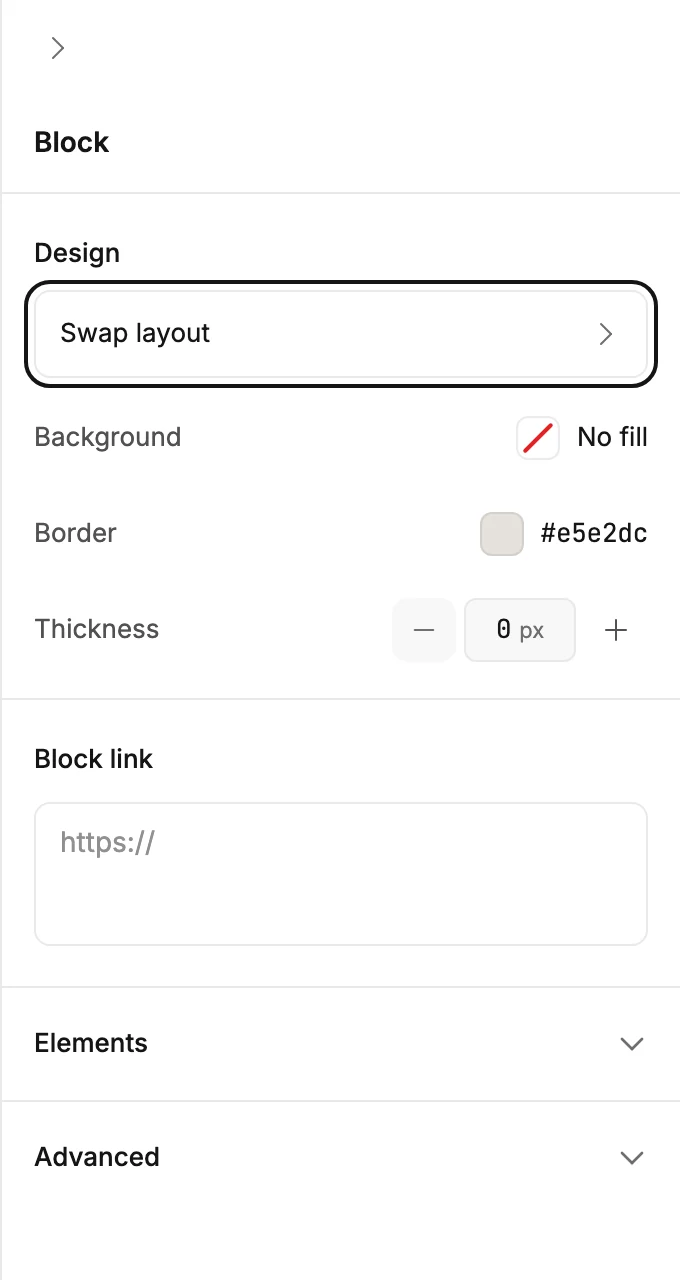
There, a block carries its own Background, and some carry a border.
-
Select the block. If a part of it was selected, select Block at the top of the panel.
-
Under Design, select the Background swatch and pick a color. The whole block fills edge to edge. Pick No fill to remove the color. See The color picker.
-
Select the Border swatch and pick a color. A thin line appears around the block.
-
Set Thickness with the stepper. 0 removes the line.
A block whose parts sit side by side, like an article teaser with a photo beside its text, offers no border. Each column would draw its own frame, which looks broken. The rows appear on a block whose parts stack in one column.
Next step
For the colors your designs use, see Set your brand colors. For the page around your email, see Change your email’s background and card.
More in this topic
Updated