

Preview a sent or scheduled email
Short answer
On the Emails page, open the three dots on a sent or scheduled email and choose Preview. It opens the way a subscriber’s mail app shows it, with Desktop, Mobile, and Plain text views.
When you’re done, you’ve seen the email as it reaches an inbox, on a phone and a desktop. You never leave the Emails page.
-
Open Emails and find the email. Its status label reads anything but Draft.
-
Select the ⋯ (three dots) on its card, or at the end of its row.
-
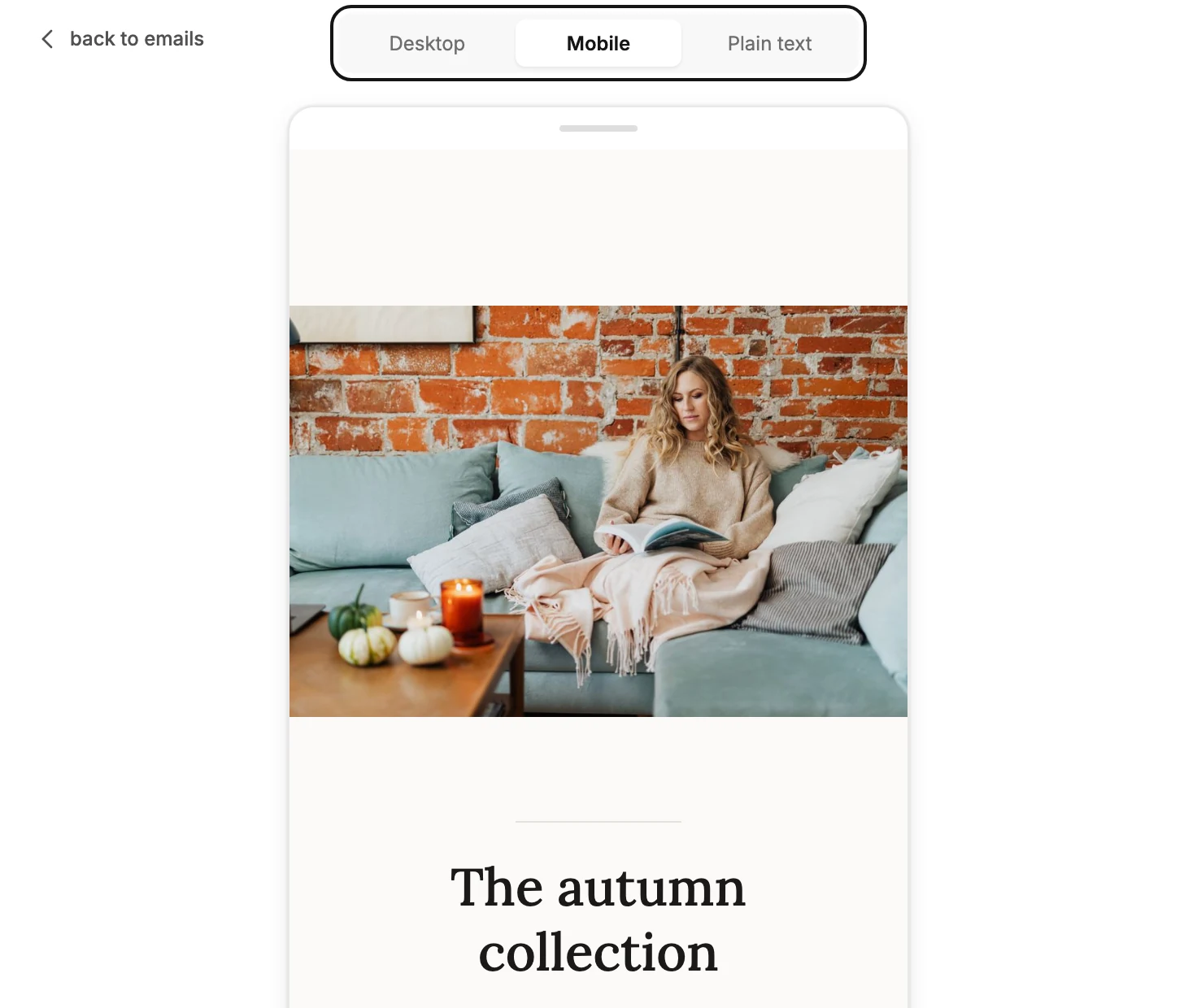
Choose Preview. The email opens on the Mobile view.
-
Switch to Desktop to see it at full width. Plain text shows the words-only version sent with every email, for mail apps that don’t show designs.
-
Select back to emails at the top left to close it.
The preview shows the email as a subscriber’s mail app does. Sample details stand in for a subscriber’s own name or address.
The preview is only the email. An email that opened in the earlier editor can show notes above it, the same notes that editor’s preview shows. See Preview your email.
A draft has Edit in its menu instead of Preview. Open the draft and use Preview in the editor’s top bar. To see it in a real inbox, send a test. See Send a test email.
Next step
For the numbers behind a sent email, see Open an email’s results.
More in this topic
Updated