

The template gallery
Short answer
The gallery’s goal buttons and Industry menu narrow the cards as you pick. Selecting a card makes the email at once and opens it in the editor.
The gallery has one job: help you find a template. There’s no search box for templates. It opens on your industry, you browse by what the email is for, and you pick a card.
The goal buttons
Under What’s your email for? sits a row of buttons. One is selected at a time, and the cards below change as you pick. All shows every template for the industry you’re on.
A goal shows only when that industry has a template for it, so every button leads to at least one card. Under All industries, every goal is there.
| Goal | Holds |
|---|---|
| Welcome & win-back | Welcome emails, onboarding, win-back emails, and lead-magnet deliveries |
| Newsletters | Newsletters, roundups and recaps, guides and tips, lessons, brand stories, comparisons, and class schedules |
| Launch & sell | Launches and new arrivals, collections and gift guides, sales and offers, restocks and last calls, price changes, bookings and reservations, memberships and upgrades, and customer stories and reviews |
| Fundraising | Appeals, giving days, monthly giving and memberships, and donor thank-yous |
| Events | Invitations, save-the-dates, confirmations, reminders, lineups, replays, and the thank-you after an event |
| Post-purchase | Thank-yous after an order, review and feedback requests, and a photo gallery delivered after a shoot |
| Announcements | Holiday hours, a move, hiring, and a plan renewal notice |

Industry
The Industry menu at the end of the row narrows the cards to designs made for one kind of business. The gallery opens on the industry in your Brand profile, and the menu button shows its name.
If your profile has no industry, or one with no designs yet, it opens on All industries. To change where it opens, choose another industry on your Brand profile. See The Brand profile.
Open the menu to choose another industry. It lists All industries and then only the industries that have a designed template, with a count beside each. A Search box at the top of the menu finds an industry by name.
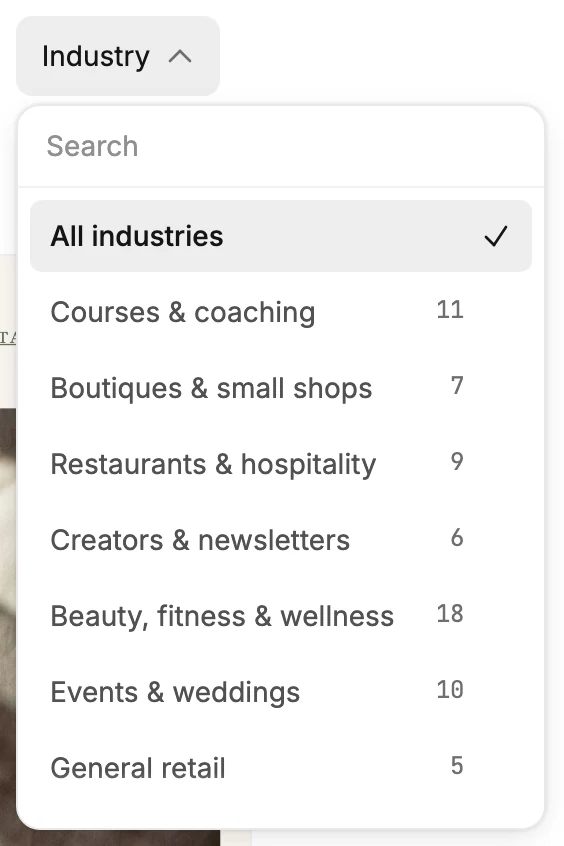
The goal and the industry apply together. Under All industries, the menu button reads Industry. Templates made for any business, such as Sale and Win-back, show under All industries only. So an industry’s count is just the designs made for it.
At the end of one industry’s cards, Show templates from all industries switches the menu to All industries and takes you back to the top.
The cards
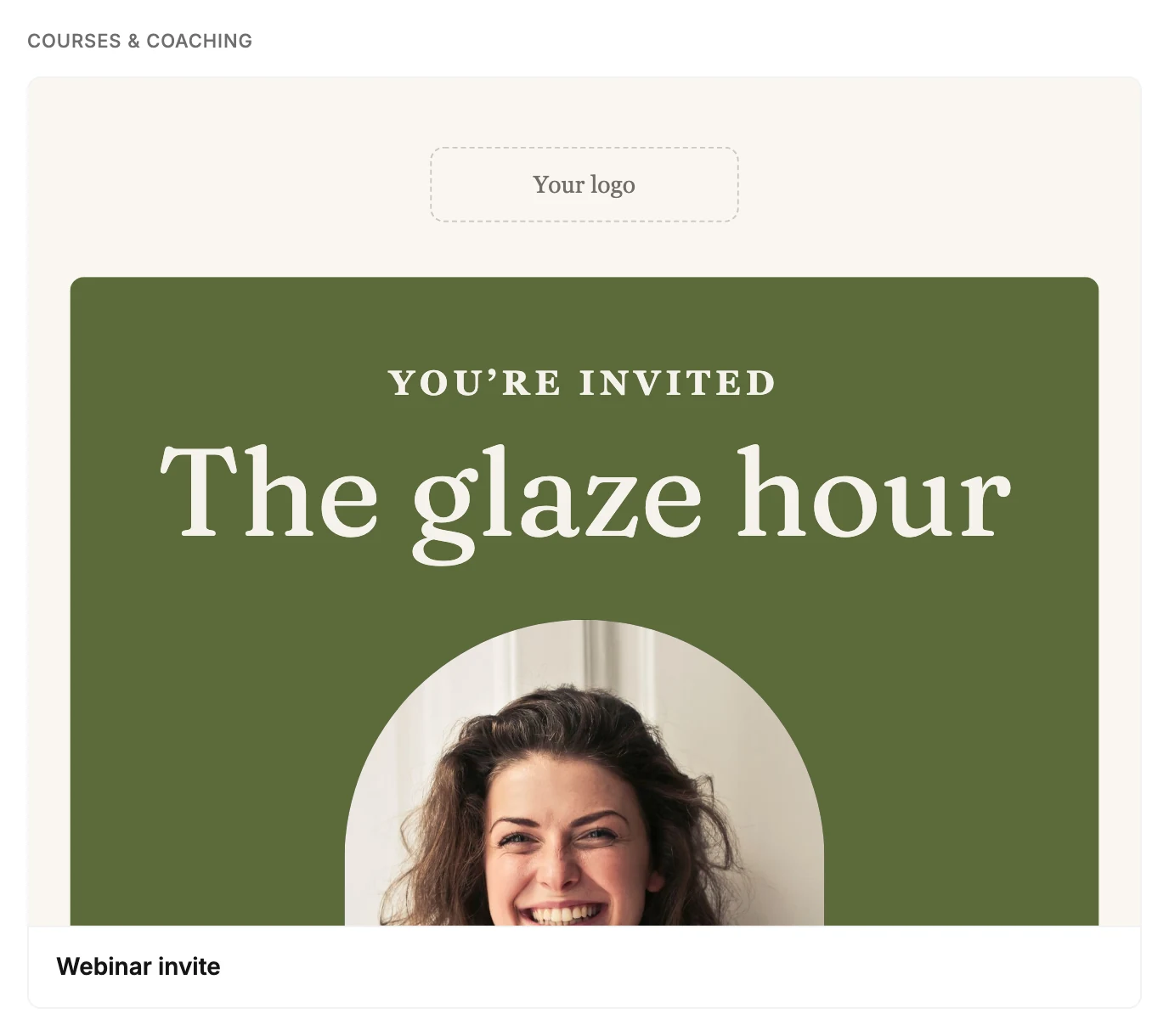
Under All industries, the cards sit under a heading for each industry, such as Courses & coaching. Designs that suit any business come first, under Any business. Pick an industry and its cards show with no heading.
Each card shows the real design in your brand kit’s logo, colors, and fonts, with the template’s name underneath. Until you save a brand kit, the cards show a draft of it: your logo, colors, and fonts where Jounce has them. See Why doesn’t my new email use my brand?
Rest your pointer on a card, or tab to it, and the design scrolls slowly through the card, so you read the whole email. If your device is set to reduce motion, the card stays at the top.
There’s no separate preview step. Select a card and Jounce makes the email at once and opens it in the editor. What it brings with it is in What a new email starts with. To see it at phone width, select Preview in the editor. See Preview your email.
Back
Back, at the top left, returns you to the Create email screen.
From an automation
When you arrive from an automation’s Send email step, a line across the top says You’re making an automation email. It attaches to the step you came from. Back to automation returns you to the step. Here the link at the top left reads Emails instead of Back.
Start from scratch sits under the goal buttons, for an empty email instead of a template. Jounce puts the empty email on the step and opens it in the editor. This is the only time the gallery shows it. See Create a new email for a step.
More in this topic
Updated