

Change the space around a block
Short answer
In every email you create, each design carries its own spacing and Jounce sets the gap between two blocks, so there’s no padding to set. In the earlier editor, Padding under Advanced sets the space inside a block.
In every email you create, the space is set for you. Each design carries its own spacing, and Jounce sets the gap between two blocks. There’s no Padding row, and no Spacer or Divider block to add. For an email that opens in the earlier editor, see the last section.
In an email that opens in the earlier editor
When you’re done there, the block has more or less air inside its edges.
-
Select the block. If a part of it was selected, select Block at the top of the panel.
-
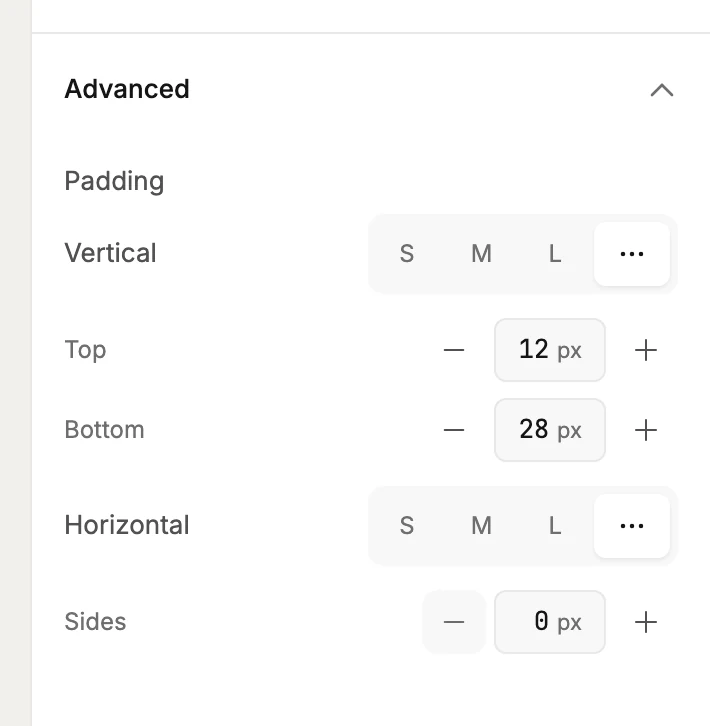
Select Advanced at the bottom of the panel. Padding unfolds.
-
Vertical sets the space above and below what’s in the block: S, M, or L.
-
Horizontal sets the space at the sides: S, M, or L.
-
For your own numbers, select •••. Top and Bottom appear under Vertical, and Sides under Horizontal, in pixels, in steps of four.
Padding is space inside the block, so a block with a background color grows with it. The gap between two blocks is made of each one’s padding. To close it, lower the bottom of the one above and the top of the one below.
For a gap that’s its own block there, add a Spacer. For a line between two blocks, add a Divider. See The Spacer block and The Divider block.
Next step
To try a different look for the block, see Swap a layout.
More in this topic
Updated