

Rename an email
Short answer
On the Emails page, open the three dots on the email’s card, choose Rename, type the name, and select Save. The card shows the new name at once.
When you’re done, the card wears the name you typed.
-
Open Emails and find the email.
-
Select the ⋯ (three dots) on its card, or at the end of its row.
-
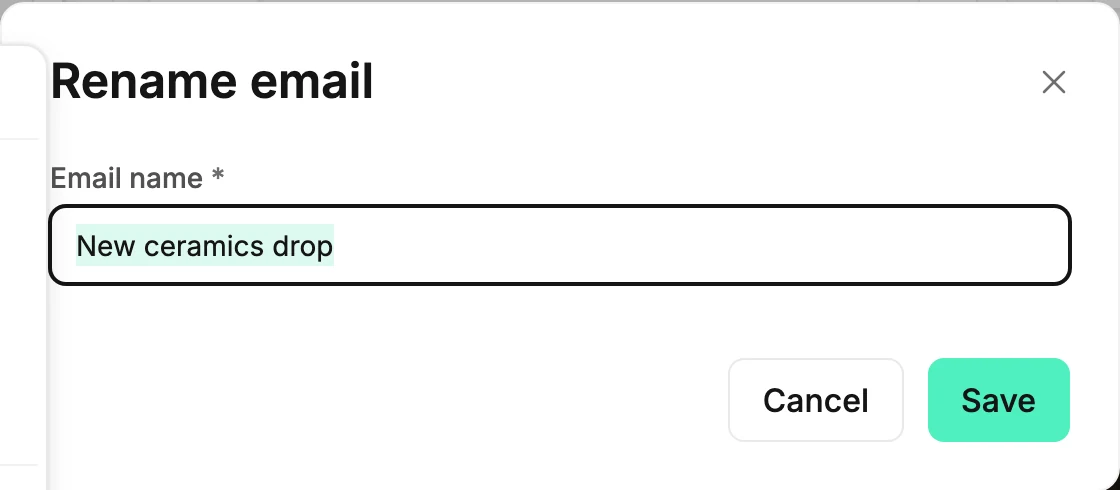
Choose Rename. The Rename email window opens with the current name highlighted, so typing replaces it.
-
Type the name and select Save, or press Enter. The card shows it at once.
An email you started from scratch is listed as Untitled draft until you rename it. The name can’t be empty: the field says Type an email name first and waits. If the save doesn’t go through, Jounce says Couldn’t rename the email. It kept its old name. Try again.
In the editor
The editor shows no name, so rename an email here, on the Emails page.
An older email is the exception. It opens in the earlier editor, which shows the name at the top left. Select it, type, and the name saves as you type. Both places change the same name. Clear the name there, and the card reads Untitled email.
The name is for you. Your subscribers see the subject line, which you set on the send steps. See Send or schedule your email.
Next step
What your readers see is set in Write the subject line and preview text.
More in this topic
Updated